Reader View in Vivaldi on Android
This post is also available in:


Using Reader View is an excellent way to declutter your screen to focus on the content – especially on smaller screens.
Enable Reader View
To be able to switch an article into Reader View:
- Go to Settings > Content Settings > Accessibility
- Make sure that Reader view for web pages is enabled.
Toggle Reader View on and off
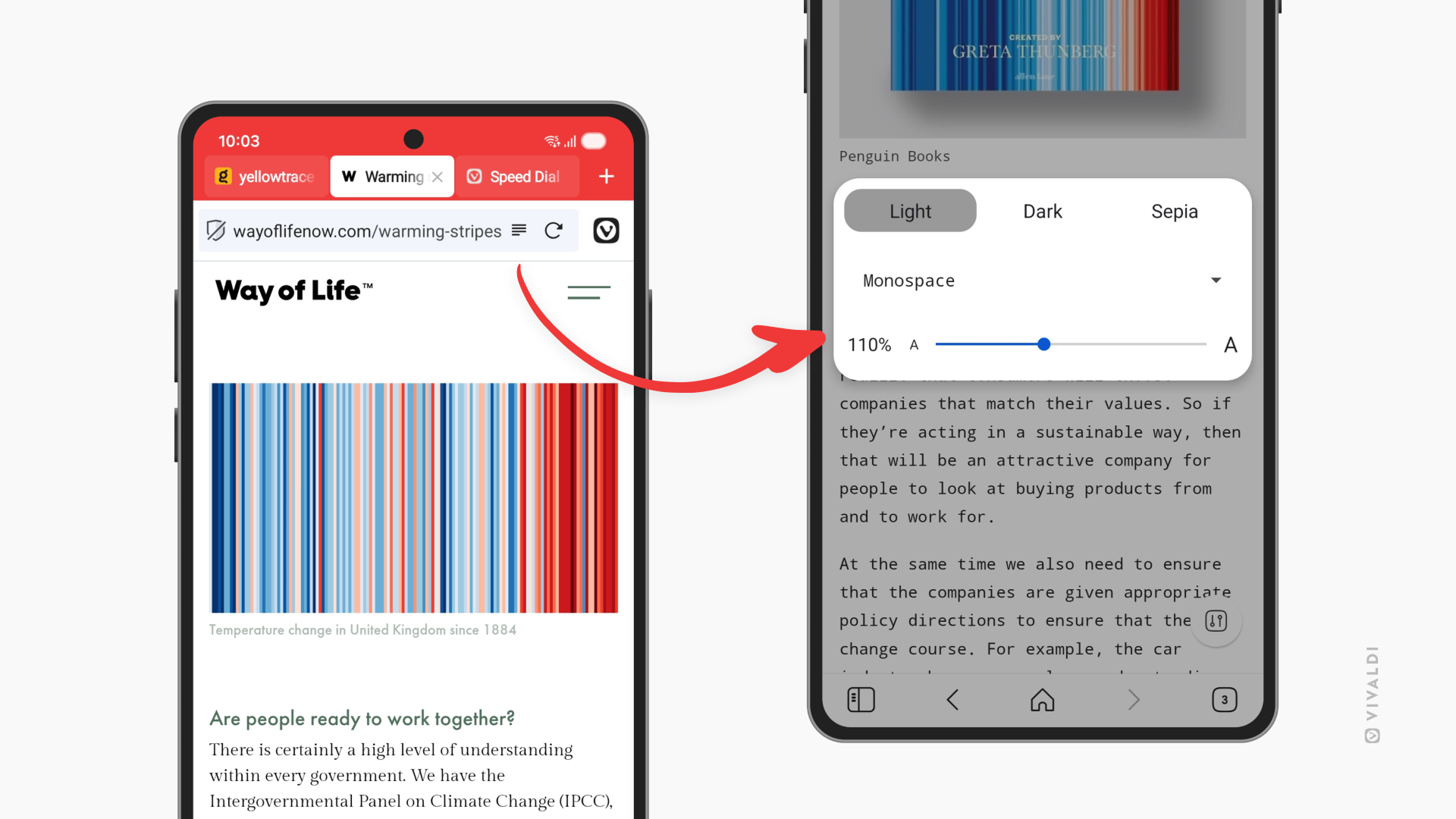
To enable Reader View on a web page, simply tap the  Reader View button in the Address Field. If you don’t see the button, it means that there isn’t enough text content to enable the feature.
To exit Reader View, tap the same button in the Address Field.
Reader View settings
To change the page theme, font, and text size:
- Enable Reader View on the page.
- Tap on the
 Settings button in the bottom right corner.
 - Adjust the available settings to your liking.
- Tap outside the Settings area to exit.
Find in Page
Search for a specific term on the page currently being viewed in Reader View by using Find in Page.
To search through the text:
- Go to
 Vivaldi menu > Find in Page.
 - Enter the search term.
- Use arrows in the top right corner to move to the next/previous result.
Was this helpful?
Thanks for your feedback!