Import data to Vivaldi on iOS
Import from Vivaldi on other devices
To import your browser data from Vivaldi on desktop or another mobile device, it’s best to use Vivaldi’s Sync feature.
To sync data to iOS:
- Go to Settings > Sync.
- Log in to your Vivaldi Account and enter the encryption password.
- Choose whether to sync all or selected data.
Visit the Help page about Syncing browser data on iOS for more detailed information.
Import from Safari
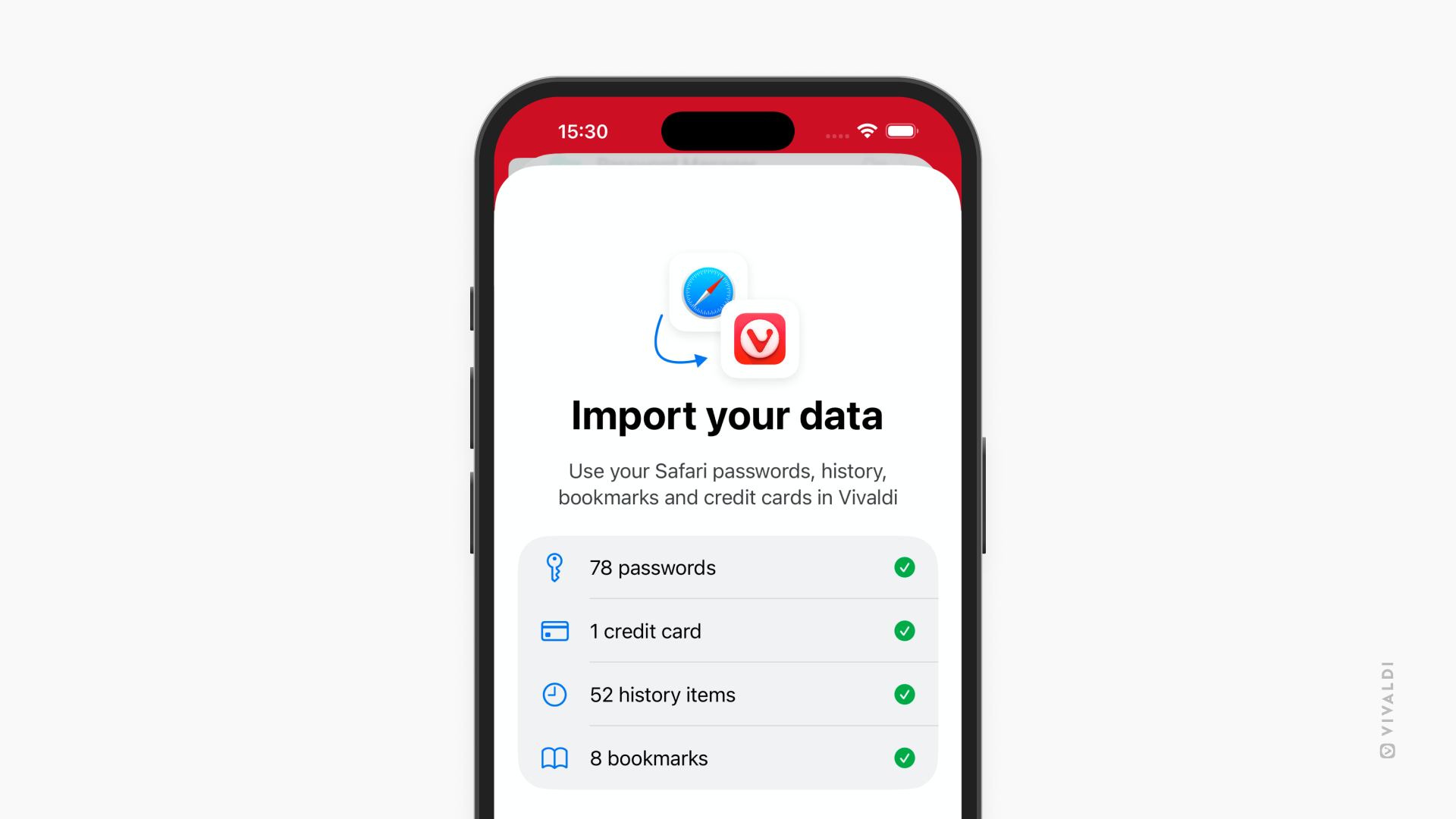
To bring data over from Safari to Vivaldi, you first need to export the data from Safari.
To export data from Safari:
- In Vivaldi, go to Settings > Safari import > Go to [Safari] Settings.
Alternatively, go to iOS Settings > Apps > Safari. - In Safari’s settings, scroll down to History and Website Data and tap Export.
- Tap Export to Files.
- Select what to export.
- Tap Save to Downloads.
- Verify yourself.
- Tap Done.
To import data to Vivaldi:
- In Vivaldi, go to Settings > Safari import > I’ve exported my data.
- Tap on Select your file.
- Locate the exported file and tap on it.
- Tap Import.
- Tap Done.
- Tap Yes, delete if you wish to delete the exported file or Cancel if you wish to keep it.
Import from other browsers
Direct import from other browsers on iOS is unfortunately not possible. If you use the other browser also on desktop, you can try syncing the browser’s data on iOS to its desktop version, import the data to Vivaldi and sync it from Vivaldi on desktop to Vivaldi on iOS.
Was this helpful?
Thanks for your feedback!