Web Apps and Home Screen shortcuts on iOS
This post is also available in:


Web Apps on iOS are shortcuts that open websites in their own window as if they were independent apps. An alternative is a Home Screen shortcut, which looks the same on the Home Screen as a web app, but instead of opening the site in its own window, it opens in a new tab in the main Vivaldi window.
To create a web app:
- Open the web page you want to add to the Home Screen.
- Go to the
 Vivaldi menu > Share Page.
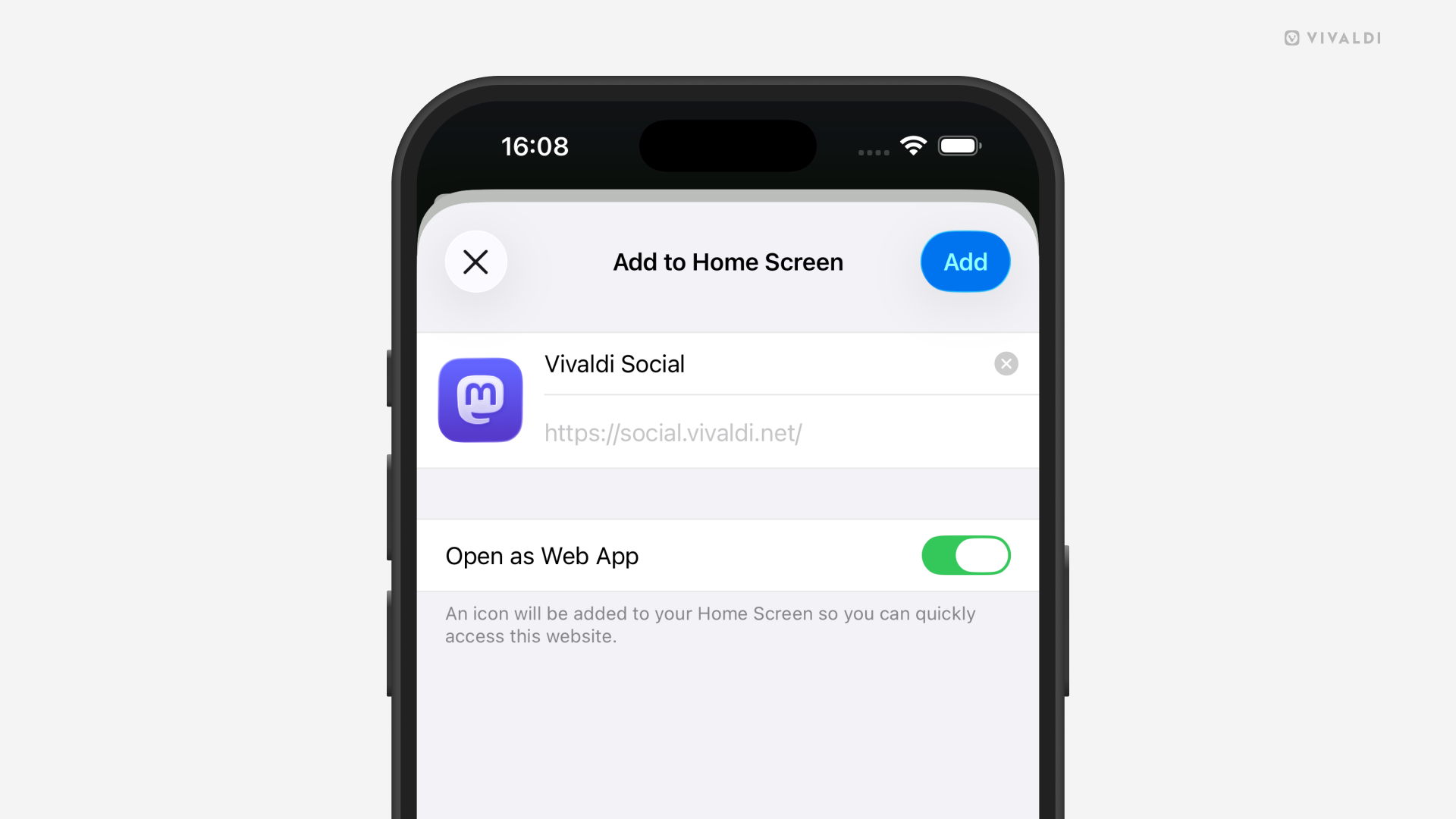
 - Select Add to Home Screen.
- If needed update the web app’s name.
- Keep “Open as Web App” enabled.
- Tap on Add.
To create a Home Screen shortcut:
- Open the web page you want to add to the Home Screen.
- Go to the Vivaldi menu > Share Page.
- Select Add to Home Screen.
- If needed update the shortcut’s name.
- Disable “Open as Web App”.
- Tap on Add.
Open links from Web Apps in the main browser
To open a link from a web app as a new tab in the main Vivaldi browser window, Vivaldi needs to be set as your default browser.
To open a link:
Option 1
- Long-press on a link to open the context menu.
- Select Open.
Option 2
- Open the link in the in-app browser view.
- Tap on the browser icon in the bottom right corner.
Delete Web Apps and Home Screen shortcuts
To uninstall a web app or delete a shortcut:
- Long-press on the web app/shortcut icon on your home screen.
- Select Delete Bookmark.
Was this helpful?
Thanks for your feedback!