Guest profile
This post is also available in:


Browsing in Guest Profile means that searches, sites visited, cookies, and temporary files won’t be stored by Vivaldi.
The Guest Profile will have Vivaldi’s default look and settings and the Guest won’t be able to change any of your browser settings or access your data from the Guest Profile. If all you want is to browse privately – with access to your customizations – use Private Windows instead of the Guest Profile.
Open Guest Window
- Click on the Profile button in the top right corner of the browser.
- Select Open Guest Window from the menu.
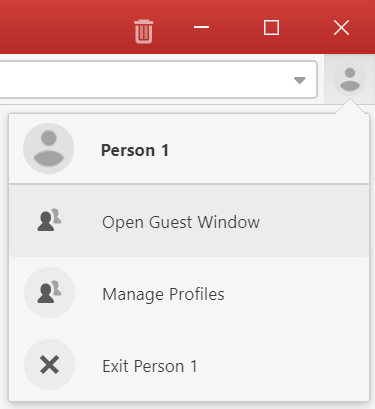
Alternatively, for example if you’ve hidden the Profile button, go to Settings > General > Profile Management > Manage Profiles > Guest mode.
Close Guest Window
- Close the Guest Window as a normal window.
- Open the Profile menu in the main profile window and select Exit Guest Profile.
If the Guest Window was the very last window you closed, then on restart Vivaldi will display the profile manager.
Privacy
Guest Profile does not encrypt or otherwise modify your connection. Note that if you log in to any websites, the website may still record your activity on any websites they have access to, and associate it with your account on that website. Use of guest mode will not hide your browsing activity from the website – it does not offer any anonymizing service. You would need to use a VPN or anonymizing proxy service if that is required.
Your activity might be visible to:
- Websites you visit (including the ads and resources used on those sites);
- Network admins;
- Internet service provider.