Preview Tabs
This post is also available in:


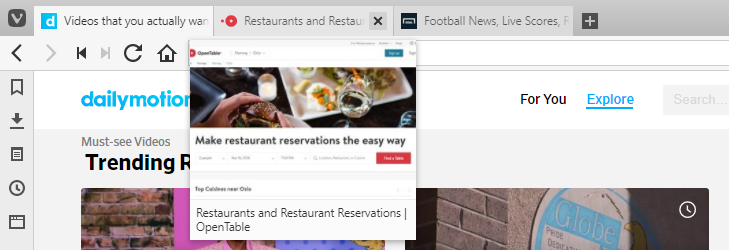
Previewing tabs lets you find the page you’re looking for easily by showing you a screenshot of the page in a thumbnail.
Pop-up thumbnails
To preview a tab, move your mouse pointer over the tab in the Tab Bar. A visual preview of the tab’s contents will appear below. This feature can be enabled/disabled in Settings > Tabs > Tab Display > Tab Options > Show Pop-up Thumbnails.
Pop-up thumbnails for Tab Stacks
When you’ve grouped tabs into a Tab Stack, hovering over the stack on the Tab Bar will show you the thumbnails for all tabs in the stack. You can close tabs from there and drag tabs out of the stack to the Tab Bar or new Window. Alternatively, right-click on the thumbnail and select Close Tab or Remove from Tab Stack from the context menu.
Tab Bar thumbnails
To enable or disable more permanent tab previews:
- Go to Settings > Tabs > Tab Display > Tab Options and toggle Show Tab Thumbnails on or off.
- Type “Tab Thumbnail” in Quick Commands.
- Create a Keyboard Shortcut or Mouse Gesture for the action.
- Place the mouse pointer on the edge of the Tab Bar, where it changes into a double ended arrow. Then drag (like shown on the gif below), double-click or middle mouse button click to show and hide tab thumbnails. For this option to work, Show Tab Thumbnails needs to be enabled in Settings.
