Access Vivaldi Social from Mastodon apps

Vivaldi Social can be accessed from any web browser by logging in on the link https://social.vivaldi.net/. Mastodon also supports Progressive Web Apps.

In addition to the web version, you can access your Vivaldi Social account from various apps built for Mastodon. Check out the selection of available apps for both mobile and desktop on https://joinmastodon.org/apps.

To login to Vivaldi Social from an app:

  1. Install the app of your choice.
  2. Select Log In or the option that allows you to pick your Mastodon server.
  3. Enter Vivaldi Social’s domain name – social.vivaldi.net.
  4. Select logging in with vivaldi.net.
  5. Enter your Vivaldi account’s username and password.
  6. Give the app permission to access your account and its data.

The steps you need to follow may differ slightly from what’s listed here, depending on how the app’s onboarding process has been implemented. Furthermore, the in-app experience will likely be a little different from the web version as well. Explore the different apps to find the one you like best.

Was this helpful?

Yes
No
Thanks for your feedback!

Zoom options in Vivaldi on iOS

In general, mobile devices, such as smartphones and tablets, have smaller screens than laptops and desktop setups. This usually means that user interface elements and web contents are much smaller and that can make browsing on mobile more difficult. Luckily in Vivaldi on iOS you can change the zoom level to make reading easier.

Zoom in on web pages

To change the text size:

  1. While you’re on the page, go to the Vivaldi menu > Zoom text.
  2. Tap on the – or + buttons to find the best zoom level.
  3. Tap Done.

To reset the zoom level.

  1. While you’re on the page, go to the Vivaldi menu > Zoom text.
  2. Tap Reset or tap on the – or + buttons to go back to 100%.
  3. Tap Done.

Was this helpful?

Yes
No
Thanks for your feedback!

Progressive Web Apps on Android

Progressive Web Apps (PWA) are websites that can be installed as independent applications. They can be opened from shortcuts and used in their own window separate from the main browser.

Install a Progressive Web App

To install a website as a PWA:

  1. Open the web page in Vivaldi.
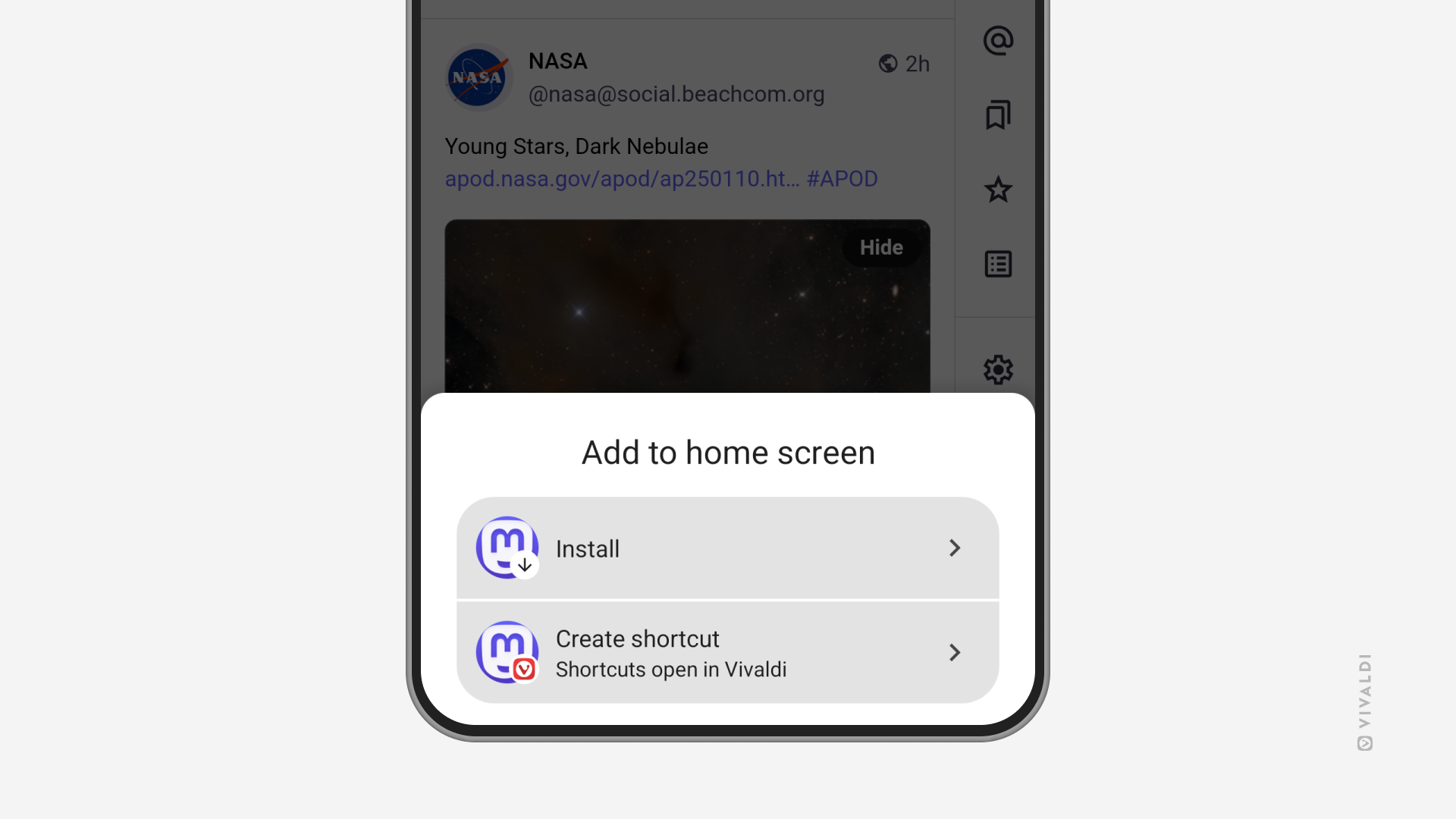
  2. Go to the Vivaldi menu button Vivaldi Menu > Add Page To > Home screen.
  3. Select Install.
  4. Tap Install in the confirmation dialog.
Install / Create Shortcut menu in Vivaldi in Vivaldi on Android.

If the site doesn’t support PWAs, you’ll be offered to create a shortcut instead. While PWAs open in their own window, tapping on the shortcut will open the saved site in a new tab in the main app window.


Open links from Progressive Web Apps in the main browser

To open a link from a PWA as a new tab in the main browser window:

  1. Long press on a link to open the context menu.
  2. Select “Open in Vivaldi Browser”.

Delete Progressive Web Apps and Home Screen Shortcuts

To uninstall a PWA or delete a shortcut:

  1. Long press on the PWA/shortcut icon on your home screen.
  2. Select Remove.

Was this helpful?

Yes
No
Thanks for your feedback!

Privacy and Security Settings in Vivaldi on Android

Vivaldi’s privacy and security settings give you solid control to safeguard your private data.

How Ad Attribution is implemented

In order to improve the result of ad monetization for sites where a user has decided to enable ads, Vivaldi has now included support for ad attribution. You can read more about why this change was implemented here.

This page mainly aims to describe how Ad Attribution is implemented and explain the choices that led to this implementation. The goal is to be fully transparent about what may be allowed through and when.

As with the rest of the ad blocker code, this implementation is fully available as part of our released source code bundles. This allows you to fully verify that our implementation is as described here and in other articles.

Allow Ad Attribution rules

The main challenge with ad monetization is that many ad providers rely on known trackers in order to prevent click fraud and ensure that conversion has occurred before paying out. The only solution to this is unfortunately to allow such trackers to load, regardless of what our tracker blocking lists say. However, we also want to ensure that these trackers are not loaded as part of general browsing.

In order to satisfy all these requirements, I have extended the normal ad blocker rules format. This is the same format used by all popular ad-blockers and rules lists. The extended format consists of three new options that will be detailed below.

This implementation was chosen as it allows us to reuse most of the ad-blocker functionality to effectively accomplish the goal of ad attribution while also allowing us to use the automatic update mechanism coming with ad blocker rules lists. This ensures that we can promptly fix any mistake.

How it works

Ensuring that ad attribution works is a complex task that takes multiple steps to accomplish. In general, the focus is on the site which uses ads for support, however most of the work is done after clicking on a given ad. As part of the implementation, we go through the following states.

1. Navigating to a site which the user wants to support.

When this occurs, the ad attribution implementation records that it should be looking for ad clicks. We say that it is primed.

Ad attribution is normally primed on any site where the ad blocker is disabled, regardless of the state of the tracker blocker. Priming ad attribution means we will check whether the next navigation is an ad click. It has no other effect.

In order to be able to support ad attribution for our partner search engines even when ad blocking is enabled for all sites, we introduced the attribute-ads rule option:

@@||partner-site.example.com/page-i-want-to-Support$attribute-ads

This causes ad attribution to be primed on the matching page, regardless of the ad blocker status. In practice, we would also add a document option (identical to the document allow rules supported by AdBlockPlus), in order to allow the partner site to show ads:

@@||partner-site.example.com/page-i-want-to-Support$attribute-ads,document

2. Matching an ad when Ad Attribution is primed.

When this occurs, the ad attribution implementation will examine the URL being loaded as well as the URLs of any redirections which occurs as part of loading.

If none of those URLs matches a known ad, then ad attribution remains disabled. It may be primed again if the site where the user ends up is one the user wants to support.

If the URL matches a known ad, then ad attribution moves to the next stage and the process continues.

The ad-query-trigger option is used to indicate that a rule should be used to match ad URLs:

||advertiser.example.com/ad-URL$ad-query-trigger=&click-id-param=|&other-click-id-param=

The ad-query-trigger option takes a value that is composed of several query string fragments, separated by |.

Once a document matching the pattern for an ad-query-trigger rule was reached, directly or via redirect, further redirections will be examined. For those redirections, the query string of the URL will be examined. If it contains any of the strings provided as value to the option, ad attribution will be fully enabled and the origin of the matching URL will be stored as the ad landing origin for this tab.

The ad-query-trigger option requires a pattern that provides a domain name in the ad URL pattern. This means, the pattern should be host-anchored and the domain should be followed by ^,/ or ?

Once ad attribution is enabled for a specific tab and origin, that state is preserved so long as the tab navigates within this same origin. Navigating to a different origin will cause ad attribution to be disabled, but it’s state will be preserved for a half hour. Further navigations within the deadline extend it to a half hour. If the deadline passes, further navigations outside the original origin clear the state fully. Navigating back to the landing origin will re-enable ad attribution.

The ad attribution state is normally confined to the tab where it was enabled. However, a same-origin navigation to a new tab from a tab where it is enabled will preserve its state.

Ad attribution also always gets disabled seven days after being triggered.

3.Matching trackers when ad attribution is enabled

When ad attribution is enabled, it examines resources loaded on pages whose origin match the landing origin. In order to indicate which resources should be allowed for ad attribution, rules with the ad-attribution-tracker option are used.

@@||advertiser.example.org/track-click$ad-attribution-tracker=advertiser.example.com/&click-id-param=|advertiser.example.net/&ad_id=

The body of this rule matches the url of the resource itself, while the value of the ad-attribution-tracker option provides the context in which it should be allowed. The value of this option consists of a pairs of domain/query-fragment separated by |. The domain part is matched against the domain of the ad that was clicked (the ad itself, not its landing origin). The query-fragment is matched against the query fragment used to enable ad attribution. A pair matches if both components are a match. This rule matches if the resource url matches and any of the domain/query-fragment pair is a match. When a tracker is allowed this way, it bypasses blocking both in the ad blocker and the tracker blocker.

These rules are currently only available in the “Allow Ads from our Partners” list that is provided by Vivaldi. This is to avoid situations where they may be employed in malicious rules lists. You can examine our list to learn of which partner sites have ad attribution enabled and which trackers are allowed as a result here.

Was this helpful?

Yes
No
Thanks for your feedback!

Pop-out video in Vivaldi on iOS

Pop-out Video, aka Picture-in-Picture, is a popular feature on desktop, but did you know it’s also available on Android and iOS? The main difference is that, on your mobile device, you can’t browse other tabs in Vivaldi while Pop-out Video is enabled, but you can use most other apps.

Enable Pop-out Video on iOS

  1. While browsing with Vivaldi, find a video you want to watch.
  2. Press play and enable full-screen view of the video.
  3. Go to your phone’s home screen.

The video will continue playing in a small rectangle on your home screen. You can move the video by dragging it around and use the two-finger zoom gesture to change the size of the video.

Tap on the rectangle to see video controls. Pop-out Video includes controls for:

  • Pausing the video.
  • Fast forwarding or rewinding the video by 10 seconds.
  • Closing the popped-out video.
  • Returning to the main window.

Due to restrictions set by Google, the feature may unfortunately not work on YouTube’s website.

Was this helpful?

Yes
No
Thanks for your feedback!

Save Passwords in Vivaldi on iOS

Store your account login credentials in the Vivaldi browser for faster browsing.

Save passwords

To save a password:

  1. Log in to the account on the site you want to save the login credentials on.
  2. Immediately after logging in, tap Save on the dialogue that appears at the top of the screen.

Tap on Settings icon Settings > Never for this site, if you don’t want to save any passwords for the site you have open.
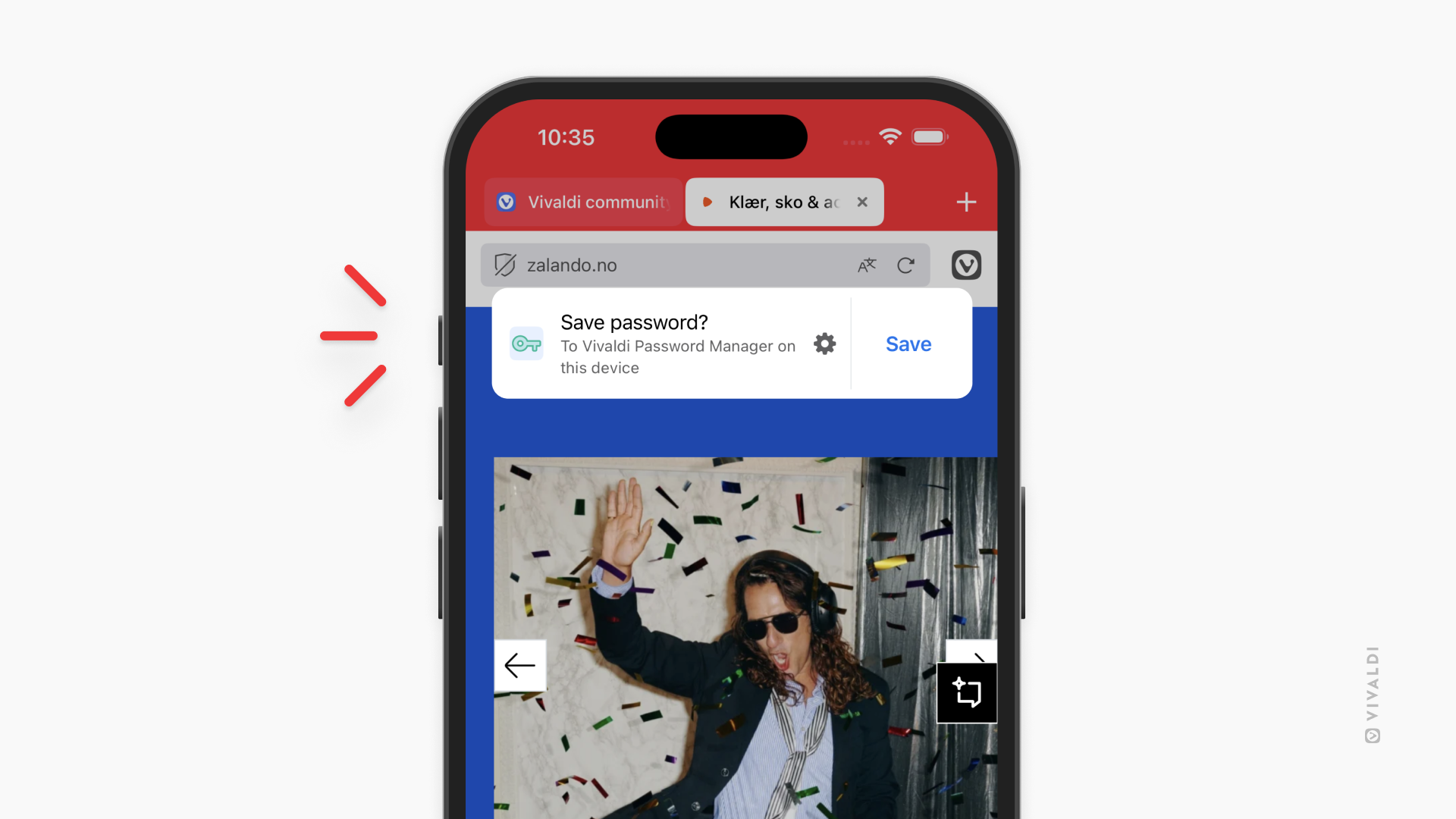
A web page open in Vivaldi on iOS. Banner recommending to save the login password is displayed below the Address Bar.

To toggle saving passwords on or off:

  1. Open the Vivaldi menu button Vivaldi menu > Passwords.
  2. Tap on Settings in the bottom left corner.
  3. Tap on the Offer to save passwords toggle.

View and manage passwords

To view your saved passwords:

  1. Go to the Vivaldi menu button Vivaldi menu > Password Manager.
  2. Verify your identity.
  3. Tap on the saved entry you want to view.
  4. You’ll see the site link, username, password, and a note.

To view the password, tap on the eye icon.

To copy the password:

  1. Tap on the Password field.
  2. Select Copy.

To edit a saved password entry:

  1. Go to the Vivaldi menu button Vivaldi menu > Password Manager.
  2. Verify your identity.
  3. Tap on the saved entry you want to update.
  4. Tap Edit in the top right corner.
  5. Make the changes.
  6. Tap Done.

Password Manager widget

You can add a shortcut to view your saved passwords in the form of a home screen widget.

To add the Passwords Manager widget:

  1. Long-press on the home screen.
  2. Tap on Edit in the top right corner and select Add Widget.
  3. Find Vivaldi and tap on it.
  4. Swipe to the Password Manager option.
  5. Tap Add Widget.

Delete passwords

To delete a saved password:

  1. Go to the Vivaldi menu button Vivaldi menu > Password Manager.
  2. Verify your identity.
  3. Tap on the saved entry you want to remove.
  4. Tap Edit in the top right corner.
  5. Tap Delete password.

Log in in other apps with the help of Vivaldi’s Password Manager

You can use Vivaldi as a password manager to autofill login details in other apps you’ve installed on the device.

To start using Vivaldi as a password manager:

  1. Go to your phone’s settings > General > Auto-fill & Passwords.
  2. Enable Vivaldi.

To log in:

  1. Tap on the username or password field on the login page.
  2. Tap the key icon.
  3. Select Vivaldi.
  4. Verify your identity.
  5. Select the login credentials you want to use.
  6. Log in.

Was this helpful?

Yes
No
Thanks for your feedback!

Web Page Options in Vivaldi on iOS

Vivaldi offers several options to customize your browsing flow in the iOS app. Continue reading to learn about a few of them.

Desktop view

To display a desktop version of the website, instead of the mobile version commonly displayed on smaller screens, open the Vivaldi menu button Vivaldi Menu and select Request Desktop Site.

To permanently display desktop versions of all websites:

  1. Go to Vivaldi menu button Vivaldi Menu > Settings > Content settings > Default site view.
  2. Select Desktop.

Homepage

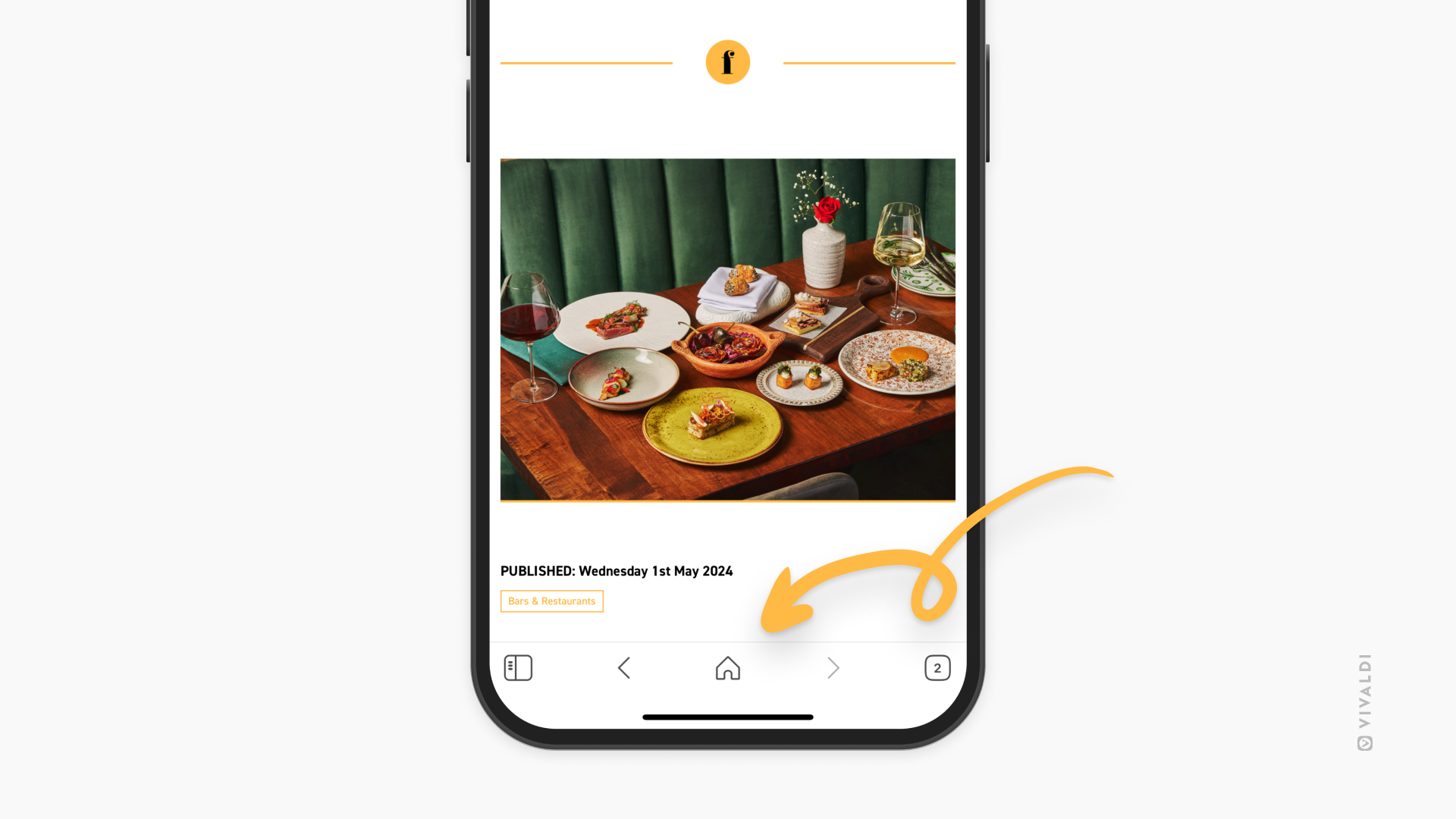
On the bottom toolbar (when Tab and Address Bar are at the top of the screen), you have a choice between two buttons for the middle button. By default, it’s a search button, which will focus on the Address Field, so you can type in the next link or search keyword. The other option is to have a Home button, which will take you to either the Start Page or a website of your choice.

To enable the Home button:

  1. Go to Vivaldi menu > Settings > General.
  2. Enable Display Home Button.

To set a web page of your choice as the homepage:

  1. Go to Vivaldi menu > Settings > General.
  2. Select Specific Site.
  3. Enter the web page link.
Vivaldi on iOS, with an arrow pointing at the Home button.

Web Apps and Home Screen shortcut

Learn about the feature on the Help page about Web Apps and Home Screen shortcuts on iOS.

Was this helpful?

Yes
No
Thanks for your feedback!

Main Menu in Vivaldi on iOS

The main Vivaldi Menu in Vivaldi on iOS gives you access to most of Vivaldi’s key features and tools.

Access the Main Menu

Whether you’re using the browser on a small phone screen or a large tablet screen, the menu can always be accessed from the right side of the Address Bar. Just tap on the  Vivaldi logo to open it. The options available in the menu depend on whether you have open a web page or the browser’s Start Page.

To close the menu, tap on the feature you want to use or on an area outside the menu.


Customize the menu

You can customize the order and visibility of the menu to make sure that the options you use most are always within easy reach.

To customize the menu:

  1. Open the Vivaldi menu.
  2. Long-press on one of the menu options in the top row to open a context menu.
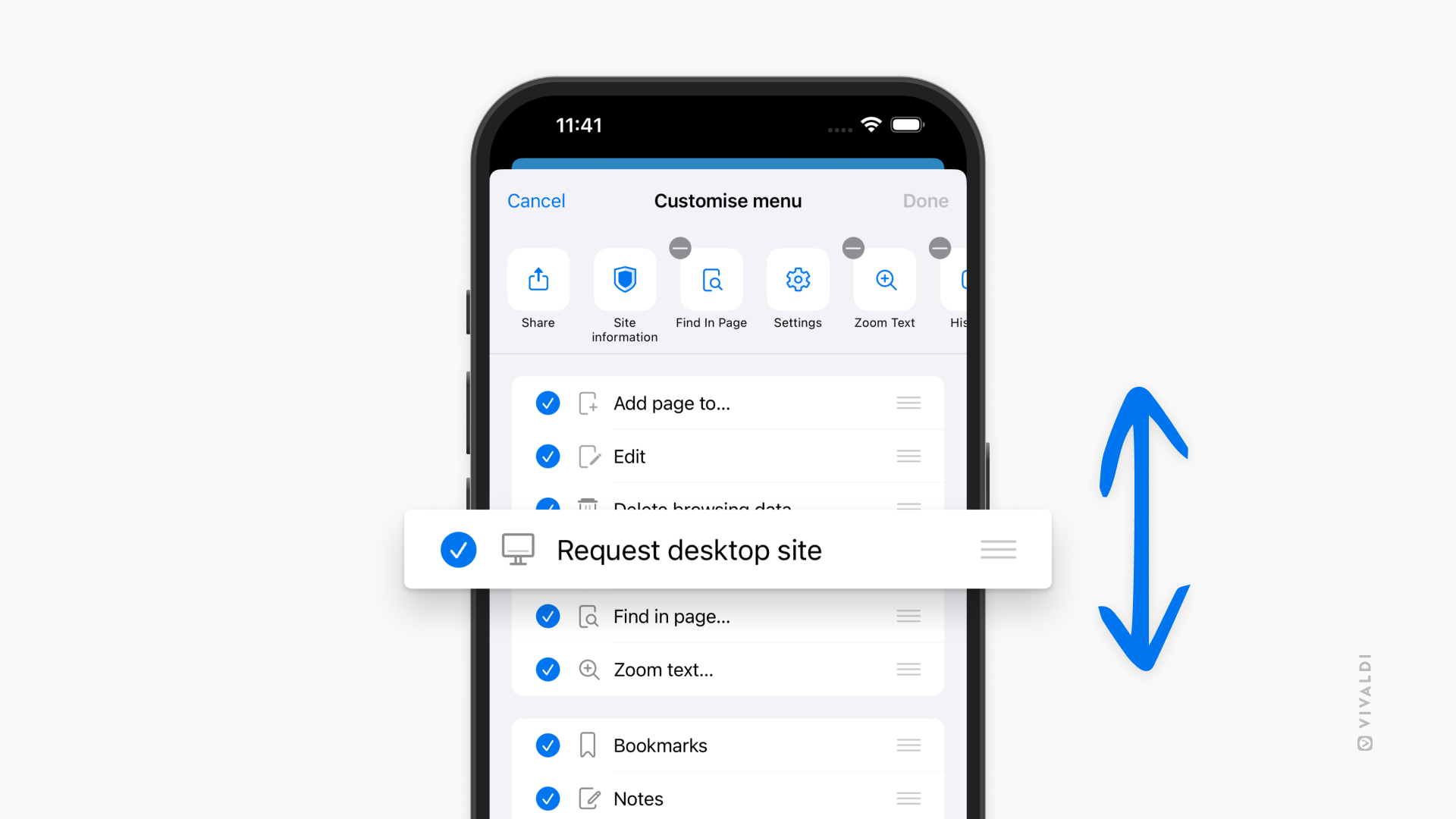
  3. Select Customize menu.

To reorder menu entries:

  1. Long-press on the menu item you want to move. With items in the list, long-press on the three lines on the right side.
  2. Drag and drop it to its new location.
Menu items in Vivaldi on iOS being reordered.

To hide menu items:

  • On the top row of menu items, tap on the Hide button in the top left corner.
  • In the list, tap on the checkmark in front of the menu item.

Was this helpful?

Yes
No
Thanks for your feedback!

Webpage Widgets

The Webpage widget on the Dashboard loads a normal but slightly restricted webpage. You can make custom optimized widgets by creating a normal webpage.

Webpages loaded as Webpage widgets are loaded using a Mobile User-Agent.

The widget’s viewport is 394×380 pixels (an almost square 39∶38 aspect ratio).

All dialog interactions are disabled, including alert() and Permissions Prompts. The Webpage widget shares security-context and permissions across regular tabs. Your users can grant permissions, like geolocation, in a regular tab to grant that permission to your Webpage widget.


Ensuring Widget Performance

To make your widget performant, it’s important to deploy on-device caching using HTTP Caching. The stale-while-revalidate caching directive can help you achieve a compromise between an instantly-loading widget and up-to-date information.

Was this helpful?

Yes
No
Thanks for your feedback!