Filters in Vivaldi Webmail
Este post também está disponível em:


Filters are a good way to automatically organise your mailbox. In Vivaldi webmail you can create filters, for example, to move incoming emails to a specific folder, to reply with a predefined message or to set a flag for the email.
Creating filters
To create a filter:
- Go to Settings > Filters.
- Click on Create on the menu above the filter information.
- Add a filter name, select the scope, make a rule and decide what sort of action should be executed.
- Click Save.
When you’re filtering by email address, make sure to use the full email address ([email protected]) not just the domain (@email.com).
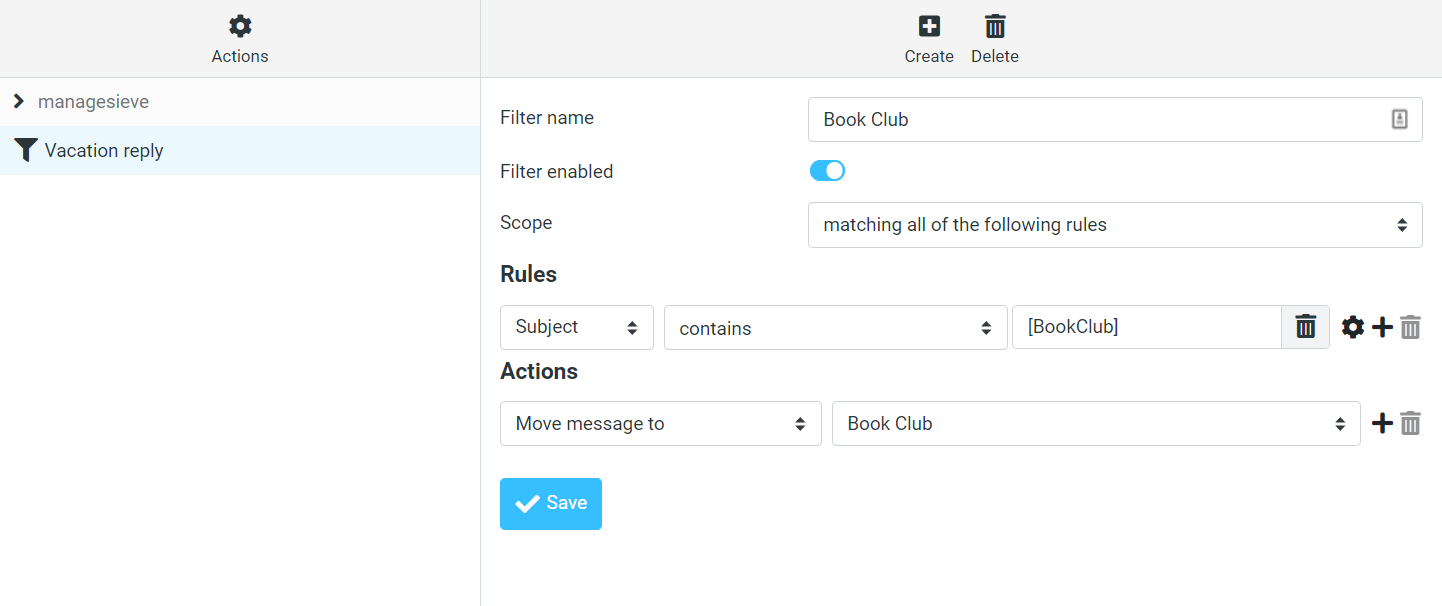
Creating a filter from an email
To create a filter from an email you’ve received:
- Open the email.
- Click More on the menu above the email and select Create Filter.
- Add a name, review the rules and decide what sort of action should be executed.
- Click Save.
Creating a new filter set
To add a new filter set or manage existing filter sets,
- Go to Settings > Filters.
- Click on the
 menu button above the list of filters and select Actions > Add filter set.
 - Give the new filter set a name and decide whether you want:
- it to be empty to start with,
- to move filters from an existing set there, or
- to upload filters from a file.
- Click Save.
Managing filters
To disable filters (e.g. an automatic vacation reply):
- Go to Settings > Filters.
- Select the filter.
- Toggle off Filter enabled.
To delete a filter:
- Go to Settings > Filters.
- Select the filter.
- Click Delete on the menu above the filter information.