Website permissions
This post is also available in:


Permissions in Vivaldi
When browsing the web, you might find yourself needing to grant the website access to your camera and microphone in order to join a video call, to your location in order for the site to offer relevant content, or maybe you want to block the site’s annoying notifications and prevent it from auto-playing videos. All this and more can be managed in Website Permissions. Only a few are allowed by default, some are blocked outright, and as for the rest, your permission will be asked every time a new site wants access to any of the options listed above.
Changing website permissions globally
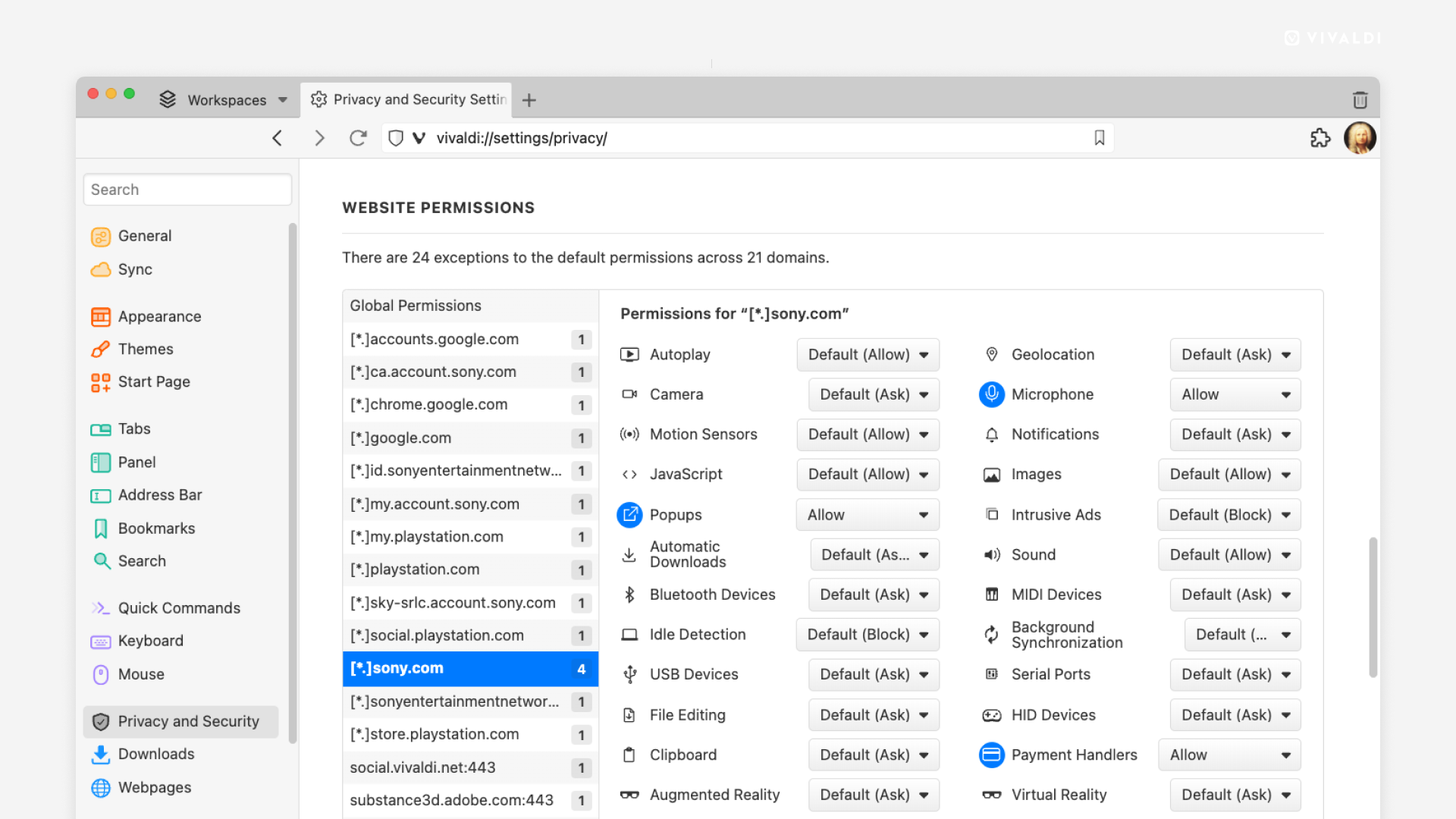
To review and update websites permissions for all websites:
- Go to Settings > Privacy and Security > Website permissions.
- Make sure Global Permissions on top of the list is selected.
- Use the drop-down menu next to each permission type to update it.
Changing website permissions per website
When a website needs access, for example, to your camera, a notification dialog will be displayed below the right side of the Address Field. Make a decision to either allow or deny the website permission to access your camera. Vivaldi will remember when you deny permission and will block the website from asking you the same question again.
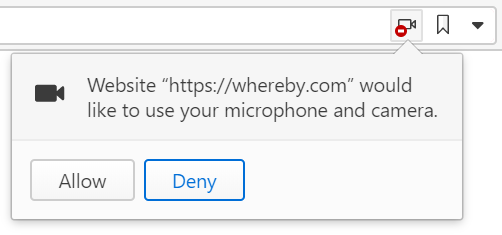
In case the dialog closed before you could decide, click on the permission icon to the right of the Address Bar (the one with the red mark on the image above) to display it again.
To review and update permissions for sites you’ve granted or denied access to:
Option 1
- Open the website in a tab.
- Click on the
 Site Info button on the left side of the Address Field.
 - If there already are some permissions differing from the global settings, you can change them in the same menu.
- Click Site Settings to view and manage all permissions.
Option 2
- Go to Settings > Privacy and Security > Website permissions.
- Select a domain from the list.
- Use the drop-down menu next to each permission type to update it.