Block Trackers and Ads in Vivaldi on iOS
This post is also available in:


Vivaldi does not track your activities in the browser and on the web. In addition, it can protect your browsing experience from those who do.
Trackers collect information about your activities on websites and based on that compile profiles, which are then shared and used, for example, for targeted advertising. Many ads online use the same technology as trackers.
Vivaldi’s built-in Ad and Tracker Blocker blocks these tracker and ads, allowing you to browser more privately, safely, and faster. It does it by relying on a list of URLs known to track and distribute ads and stops requests to those URLs before they are sent.
Blocking Levels
Out of the box, there are 4 blocking levels.
- Off – Ad and Tracker Blocker is disabled and nothing is blocked.
- Light – Most trackers and some ads are blocked. Doesn’t cause issues with websites.
- Strong – Blocks more tracker and ads than the Light level, but some sites may break.
- Aggressive – Blocks almost all trackers and ads. Some websites will not work as expected.
To change the default blocking level:
- Go to Settings > Ad and Tracker Blocker.
- Select your preferred level.
When setting Vivaldi up after installation, you can also select the blocking level during onboarding.
Blocking level per website
It’s best to select a default that works for most websites you visit, but there will always be exceptions. You may want to go with a light level for your bank’s website and enable maximum blocking for the site that is so full of ads it’s hard to see where the main content is.
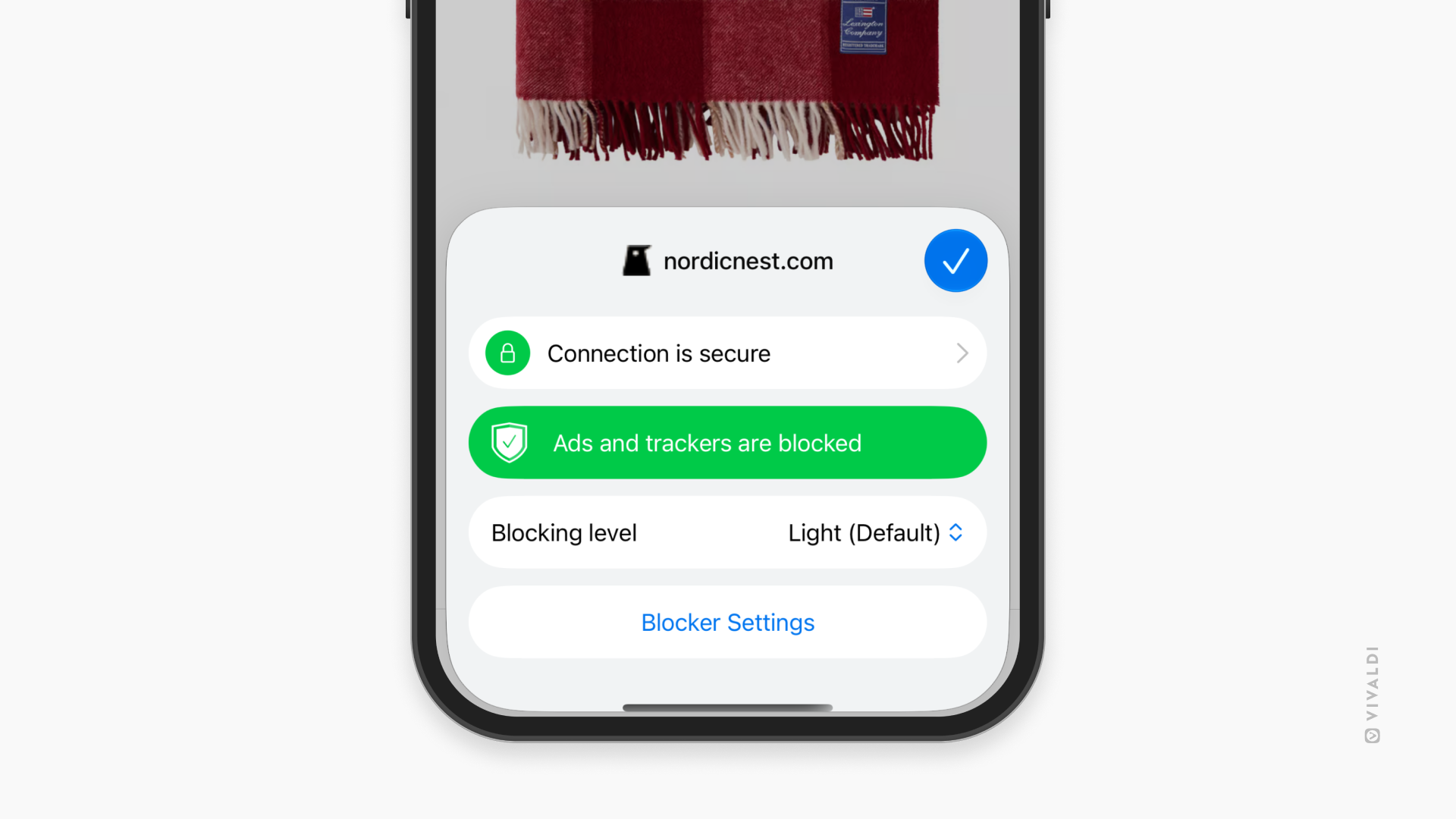
To change the blocking level on a specific website:
Option 1
- Go to the website.
- Tap the Site info button on the left side of the Address Field.
- Tap the Ad and Tracker blocker’s drop-down menu.
- Select the blocking level you want to set for the website.
Option 2
- Go to Settings > Ad and Tracker Blocker > Other > Manage blocking level per site.
- Tap Add New Exception.
- Enter the website’s URL.
- Select the blocking level.
- Tap Save.
To remove a website from Exceptions:
Option 1
- Go to the website you want to remove from exceptions.
- Tap the Site info button on the left side of the Address Field.
- Select the default blocking level.
Option 2
- Go to Settings > Ad and Tracker Blocker > Other > Manage blocking level per site.
- Long-press on the website you want to remove from exceptions
- Tap Remove.
Custom Blocking Levels
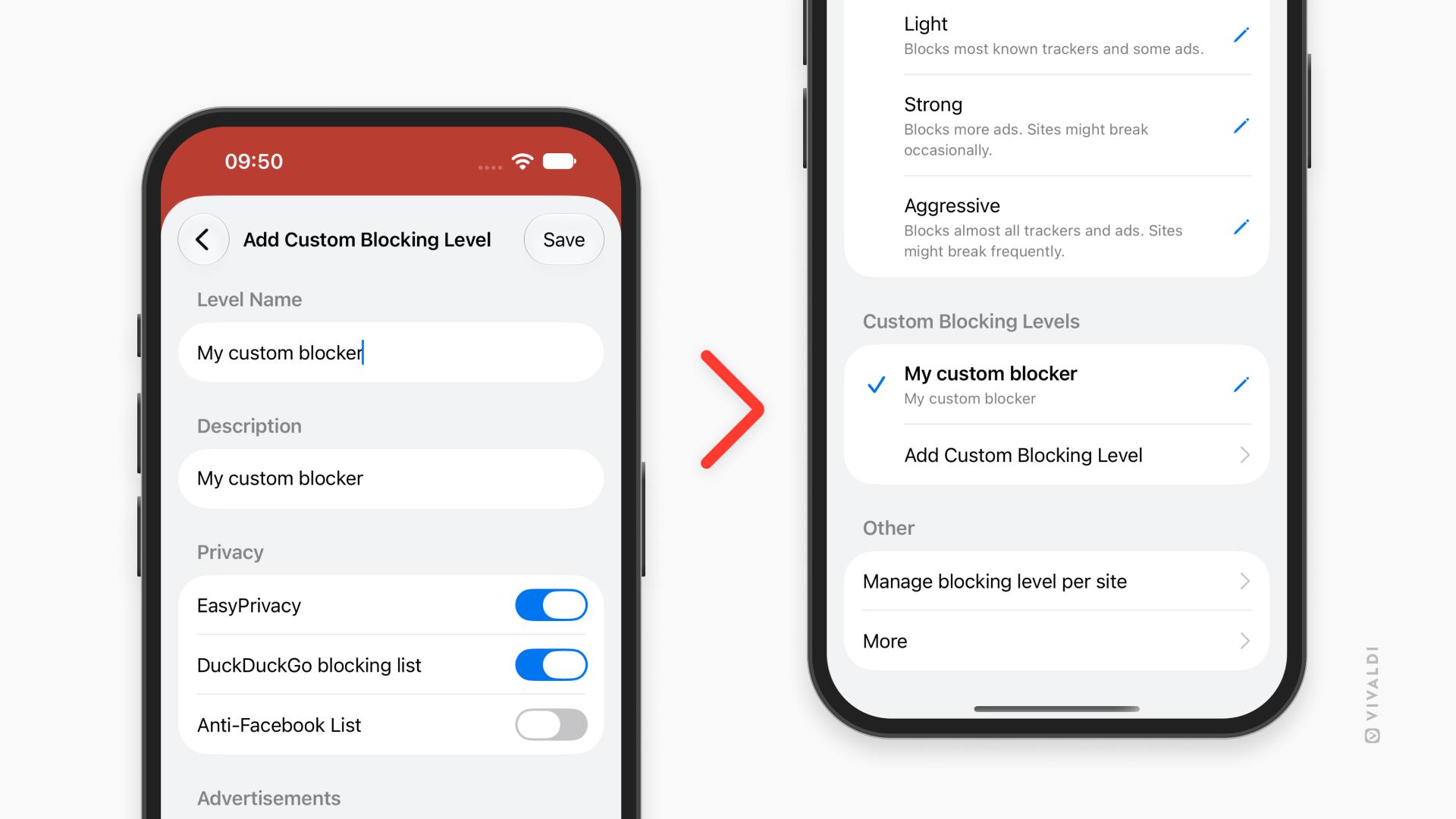
You can also create your own custom blocking levels with custom settings.
To add a new blocking level:
- Go to Settings > Ad and Tracker Blocker.
- Tap Add Custom Blocking Level.
- Give the level a name and a description.
- Select which blocking sources should be used on that level.
- Tap Save in the top right corner to create the level.
To remove a custom blocking level:
- Go to Settings > Ad and Tracker Blocker.
- Tap Edit.
- Tap Remove at the bottom of the screen.
Edit Blocking Levels
In addition to making exceptions for websites, you can fine tune the blocker by customizing each blocking level. You can review and make changes to the blocking options and enable additional rule lists.
To edit a blocking level:
- Go to Settings > Ad and Tracker Blocker.
- Tap Edit.
- Make the changes.
- Tap Save.
To reset a blocking level back to default:
- Go to Settings > Ad and Tracker Blocker.
- Tap Edit.
- Tap Reset to Default at the bottom of the screen.
Custom Lists
If you’ve found a blocking list that’s not included in Vivaldi by default or you’ve created one of your own, you can add them to Vivaldi’s Ad and Tracker Blocker.
To add a custom blocker list:
- Go to Settings > Ad and Tracker Blocker.
- Edit one of the blocking levels.
- Scroll down to Custom Lists.
- Tap Add New Custom List.
- If the list is hosted online, enter its URL. If it’s a local file on your device, tap Choose from Files and find the file.
- Select a category for the list.
- Review rule options.
- Tap Import.
- When the import has finished, tap Done.
To delete a custom blocker list:
- Long-press on the custom list.
- Tap Remove.