Panels on iOS
Dit bericht is ook beschikbaar in:


Panels offer a quick way to access useful tools like Bookmarks, History, Notes, and Downloads.
Accessing Panels
To open Panels, tap on the  Panels button on the left side of the toolbar at the bottom of the screen.
In Vivaldi on iOS, there are 5 panels:
 Bookmarks,
 Reading List,
 History,
 Notes, and
 Translate.
To switch between panels, tap on their respective icons at the top of the panels view.
Tap on the  Search field to search through the active panel’s content.
Panel-specific actions can be found at the bottom of the screen.
To close Panels, tap on Done in the top right corner.
Panels on tablets
With more screen space available, Panels on iPads follow the design of Vivaldi on desktop.
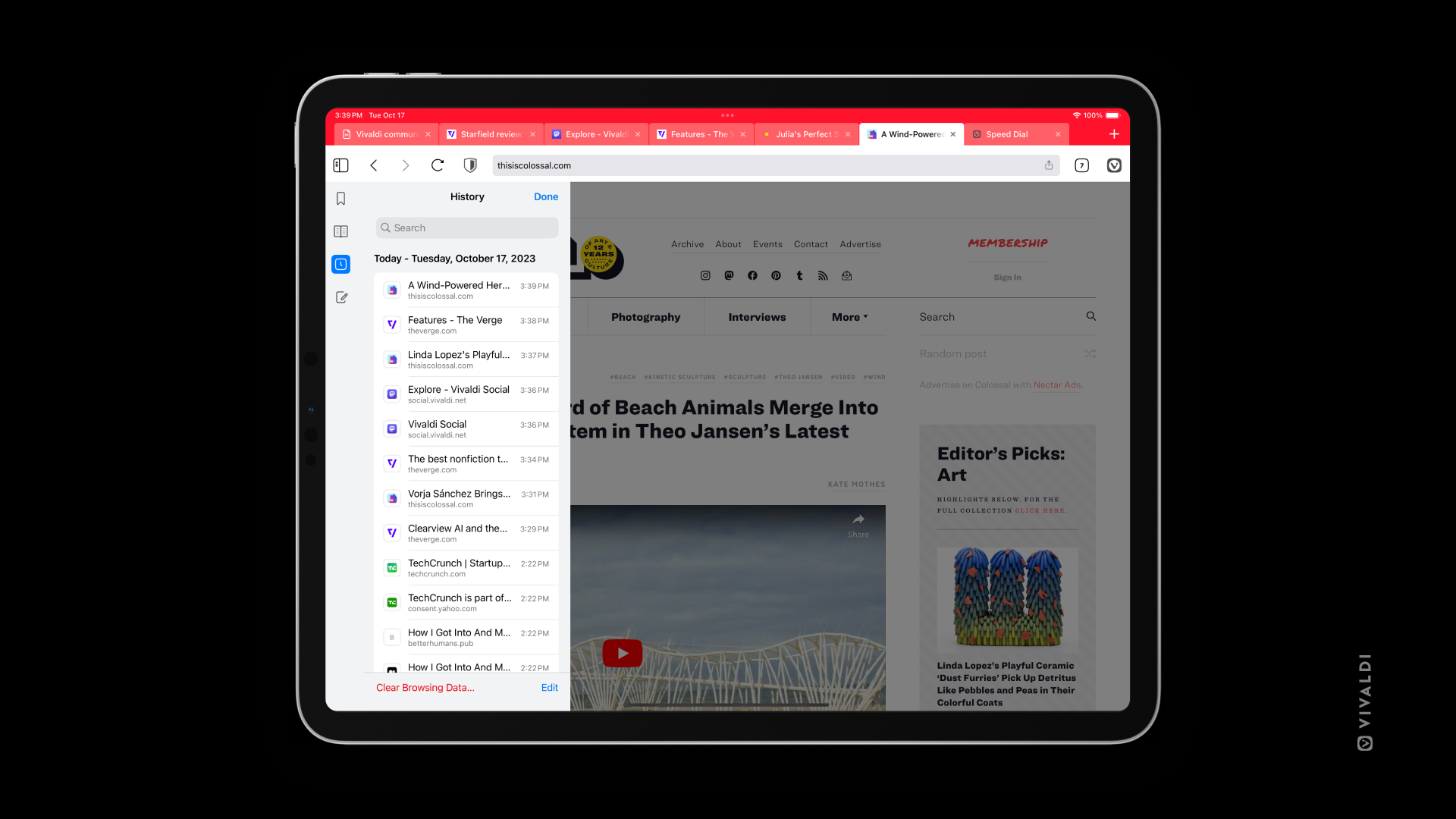
To open Panels on a tablet:
- Tap on the Panels button on the left side of the Address Bar. Panels open with the last visited panel.
- Tap on the different panel icons listed vertically on the left side to switch between them.
To close the panel:
- Tap on Done in the top right corner of Panels.
- Tap outside the Panels area.
Was this helpful?
Thanks for your feedback!