Toolbars
This post is also available in:


The placement and appearance of Toolbars can be customised in Vivaldi. User Interface Zoom allows you to alter the size of Toolbars. The position of the Address Bar and Bookmarks Bar within the UI can also be customised by adjusting settings within their respective sections in Settings.
Adjusting the size of Toolbars
- Go to Settings > Appearance.
- Use the User Interface Zoom slider to adjust the zoom.
Changing the position of the Bookmarks Bar
- Go to Settings > Bookmarks.
- Under Bookmark Bar Position, choose between Top or Bottom.
Changing the position of the Address bar
- Go to Settings > Address Bar.
- Choose between Top or Bottom under Address Bar Position.
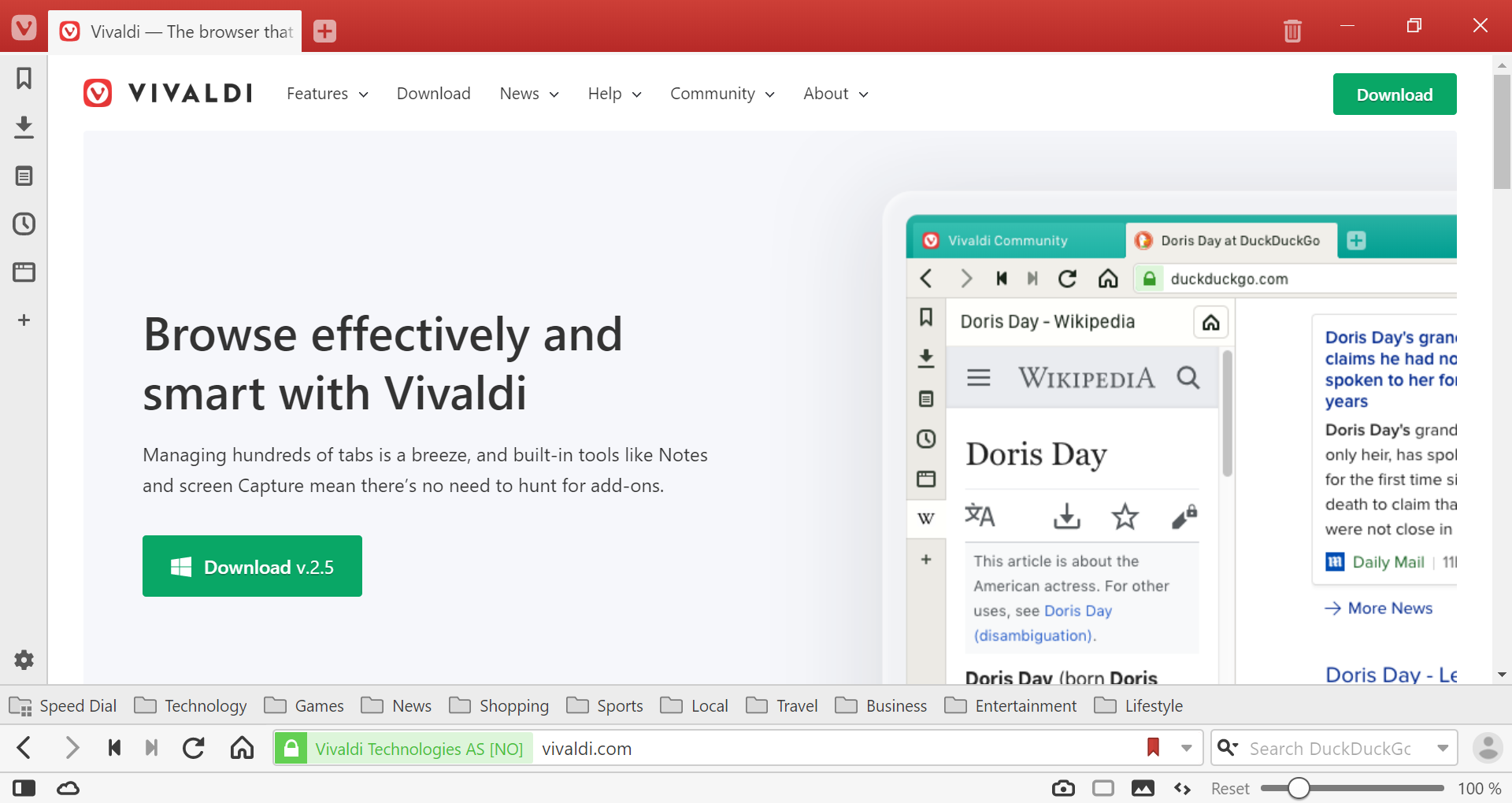
Vivaldi browser with Bookmark and Address Bars at the bottom of the window.
To learn how to rearrange or hide buttons on Toolbars, have a look at our help page about Editing Toolbars.
Was this helpful?
Thanks for your feedback!