Find in Page
This post is also available in:


To search for a specific term or phrase on a webpage, use the browser’s Find in Page feature.

To search a webpage in Vivaldi:
- Open the search field:
- with a Keyboard Shortcut Ctrl / Cmd + F;
- by going to the
 Vivaldi menu > Edit > Find in Page;
 - by opening Quick Commands and typing ‘Find in page‘;
- by using a Mouse Gesture. The gesture needs to be created first in Settings > Mouse Gestures > Gesture Mapping.
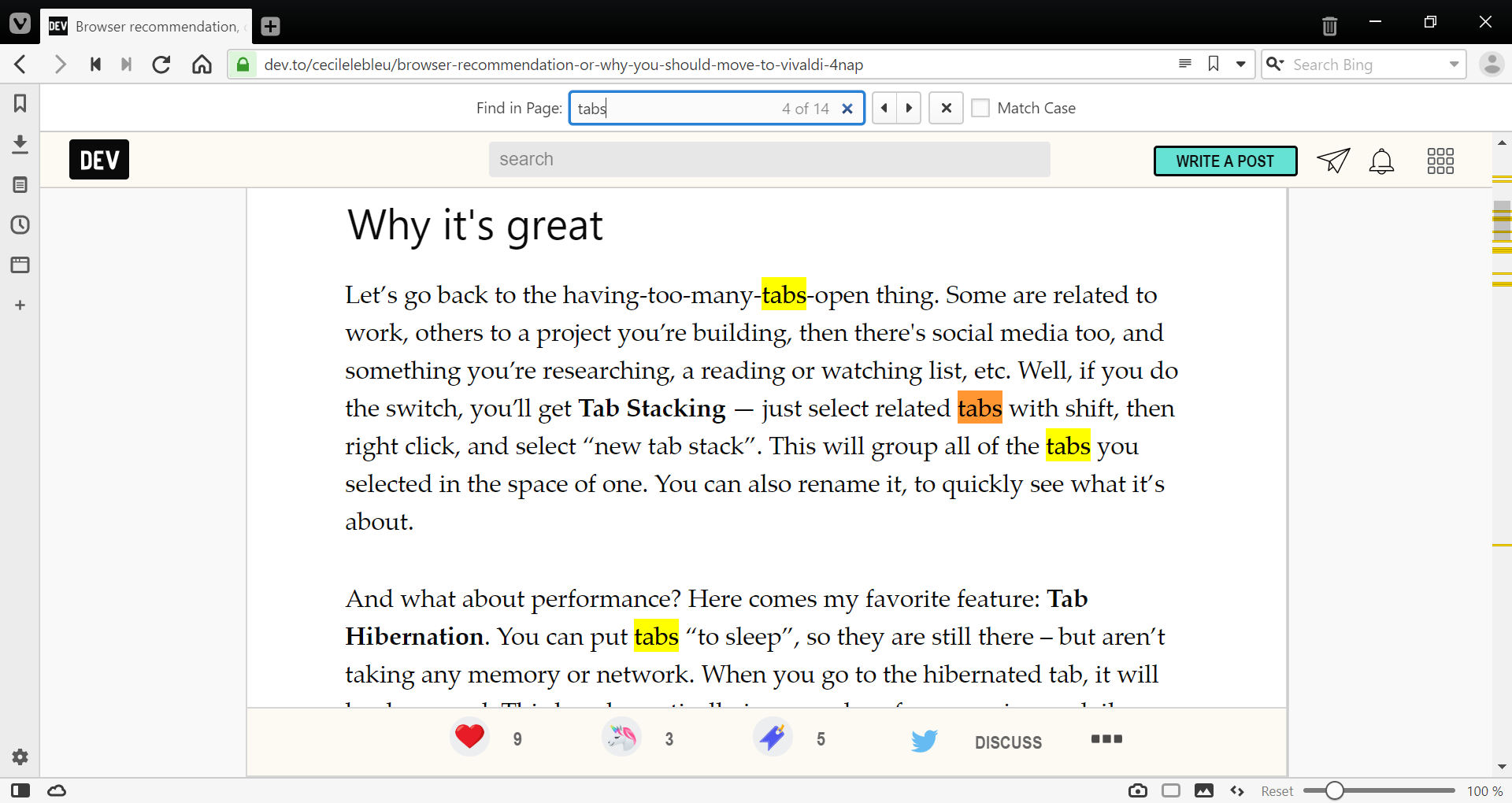
- A search field will open on top of the webpage and below the Address Bar;
- Enter the search term and press Enter;
- To navigate between the results, use:
- arrow buttons next to the search field;
- Keyboard Shortcuts Enter or F3 to move to the next search result and Shift + F3 to move to the previous result.
- Quick Commands by typing ‘Find Next in Page’ and ‘Find Previous in Page’;
- Mouse Gestures you’ve created for the actions.
If the focused search result (orange background) is a link, it can be opened instantly using Ctrl + Enter.
To close the search field, click the  Close button on the Find in Page bar or press Esc.
Was this helpful?
Thanks for your feedback!