View and save PDF files in Vivaldi on Android
This post is also available in:


Restaurant menus, manuals, scientific papers and many other types of content on the web is shared as PDF files. Continue reading to learn more about the feature in Vivaldi on Android.
Open PDF files
You can open PDFs either in a Vivaldi tab or in a third-party app of your choice.
To pick your preference:
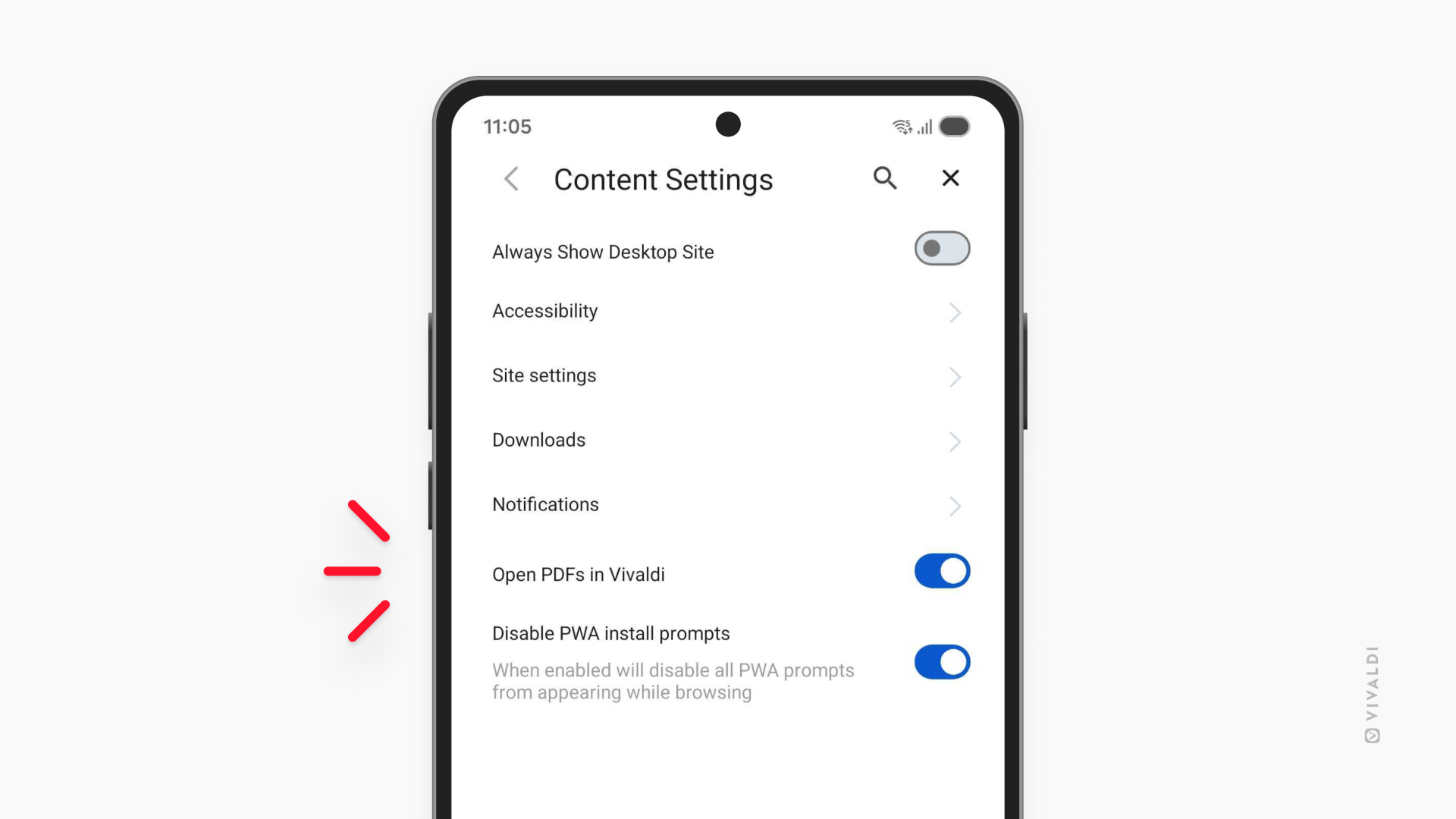
- Go to Settings > Content Settings.
- Keep the Open PDFs in Vivaldi setting enabled, if you want to open the files in Vivaldi. Toggle it off, if you want to open PDFs in a third-party app.
In-app view
If you’ve chosen to open PDFs in Vivaldi they’re simply opened in a new tab without first downloading them to your Android device. It’s the better option if most of the time you need to look at the file just once.
Third-party PDF viewer
In order to open PDFs in another app, they need to be downloaded. Initially, you may see a couple of confirmation dialogs, asking where you want to save the file and in which app to open the PDF. You can skip those by making sure the Don’t show again option is checked in the download dialog and selecting Always, when presented with the list of apps that the file can be opened in.
You can manage preferences in Settings > Content Settings > Downloads (Open PDFs in Vivaldi) needs to be disabled to see the options.
Open downloaded files or PDFs in other apps in Vivaldi
When you have a PDF file on your device and want to open it in Vivaldi:
- Open the menu listing additional options for the file. Varies per device, but usually it’s a
 3-dot menu.
 - Select Open with.
- Select Vivaldi.
If the PDF is in another app:
- Open the Share menu.
- Select Vivaldi.
Download a PDF file
To save a PDF to your phone/tablet:
Option 1
- Long-press the PDF link on the web page.
- Select Download link.
Option 2
If the PDF is already open in a tab:
- Go to the Vivaldi menu > Share > Print.
- Instead of a printer, select Save as PDF.
- Tap Save to PDF.
- Review the file’s name and select a download location.
- Tap Save.