Reader View
This post is also available in:


Vivaldi’s Reader View lets you cut through the noise as you browse. No ads, no pop-ups, just pure content.
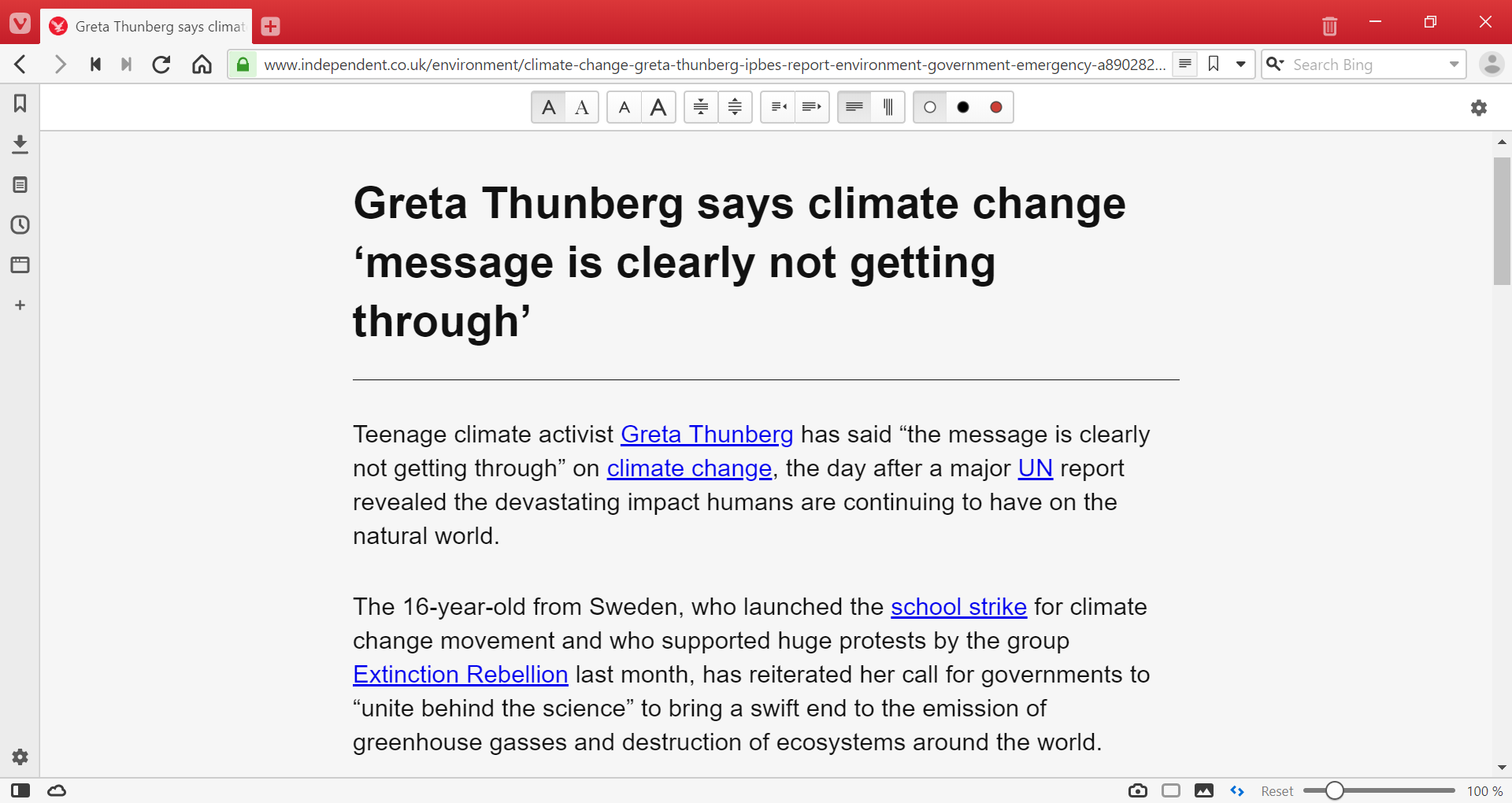
Enable Reader View
When you’ve found an article that you’d like to read in reader mode:
- Click on the
 Reader View button on the right side of the Address Bar.
 - Type “Toggle Reader View” in Quick Commands.
- Create a Keyboard Shortcut or Mouse Gesture for the action.
- Add Toggle Reader View command to customized menus.
Once active, the Reader View button on the Address Bar will have a highlighted background.
Below the title you’ll also see a minute counter, estimating how long it will take to read the article.
Reader View Settings
Go to Settings > Webpages > Reader and adjust the Reader View settings, such as font face and size, line height, column width, and color scheme. To enable vertical reader mode, first tick the box for Allow Vertical Text Direction.
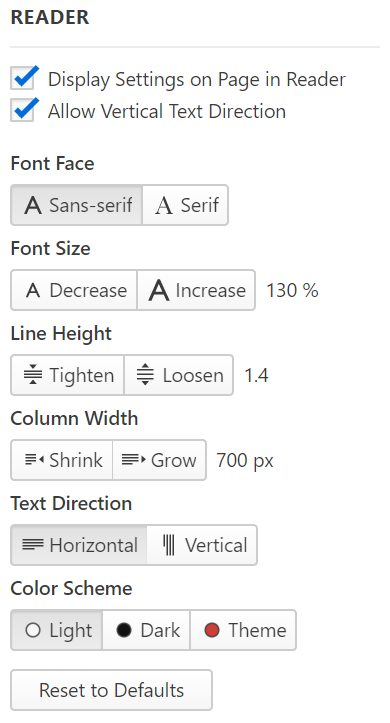
To access Reader View settings directly on the website:
- Make sure Display Settings on Page in Reader Mode has been enabled in Reader settings.
- Enable Reader View on the webpage.
- Click on the Reader View
 Settings icon at the top right corner of a page.
Reader View icon not showing
If the Reader View button doesn’t show in the Address Bar, the page may not support this feature. Reader View button will only show when the webpage has suitable content.
Exit Reader View
To exit the Reader View:
- Click on the Reader View icon in the address bar.
- Type “Toggle Reader View” in Quick Commands.
- Create a Keyboard Shortcut or Mouse Gesture for the action.
- Add Toggle Reader View command to customized menus.