Vivaldi Menu
This post is also available in:


Many important Vivaldi functions are available from the application menu.
Menu Position
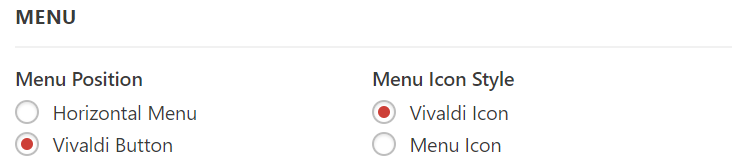
Windows and Linux users can set the menu to either appear as a  Vivaldi menu button or as a horizontal menu across the top of the window. Go to Settings > Appearance > Menu > Menu Position. Next to it you can also choose the menu icon style.
Since Vivaldi 6.7 the main menu as well as context and other menus have gotten a design update leaving more space between menu items.
If you prefer the older, more compact menu style:
- Go to Settings > Appearance > Menu.
- Enable Compact Layout.
- Restart the browser.
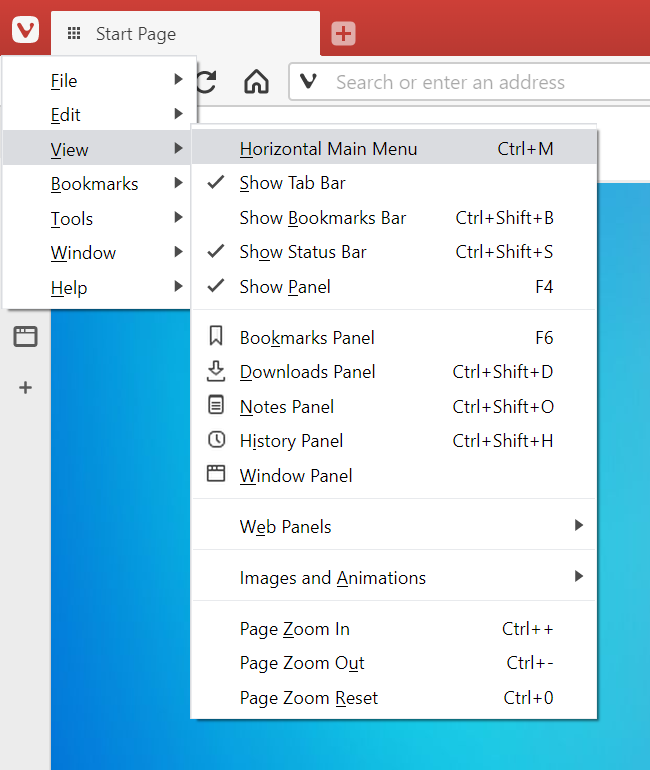
Vertical Menu
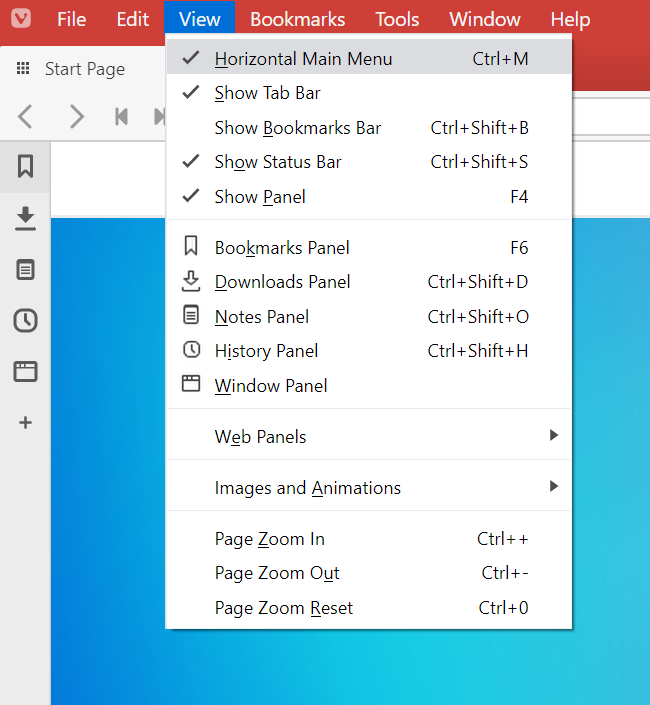
Horizontal Menu
To edit, which commands and in which order are displayed in the browser application menu, go to Settings > Appearance > Menu > Menu customization.
For more detailed instructions, take a look at the help page about customizing Vivaldi menus.