Extensions on Android
This post is also available in:


An extension is a small software program that can be installed to give added functionality to the Vivaldi browser on Android. Like on desktop, Extensions can be added to Vivaldi from the Chrome Web Store.
Since Extensions are usually developed for desktop, they may not work as expected on mobile devices.
Install Extensions
To install an extension:
- Tap the
 Extensions button on the Address Bar.
 - Tap on Open Chrome Web Store in the menu. If you already have some Extensions installed, tap Discover more extensions.
- Browse or search for extensions.
- On the extension’s profile, tap Add to Vivaldi.
- In the confirmation dialog, tap Add extension.
Important! To be able to install extensions on Android, you need to keep the Desktop Site option enabled in the  Vivaldi menu.
In case an extension you want isn’t available on the Chrome Web Store, you can upload it manually. However, only use extensions shared by trusted sources, as malicious extensions can pose a security risk.
To install an extension manually:
- Tap the Extensions button on the Address Bar.
- Select Manage Extensions.
- Enable Developer Mode from a toggle in the top right corner of the page.
- Click Load unpacked on the new menu that appears.
- Find the extension’s folder in your files.
- Click Select Folder to load the extension to Vivaldi.
Alternatively, if you have the extension as a .crx file, after enabling Developer Mode you can tile Vivaldi and the folder the extension’s .crx file is in into split screen view and drag the file over to Vivaldi.
Use Extensions
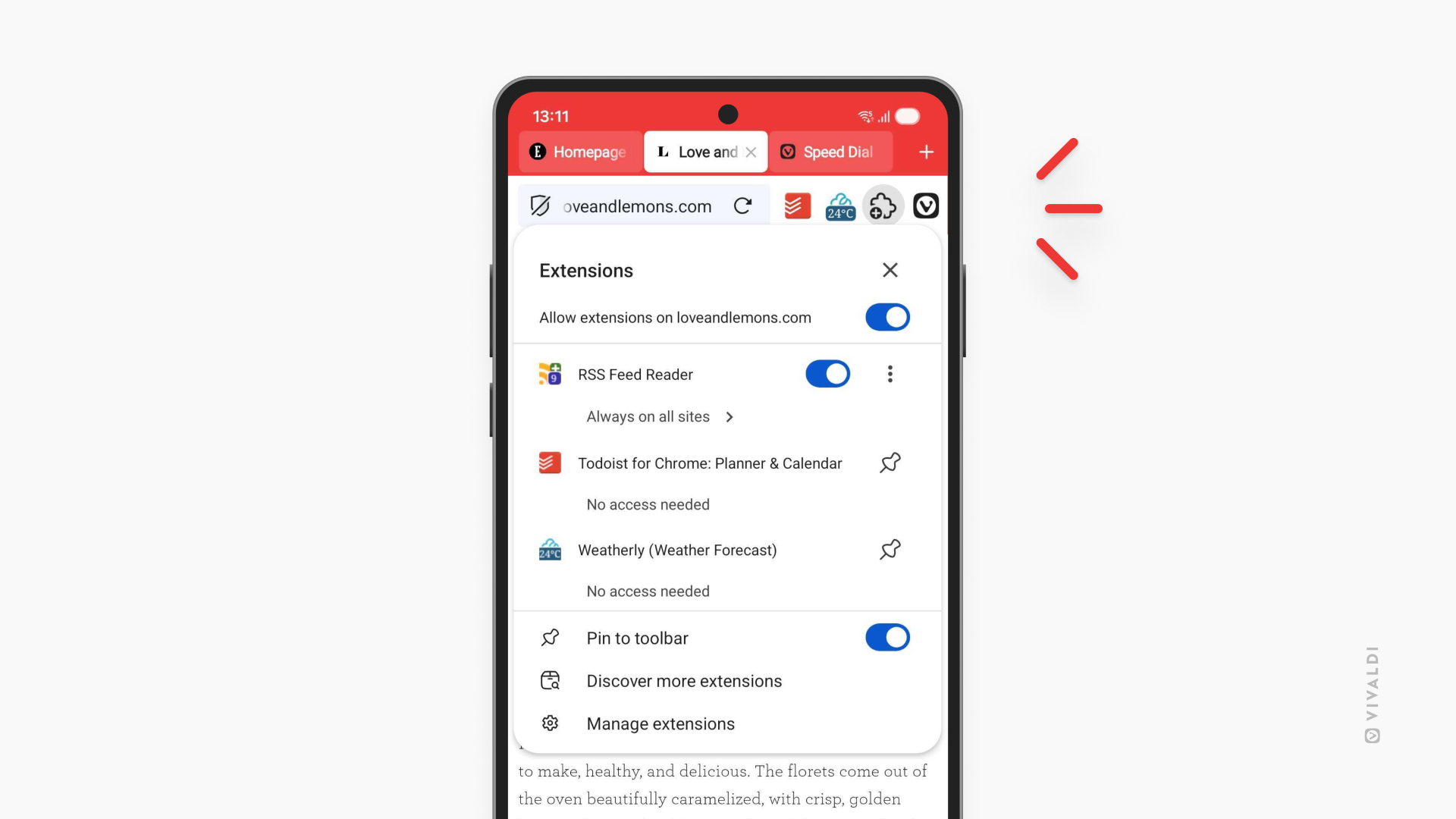
To open the extension’s menu to reach its features and settings:
- Tap the Extensions button on the Address Bar.
- Tap on the extension you want to use.
If you’ve pinned the extension, simply tap on it on the Address Bar.
Manage Extensions
To get an overview of all the Extensions you’ve added to Vivaldi, to see and edit each extensions details:
- Tap the Extensions button on the Address Bar.
- Select Manage Extensions.
Tap on Details in the bottom left corner of the extension’s card to see information about the extension, manage permissions, site settings, and more.
Pin Extensions to the Address Bar
If you wish to access an extension directly from the Address Bar:
- Tap the Extensions button on the Address Bar.
- Tap on the 3-dot menu after the extension you want to pin.
- Select Pin to toolbar.
The space on the Address Bar is limited, so only pin the most important ones.
To unpin an extension:
Option 1
- Long-press on the extension on the Address Bar.
- Select Unpin from toolbar.
Option 2
- Tap the Extensions button on the Address Bar.
- Tap on the pin icon after the extension you want to unpin.
- Select Unpin from toolbar.
By default, the Extensions menu is pinned to the Address Bar.
If you wish to hide it or display it again:
- Tap the Extensions button on the Address Bar.
- Tap the toggle button for “Pin to toolbar”.
When unpinned, you can access the menu from the main Vivaldi menu > Extensions.
Reorder extensions
Extensions in the menu are listed in alphabetical order and cannot be reordered. However, you can reorder pinned extensions on the Address Bar.
To reorder pinned extensions:
- Long-press on the extension you want to move.
- Drag it left or right to change its location.
Extension permissions
You can choose on which websites each of the extensions is allowed to run on.
To quickly toggle the extension on/off:
- Tap the Extensions button on the Address Bar.
- Tap the toggle button after the extension’s name.
To review the permission for the current site:
- Tap the Extensions button on the Address Bar.
- Tap on the text below the extension’s name. For example, Always on all sites.
- Select your preferred option
- Ask on every visit – runs only after you click the extension.
- Always on – runs automatically every time you visit the site open in the active tab.
- Always on all sites – runs automatically on all sites you visit.
To review the extension’s site permissions and exceptions:
- Tap the Extensions button on the Address Bar.
- Tap on the 3-dot menu after the extension you want to pin.
- Select Manage extension.
- Check the Permissions section.
Extensions in private mode
To use Extensions in Private Tabs, each extension needs to be granted permission individually.
To allow an extension in private mode:
- Tap the Extensions button on the Address Bar.
- Tap on the 3-dot menu after the extension.
- Select Manage extension.
- Enable Allow in private mode.
Disable and uninstall Extensions
Disable Extensions
If you know you’ll need the extension again at some point or when you’re troubleshooting some issue in the browser, instead of removing it you can disable it.
To disable extensions:
Option 1
- Tap the Extensions button on the Address Bar.
- Select Manage Extensions.
- Tap the toggle button at the bottom right corner of the extension’s card.
Option 2
- Long press on the pinned extension or tap the 3-dot menu in the Extensions menu.
- Select Manage Extension.
- Tap the first toggle button on the extensions page.
Uninstall Extensions
To uninstall extensions:
Option 1
- Tap the Extensions button on the Address Bar.
- Select Manage Extensions.
- Tap Remove on the extension’s card.
Option 2
- Long press on the pinned extension or tap the 3-dot menu in the Extensions menu.
- Select Remove from Vivaldi.
Option 3
- Open the extension’s profile on Chrome Web Store.
- Tap on Remove from Vivaldi.