Fast Forward & Rewind
This post is also available in:


Fast Forward
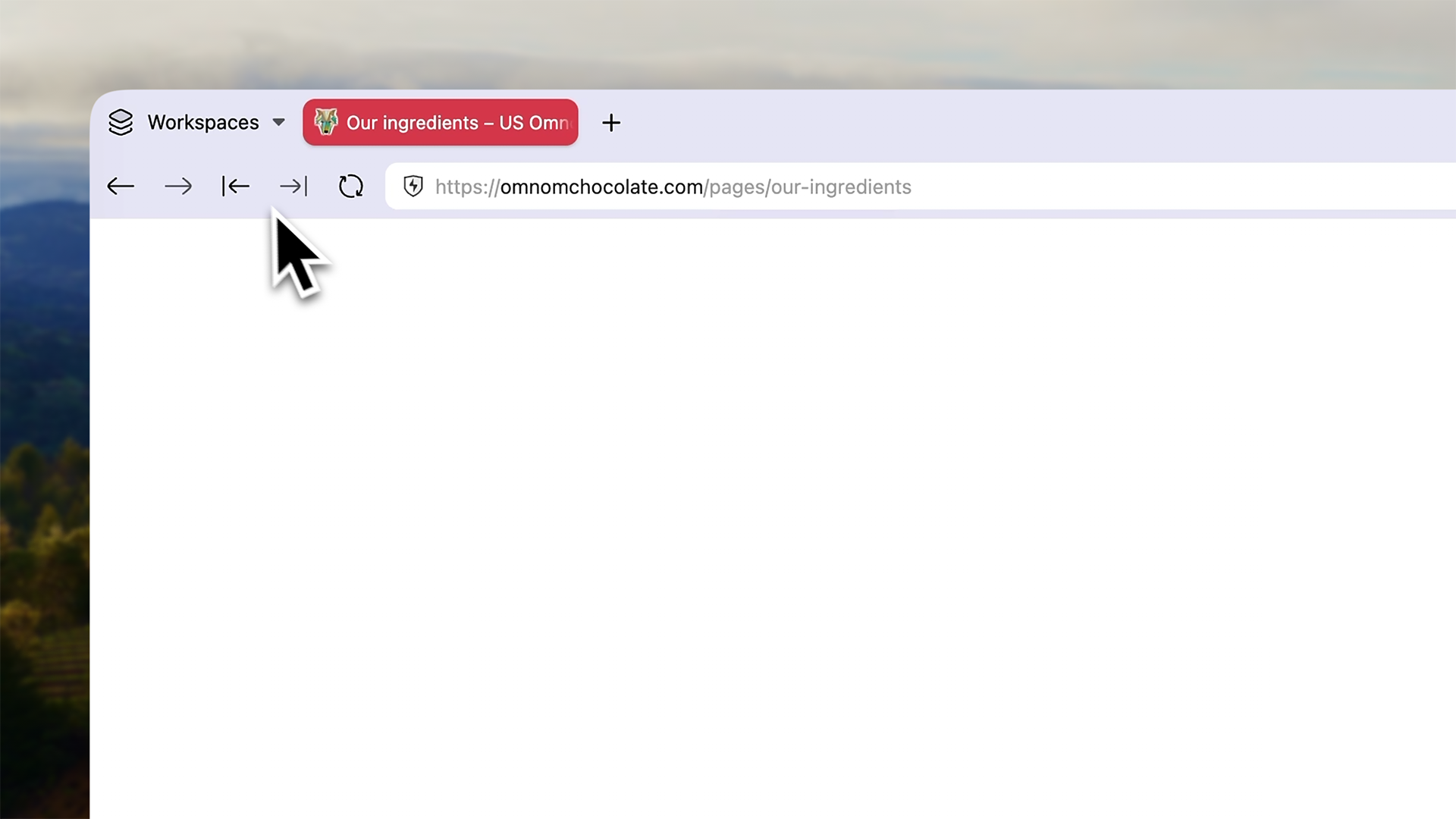
When a website has paginated content, instead of scrolling to the bottom of the page and clicking on the next page button on the web page, you can click on the Fast Forward button on the Address Bar to load the next page.
Fast Forward works, for example, on Search Engines‘ search results pages, forum topic lists pages, online (shopping) catalogues, etc.
Alternatively, you can use the Space key. Pressing Space on your keyboard will move you down the page bit by bit and once you’ve reached the end of the page, it’ll load the next page.
Rewind
Go back in one click to the first page if you’ve browsed several pages on a same website.
For example, if you visit a Search Engine site such as DuckDuckGo or Ecosia and search for something. You look for it on Page 1, then Page 2 and then Page 3, etc. Let’s say you are on Page 5, by hitting Rewind button, you can return straight back to Page 1 in a single click.
Tip
Fast Forward and Rewind can be accessed from the main tool bar as well as through Keyboard Shortcuts and Mouse Gestures.
Fast Forward and Rewind buttons aren’t on the Address Bar by default. You need to add them by customizing the browser’s toolbars.
To add the buttons:
- Open the main
 Vivaldi menu > View > Customize Toolbars.
- Make sure Address Bar’s buttons are shown.
- Drag Rewind and Fast Forward‘s buttons to the Address Bar.