At the top of the page, you can see at a glance whether you have the latest version of Vivaldi or whether you need to restart the browser to update it. In case you have automatic downloading and installing of updates disabled, you’ll see a download button when a new version is available.
System & Build
In this section, you’ll see detailed information about the Vivaldi and Chromium versions, your operating system, and more. Click on the Copy button next to the section title to copy all of the information to your clipboard. It can be useful information to share when discussing an issue on the Vivaldi Forum or reporting a bug to the team, for example.
Update Info
In this section, you’ll see additional information about your Vivaldi browser. For example, the User Agent and the Profile Path. The latter is useful when you’re looking for the local files of your browser data. To get to the folder in your File Manager/Finder easier, there’s an Open Profile Folder button right next to the Profile Path.
Helpful Links
In this section, you’ll find a handful of links to some useful pages.
Privacy Policy. Set your mind at ease by reading how we protect your personal information.
Help pages. Learn about Vivaldi features and find all the information you need to customize the browser to your liking.
Release Notes. Take a look at the changelog, listing all recent changes (new features, improvements, bug fixes).
Credits
At the very bottom of the About Page, you’ll find links to the Chromium Projects’ homepage, to Credits on vivaldi:credits, which lists the licenses for the third-party code used in Vivaldi, and the Vivaldia Game.
When you encounter an issue and you’re trying to determine whether you can fix it yourself or need to report a bug, follow the steps below. Remember that in many cases it’s important to reload the web page for any changes to take effect.
Restart the browser
Sometimes the simplest things help, so exit/quit the browser, and hopefully on restart the issue will be gone.
If you’ve kept your computer on for a long time, restarting the device may help as well.
Make sure the browser is up to date
If you’re using an older version of the browser, there’s a chance that the bug has already been fixed and you won’t be having the issue in the latest version of Vivaldi. So make sure to update your browser regularly.
You can also check recent Snapshot changelogs on our Snapshot blog. The latest fixes and newest features are tested in Snapshots, before being released in the Stable version of the browser. Then you need to wait until the next version of Vivaldi Stable is released.
Test in a different profile
On desktop, sometimes an Extension or a specific Setting can cause the issue. To check if that’s the case, test the website or feature in a Guest Profile or in a new User Profile.
Click on the User Profile button (the image can also be your chosen avatar or Vivaldi account’s profile picture) on the Address Bar to create a new profile or open the guest window.
Test in another browser
It is possible to install a second version of Vivaldi to test the issue. It’s best to test with the newest version of the browser, i.e. the Snapshot, as the likelihood of the issue being fixed is highest there and in that case, you just need a little patience until the fix is released in the Stable version. On Windows, you can install any version as a Standalone. On macOS and Linux, you can run the Stable and Snapshot versions side by side.
Some websites make sure to check from which browser you’re viewing their pages from and based on the information may alter what you see. The websites may also block access to their content and features altogether. To check whether a website is displayed differently because you’re using Vivaldi, you can change the browser’s Sec-CH-UA identity and check the website again.
From the drop-down menu, select whether you want the browser to identify itself without a brand, as Vivaldi, Google Chrome, or Microsoft Edge. In addition, you can set up a custom brand by entering the browser’s brand and version number manually.
Restart the browser for the change to take effect.
Visit the website again.
Disable Tracker and Ad blocker
Website functionality may depend on elements with trackers that are blocked by the Tracker and/or Ad blocker. Click on Content Blocker on the left side of the address bar to disable blockers and test the website.
Disable Extensions
Extensions are a common cause of issues on the desktop browser. That’s one of the reasons Vivaldi has so many built-in features – so your browsing experience won’t be hindered by extension compatibility problems.
To disable Extensions go to Vivaldi menu > Tools > Extensions and toggle all Extensions off from the bottom right corner of each Extension card.
If the issue doesn’t occur with disabled Extensions, start enabling them one by one and test in between each re-enabled Extension.
Disconnect from VPN
Whether you’re using the built-in Proton VPN in Vivaldi or another VPN service, disconnect/pause the connection and reload the web page to see if the issue still persists.
Disable Hardware Acceleration
In case the issue you’re facing is related to playing videos and other media or to the user interface’s appearance and responsiveness, you can go to Settings > Performance and see if disabling Hardware Acceleration makes a difference. Remember to restart the browser before testing the issue again.
Enable (Third-Party) Cookies
Cookies are used for a lot more than tracking users’ browsing habits. Sometimes websites require Third-Party Cookies to display content that was originally posted on a different site. For example, embedded videos or Vivaldi Blog’s comment section.
In Vivaldi, third-party cookies are blocked by default in Private Windows. To review and change your cookie settings, go to Settings > Privacy > Cookies.
Check your security software
Make sure your anti-virus product is up to date and not blocking Vivaldi. If your anti-virus product warns you about dangers in Vivaldi, it’s most likely a false positive. In that case, review your anti-virus product settings as they might be too sensitive. Read more about it in our answers to common security-related questions.
Reset settings
If the browser works as expected in a new User Profile with default settings, try resetting the settings in your main profile.
Confirm the decision by clicking Reset Settings in the popup dialog.
Some Settings, such as Enable Mail, Calendar and Feeds, will not be reset.
Delete Browsing Data
Websites get updated all the time, but information about the old version of the site is still stored in cache files and Cookies. This may cause discrepancies in the displayed website and occasionally even break functionality.
In addition, storing old browsing data for a long time will use up your device’s memory space, so deleting it every now and then can have a positive effect on the browser’s speed as well.
To delete Cache and Cookies on desktop, click on the Clear Browsing Data button in the top-right corner of the History manager or go to Vivaldi menu > Tools > Delete Browsing Data.
Delete all site data per website
If the issue is only occurring on a particular website you can opt for deleting Cookies and Site Data just for that site.
Open the website.
Click on the Site Info button on the Address Bar and select Site Settings from the menu.
In the Usage section, click on Clear Data on the right.
Confirm, by clicking Clear in the dialog.
Reload the web page.
Delete Cookies and Site Data by cookie site
Open the website.
Click on the Site Info button on the Address Bar and select Cookies and site data > Manage cookies and site datafrom the menu.
Next to the listed sites, click on Delete saved data from [site name] for each item you want to delete.
Scroll through the list of cookies or use the search box to filter out cookies by the website domain.
Hover over the cookies you want to delete.
Click on Delete Cookies button that appears on the right side.
Found a bug?
When you’ve followed the steps listed above and you can consistently reproduce the issue, please discuss it on our Forum. There, our Community members can test on their devices and either confirm the bug or suggest a fix for the issue. Some of them can also tell you whether the devs are already aware of the bug or whether a new bug report should be created.
One of the channels we like to use to share the latest news and useful information with you is email. For that, we have several newsletters and onboarding email series that you can subscribe to.
Some newsletters and email series are more context-based. To those, you can subscribe either in the browser or on relevant pages on our websites. In some cases, for example, when signing up to a Vivaldi account, you’ll receive emails with tips to get you off to a good start automatically.
Unsubscribe
To unsubscribe from newsletters and onboarding emails:
Option 1
Open an email from Vivaldi.
Scroll to the end and click on the Unsubscribe link.
Confirm that you want to remove yourself from recipients by clicking Unsubscribe.
Deselect the newsletter(s) you want to unsubscribe from in the Newsletter subscriptions section.
Click Save.
We recommend not unsubscribing from Technical Updates, as you may miss out on important information regarding your account and the availability of our services.
Manage Email Notifications
Some Vivaldi services come with their own pages to manage emails.
Keyboard Shortcuts can speed up browsing significantly and Single Key Shortcuts take it to another level. With Single Key Shortcuts you don’t need to remember countless key combinations, you can browse using only one hand making it
To use Single Key Shortcuts, first make sure that none of the input fields (Address Field, text box on a web page, etc.) are focused. Then simply press the command’s shortcut key on your keyboard.
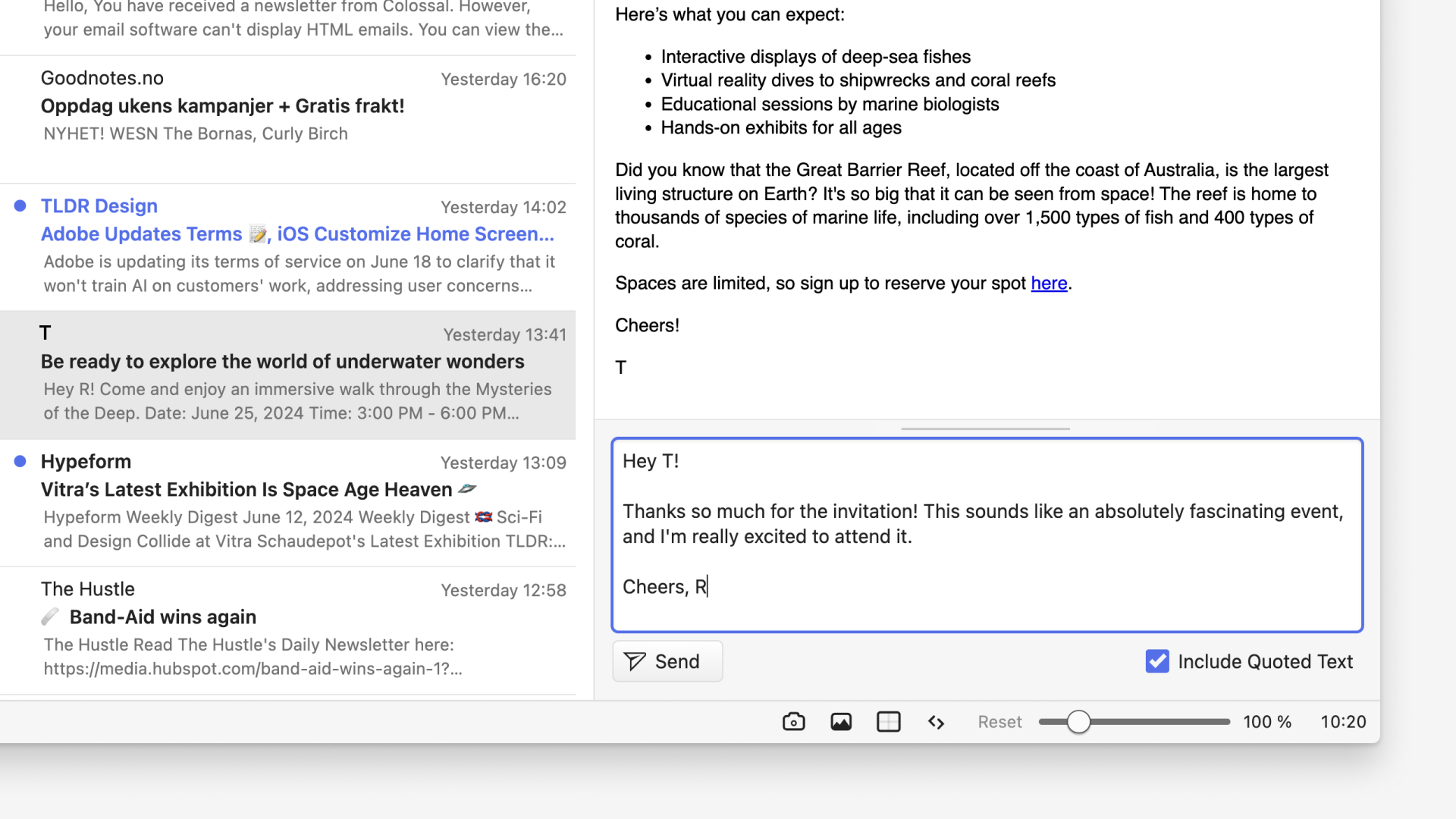
Quick Reply in Vivaldi Mail is perfect for those fast, short replies, and feels like using an instant messenger. By removing the need to switch screens to open the composer window, this feature allows you to respond to emails more quickly.
To send a quick reply:
Open the email message you want to reply to.
Focus on the text field at the bottom of the message pane.
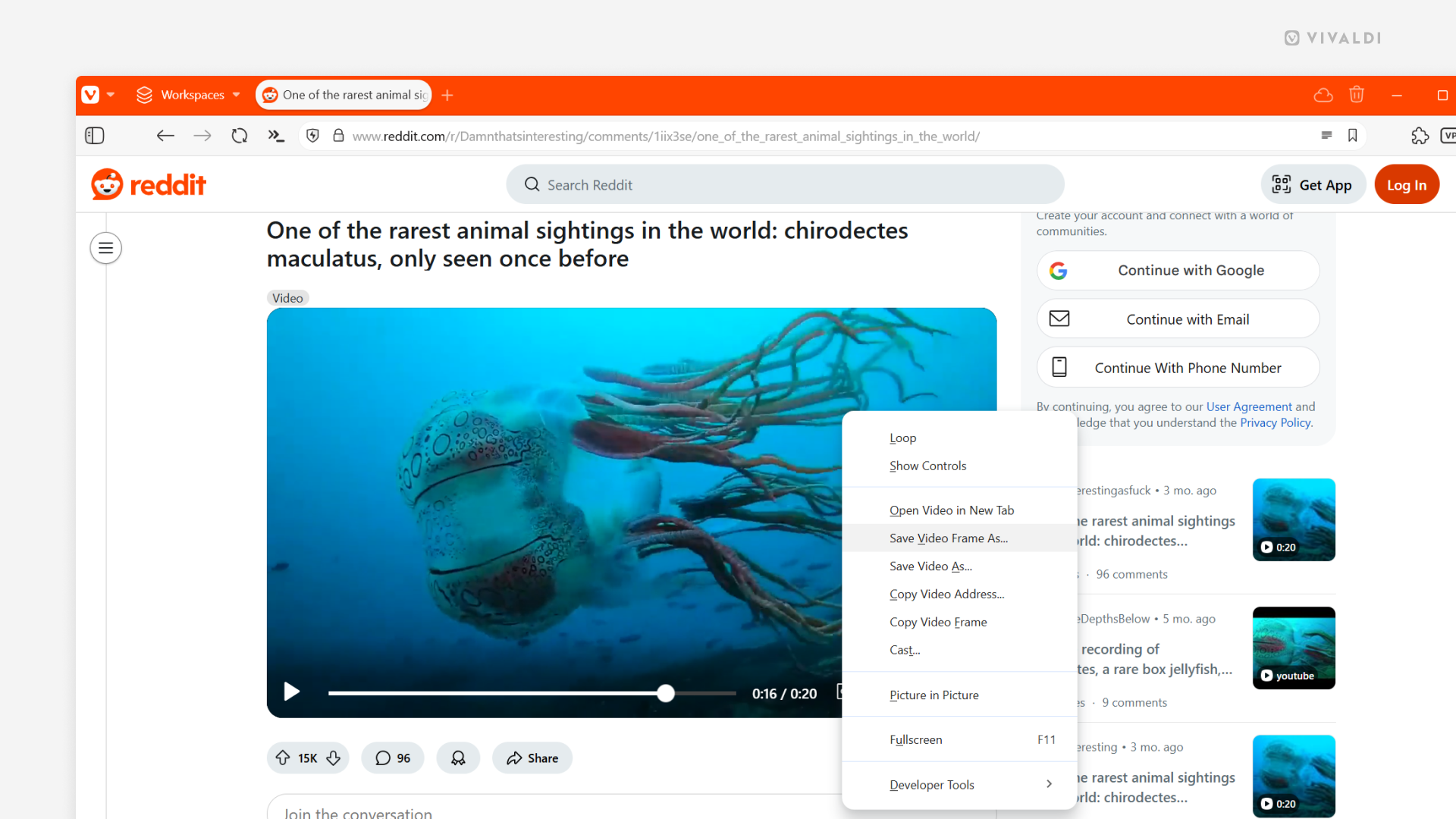
You can use the browser’s screenshot tool, to capture the content on web pages. But if that content is a point in a video, then saving a frame from it directly is faster and gives you a better result than trying to draw a frame around the capture area.
To save a frame from a video as an image file:
Play the video and pause it at the point that you want to grab a screenshot of.
Right-click (in some cases double right-click) on the video to open the context menu.
Select Save Video Frame As.
Select the saved file’s destination folder.
Click Save.
In addition to saving a frame as an image on your computer, you can also just copy it.
To copy a frame from a video:
Play the video and pause it at the point that you want to grab a screenshot of.
Right-click (in some cases double right-click) on the video to open the context menu.
 Vivaldi Menu > Help > About.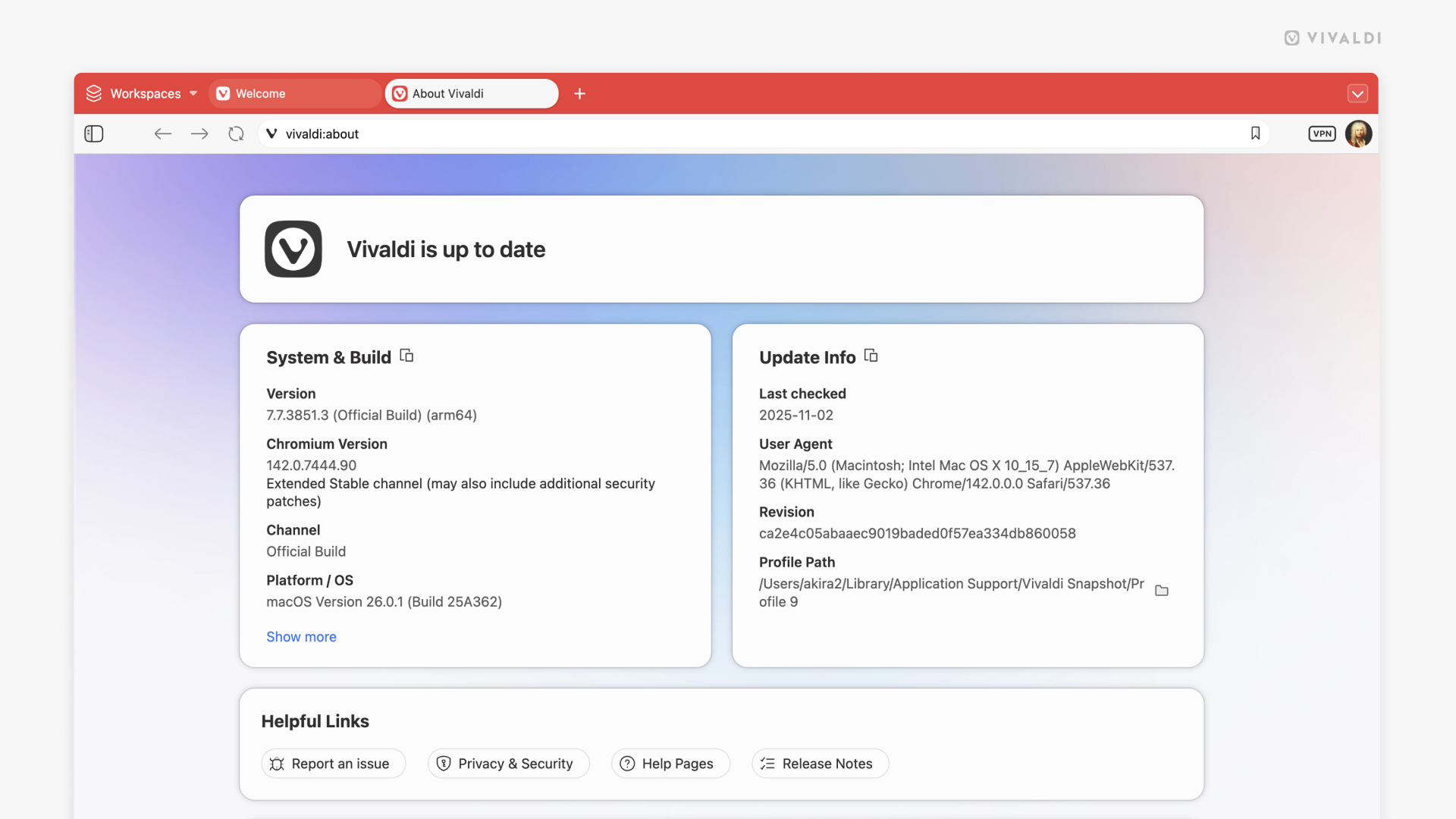
 Open Profile Folder button right next to the Profile Path.
  Reader View button on the Address Bar.
 Settings button in the bottom right corner.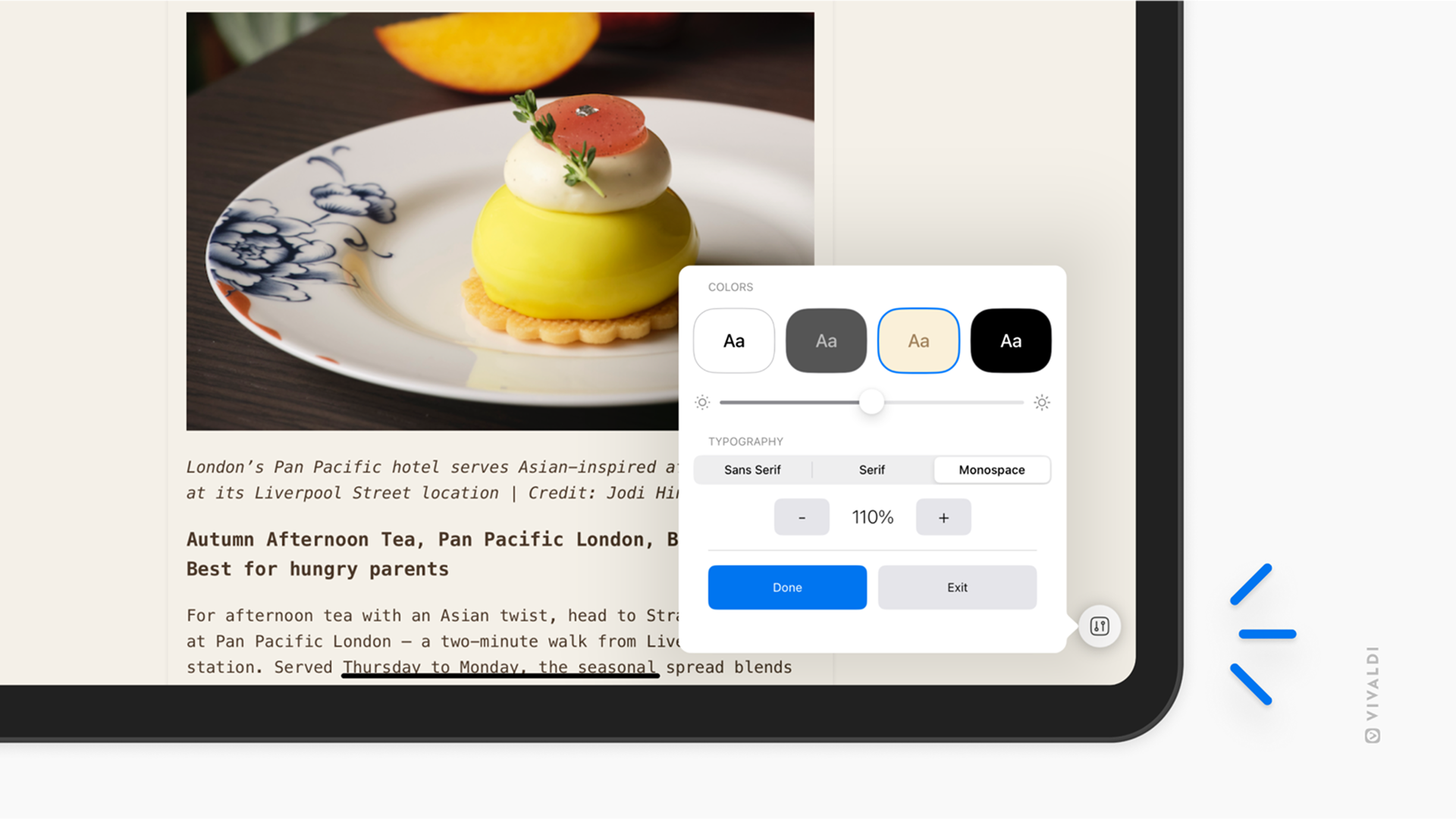
 User Profile button (the image can also be your chosen avatar or Vivaldi account’s profile picture) on the
  Content Blocker on the left side of the address bar to disable blockers and test the website.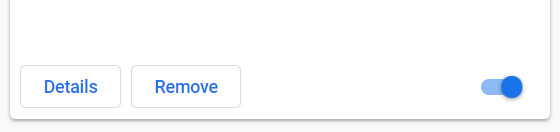
 Clear Browsing Data button in the top-right corner of the
  Site Info button on the
  Delete saved data from [site name] for each item you want to delete.
 Delete Cookies button that appears on the right side.