Privacy and Security Settings
This post is also available in:


Vivaldi’s privacy and security settings give you solid control to safeguard your private data.
By default, each setting has either been enabled or disabled based on what we believe is in our users best interest, but you’ll of course have the option to toggle each setting in Settings > Privacy and Security.
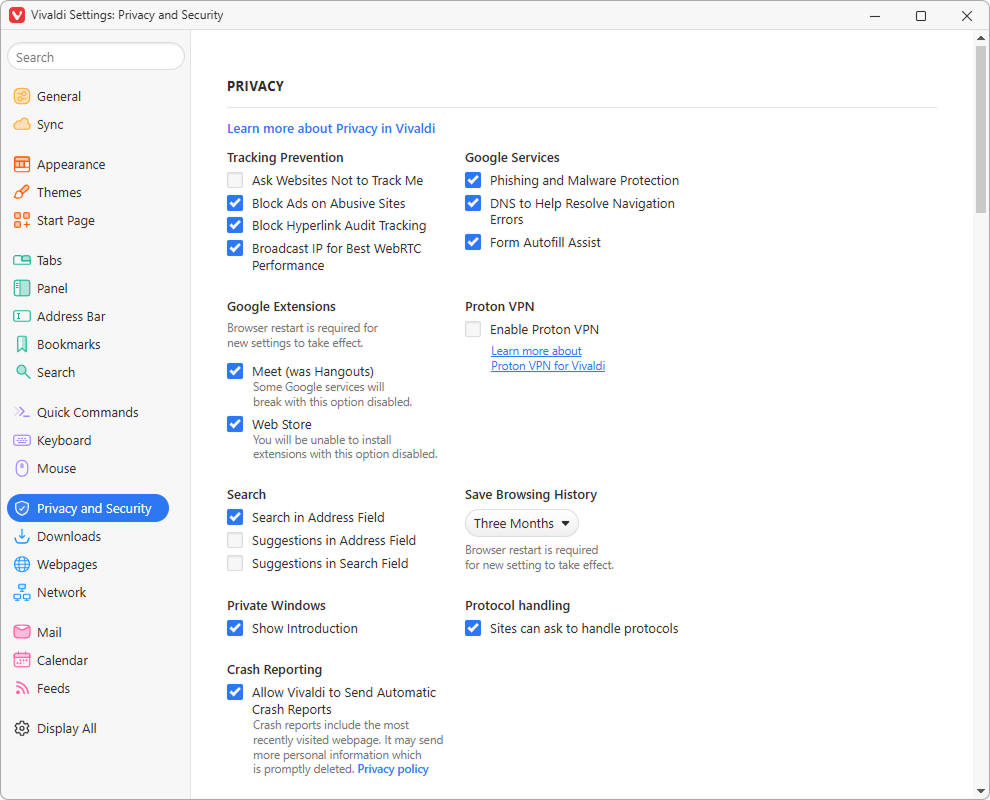
Tracking Prevention
In Settings > Privacy and Security > Tracking Prevention, you can enable the option Ask Websites Not to Track Me. It’s a polite way of asking websites not to set tracking cookies. However, they can simply ignore it, and in most cases, the ones you want to avoid will be the ones who do not respect your request.
Block Ads on Abusive Sites
Enabled by default, Vivaldi blocks advertisements on sites with abusive ad practices. Learn about it on our Help Page about the Abusive Ad-Blocker.
For additional content blocking take a look at the help page about Vivaldi’s Tracker and Ad Blocker.
Hyperlink Audit Tracking
Some web links include parameters that “ping” the website owner when the link is used allowing them to track user behavior in relation to the link. To prevent this kind of tracking, enable Block Hyperlink Audit Tracking in Settings > Privacy and Security > Do Not Track. Please note that enabling the setting may break some websites.
WebRTC IP Handling
Broadcasting IP for Best WebRTC (Web Real-Time Communication) performance is most relevant for users browsing over a VPN connection, who want to hide their IP even from websites using WebRTC to check real IP addresses.
In Vivaldi, broadcasting has been enabled by default, meaning websites can see your IP address, though, often just the internal network IP address. Disabling this setting will increase your privacy, but can cause issues with how websites function.
Google Phishing and Malware Protection
Vivaldi uses Google Safe Browsing API to alert users of malicious websites.
Vivaldi’s implementation of Safe Browsing is the same as the one used by Google Chrome. The usage is enabled by default, but can be disabled.
To disable Google Safe Browsing API:
- Go to Settings > Privacy and Security > Privacy > Google Services.
- Disable Phishing and Malware Protection.
Operation
The implementation operates as follows:
- Vivaldi compares a non-reversible hash fragment (prefix) of the URL with a local Safe Browsing list.
- If there is a match, fragments of the hash are sent to the Google Safe Browsing server.
- The Google Safe Browsing server sends back a list of complete URLs for the full hashes that match.
- Vivaldi then compares the complete hash of the URL with the complete hashes received in step 3.
- A warning page is shown to the user in case of a match.
At no point is any personal information transmitted to the Google Safe Browsing server. The local Safe Browsing list is updated every few hours.
Privacy considerations
Google receives:
- The user’s IP address.
- The profile-instance’s unique Google Safe Browsing undeletable super-cookie.
The super-cookie is isolated to only Google Safe Browsing-related requests and is stored in a separate cookiejar (Vivaldi\User Data\Default\Safe Browsing Network\Safe Browsing Cookies).
The current Vivaldi implementation supports Google Safe Browsing V5, and only the standard mode (see Operation above) is enabled. The enhanced (“oblivious proxy”) mode is not enabled.
The enhanced mode means immediately uploading hashes for ALL visited URLs to the Google Safe Browsing system. Vivaldi considers that a privacy risk, even with the “oblivious proxy” approach, which is why the enhanced mode is disabled, even though it might be more responsive for quick up-and-gone fraud sites.
The Google DNS (Domain Name System) Service will give you the IP address of the website you want to visit in case your ISP (Internet Service Provider) fails to do so properly (in some cases the ISP may have faulty DNSs).
The Google DNS server addresses (8.8.8.8 and 8.8.4.4) have been hardcoded into Chromium, on which Vivaldi is built. The setting is enabled by default, but can be disabled in Settings > Privacy and Security.
Assist in Form Autofill using a Google Service
For user convenience, the browser saves your form fill data (such as addresses and payment details) and fills forms automatically next time a site includes a similar form. This feature has been provided by Google, but none of the data you enter will be sent to Google, only the types of data you submit.
To edit and delete entries or disable autofill altogether, go to Settings > Privacy and Security > Payment methods / Addresses and more.
Google Extensions
Google provides many popular services. The use of some of these services are tied to Google extensions that are bundled into Chromium based browsers. They’re enabled by default, to provide a smooth user experience for users, who use these services. At the same time, we want to give users that are more privacy conscious and don’t use Google’s services an option to disable them.
Google Services Token – login to Google accounts will not be possible, when this extension has been disabled.
Hangouts – needs to be enabled to share your screen during Google Hangouts/Meet calls.
Web Store – it won’t be possible to add Extensions from Chrome Web Store to Vivaldi, if this setting has been disabled.
Proton VPN
Proton VPN is integrated into Vivaldi, allowing you to connect to a VPN server effortlessly with your Vivaldi account for free and access extra features after upgrading to a paid plan.
In Privacy and Security settings you can enable/disable the feature.
Search Suggestions
Search suggestions have been disabled by default, as everything you type, even if you don’t complete the search, is sent to your selected search engine. Read more on this topic on our blog.
They can be enabled/disabled separately for:
- the Address field, and
- the Search field on the Address Bar and Start Page,
both in Settings > Search and Settings > Privacy and Security.
Enabling Search suggestions for chosen search engines
To get suggestions only from search engines that you trust, go to:
- Settings > Search > Search Engines;
- Select the search engine you do not want to see suggestions from;
- Empty the Suggest URL field;
- Click Save.
Browsing History
You can decide for how long your browsing history is saved in Vivaldi.
You can choose between:
- Session Only – meaning your history will be deleted every time you exit the browser.
- One Day
- One Week
- One Month
- Three Months (the default)
- Six Months
- One Year
- Forever
Private Windows
When you open a new private window, you see a message informing you that, though searches, visited sites, cookies, and temporary files won’t be stored by Vivaldi, using a private window doesn’t mean that your connection is encrypted or modified.
To see your Start Page instead of the introduction:
- Go to Settings > Privacy and Security > Privacy > Private Windows.
- Disable Show Introduction.
Tracker and Ad blocking
Learn about blocking trackers and ads in Vivaldi on the help page here.
Certificates
View and manage HTTPS/SSL certificates and their settings.
Passwords
Learn about storing login passwords in Vivaldi on the help page here.
Payment Methods and Addresses
Learn about prefilling payment methods and addresses on the help page here.
Website permissions
Learn about website permissions on the help page here.
Cookies
Learn about managing Cookies in Vivaldi on the help page here.