Vivaldi in Android Automotive OS

The Android version of Vivaldi is available in many of the cars that have the Android Automotive OS (AAOS). For example, Polestar, Renault, Volvo, Wolksvagen, Mercedes, Audi and more.

Install Vivaldi

To install Vivaldi in your car:

  1. Open the Google Play app in the car’s center console.
  2. Search for “Vivaldi Browser”.
  3. Tap on Install.
  4. Launch the app and start exploring.

Using Vivaldi in your car

To ensure the safety of the drivers and passengers, the browser can be used only when the car is parked. Streaming content may continue audio-only if driving commences.

In addition, some functional restrictions may apply, for example, files cannot be downloaded. Other than that, the browser in AAOS has the same features and works the same way as Vivaldi on Android on phones and tablets.


Video


Need help?

In case you have questions for which you haven’t found an answer from the Android section of the Help Pages start a discussion in the Automotive category of the Vivaldi Forum, where the Vivaldi Team and expert users in the Community will answer any of your questions. In case you’ve encountered a bug, please report it on vivaldi.com/bugreport and select the relevant car brand for the affected product.

Was this helpful?

Yes
No
Thanks for your feedback!

Private Windows

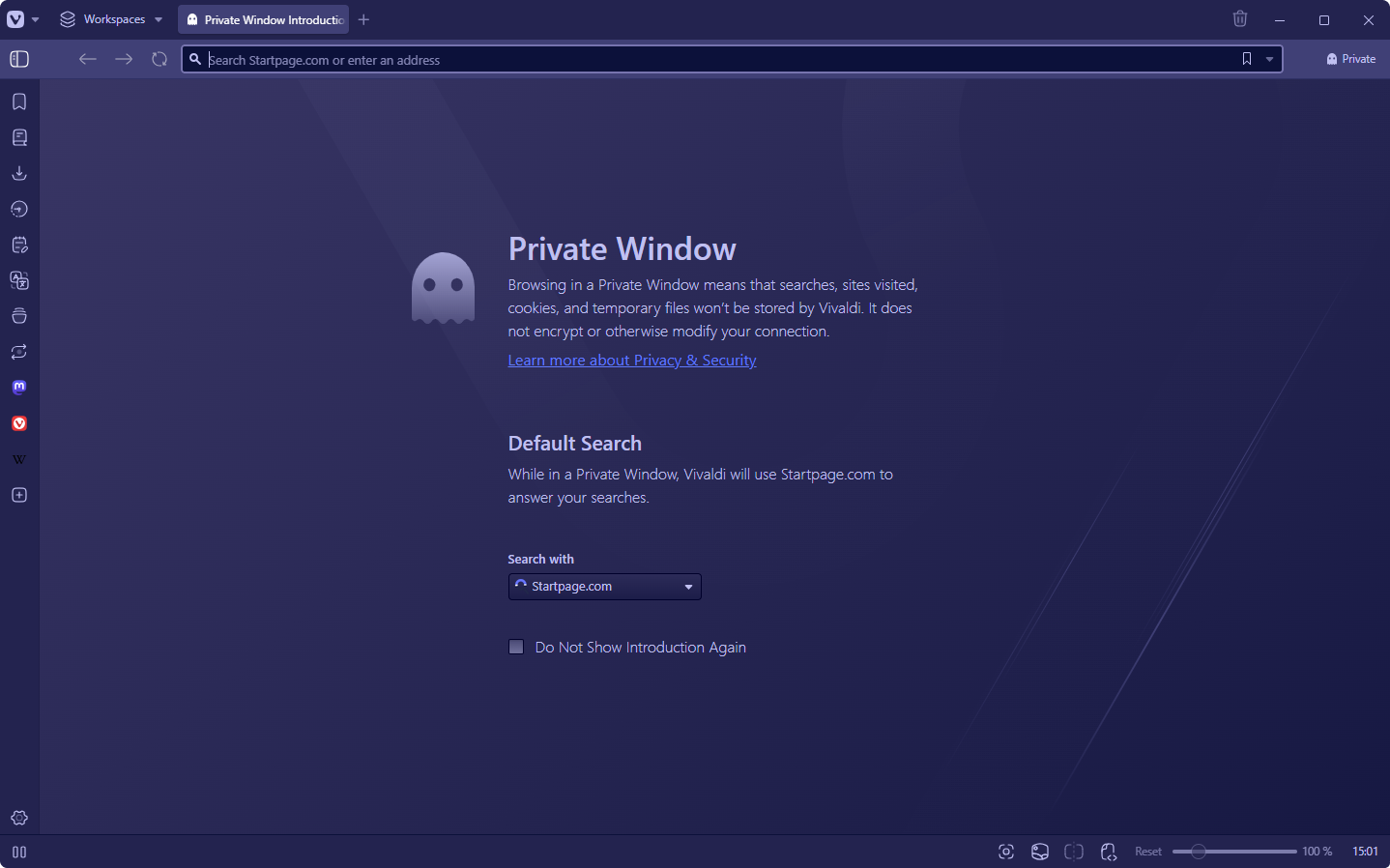
Private browsing mode is intended to protect your privacy from other users of your computer. When you browse using a Private Window, Vivaldi will minimize what is stored locally on your computer so that very few traces are left of what you were browsing once you close all private browsing windows.

Vivaldi browser's Private Window open with the introduction page.

To open a Private Window:

  • Go to the Vivaldi menu button Vivaldi menu (Windows and Linux) > File  > New Private Window;

  • Type ‘New Private Window‘ in Quick Commands;
  • Use the Keyboard Shortcut Ctrl Shift N / ⌘ Shift N;
  • Create a new Mouse Gesture for opening a new private window.

Private Window Theme

Vivaldi has a separate theme for Private Windows to make it easier to differentiate them from regular Windows. To change the Private Window Theme:

  1. Go to Settings > Themes > Private Window Theme.
  2. Select a theme from the drop down menu.

Private Window Search Engine

The default Search Engines can be different in regular and private windows. To select a search engine for Private Window:

  1. Go to Settings > Search > Private Window Search Engine.
  2. Select a Search Engine from the drop down menu.

A few things to keep in mind about using Private Windows

  • Using a Private Window does not encrypt or otherwise modify your connection.
  • All private windows share the same session while they are open, so you need to close all of them to cause the session data to be deleted.
  • A Private Window in Vivaldi does not use the same cookie store or cache as for regular browsing.
  • Third-party cookies are blocked by default. To change it, go to Settings > Privacy > Cookies > Third-party cookies.
  • It does not store the history of addresses that you visit.
  • It tries – as much as possible – to only store website cache files in memory instead of on disk, so that disk scanning tools will not find residual traces of the files.
  • If you intentionally download something, that content cannot be protected. Downloads are downloads, whether they start in private browsing mode or not.

If you have forgotten to use private browsing mode, you can select Delete Browsing Data from the Tools menu to either delete all your browsing history, or just the history for a selected amount of time. Of course, this cannot remove traces from the disk so disk scanning tools may be able to find traces.


Always open Vivaldi in a Private Window

To open a Private Window without opening a normal window first, follow these instructions.

Option 1

  • Right click on Vivaldi in the Start Menu or Task Bar;
  • Select New Private Window.

Option 2

  • Open Windows’ Run Command Win + R;
  • Paste Vivaldi’s Executable Path (from vivaldi://about);
  • Add --incognito;
  • Click OK.

Option 3

  • Make a Desktop shortcut of vivaldi.exe.
  • Right click on the shortcut and select Properties.
  • In the Target field add --incognito after the Executable Path.

Was this helpful?

Yes
No
Thanks for your feedback!

Obtain official builds and check their signatures

Securely Downloading official Vivaldi packages

To ensure you have an official version of Vivaldi, type “https://vivaldi.com/download/” and press “Enter”. On visiting this website, you should expect to see a padlocked badge in the URL field stating, “Vivaldi Technologies [NO]”. In almost all browsers, you can click the badge to view more details about the certificate.

Checking signatures

All official installation packages from Vivaldi are signed. You can check the signatures of these packages via the following methods:

Windows

Right-click on the installer package, then choose “Properties → Digital Signatures”. Here, “Vivaldi Technologies AS” should be listed. Selecting this and clicking “Details” should result in a new window that states, “This digital signature is OK”. For even more details, click on “View Certificate”.

macOS

Extract Vivaldi from the .dmg installation package and place it in “Applications”.

Open the “Terminal” application and enter the following:

codesign -dv --verbose=2 /Applications/Vivaldi.app

In the results there should be no errors about lack of signing and the “Authority” lines must include “Apple Root CA”, “Developer ID Certification Authority” and “Developer ID Application: Vivaldi Technologies AS (4XF3XNRN6Y)”.

You can also check if the application bundle is trusted by your system via the following command:

spctl --assess -vv /Applications/Vivaldi.app

For more information on examining macOS code signatures see the Apple developer documentation.

Linux

Unlike Windows and macOS, our Linux packages are self-signed. The public signing key is included within the packages and configured automatically during first install, meaning that your system will check it when you attempt to upgrade the application (via our official repositories), and will only proceed it if it is valid. If however, you want to manually check the package signatures, you first need to download and install the public key yourself.

Debian/Ubuntu

Open a terminal window and issue the following to fetch a copy of our public key, securely over https:

wget https://repo.vivaldi.com/stable/linux_signing_key.pub

Import the key into the GPG keyring of your local user:

gpg --import linux_signing_key.pub

You can now verify that the signature is valid, like so (adjust the file name to account for the current version and architecture):

dpkg-sig --verify vivaldi-stable_5.4.2753.47-1_amd64.deb

If everything is ok, it should return a result that includes “GOODSIG” and a 41 character, key ID that should end with “C27AA466”.

RPM-based

Import the key into the RPM database:

sudo rpm --import https://repo.vivaldi.com/stable/linux_signing_key.pub

You can now verify that the signature is valid, like so (adjust the file name to account for the current version and architecture):

rpm -Kv vivaldi-stable-5.4.2753.47-1.x86_64.rpm

The signature checks should return “OK” and key ID should be “c27aa466”.

Was this helpful?

Yes
No
Thanks for your feedback!

Request a new feature

We build Vivaldi with the needs of our sizeable community in mind. If you have an idea for a feature you’d like to see in the browser, let us know on the Forum!

Searching for existing feature requests

To collect all votes under one post and limit the number of duplicate requests, please look for other feature requests, before posting your own. You can browse through already requested feature topics by logging in to the Forum and going to the relevant feature request category:

To search for a feature request:

Option 1

  1. Click on the Search for feature requests button in the top right of the feature requests page.
  2. Enter a search term in the search field.
  3. Press Enter or click Search below advanced search options.
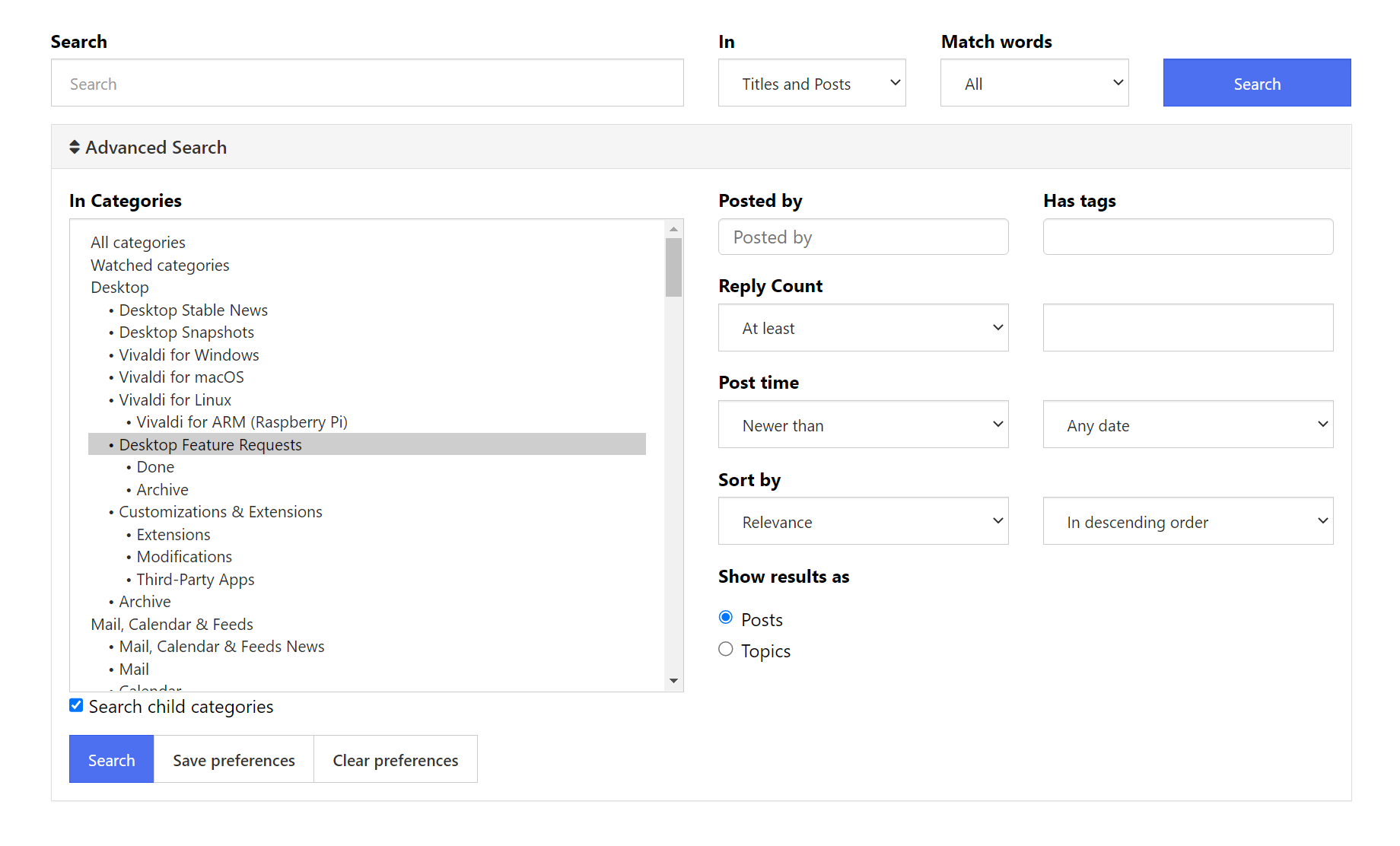
Advanced Search settings on the Vivaldi Forum.

Option 2

  1. Enter the search term in the Search filed near the top right corner of the forum.
  2. Select the category or categories you want to search in. Hold down Ctrl or Shift to select multiple categories or tick the box for Search child categories.
  3. Press Enter or click Search below advanced search options.

When you’ve found a feature that you’d like to see implemented, click on the thumbs up button below the first post.

Forum upvoting button

Leave a comment if you have anything to add to the feature request.


Posting a new feature request

  • If the feature hasn’t been requested, start a new topic. Post only one feature request per topic.
  • If possible, post in the relevant subcategory. Admins and moderators may move your post, if they feel there’s a better location for your request. You can see all your posts on your profile.
  • Choose a clear and concise title for the topic and describe the feature in more detail in the body of the post.
  • Duplicate feature requests will be tagged as such and moved to Archive.
  • Discuss requested features under each post.
  • Check tags such as “Done”, “In progress“, “Pipeline”, “Duplicate” and “Will not do” for the status of requested features.
  • Feature requests can be sorted by “Newest to Oldest”, “Oldest to newest”, “Most posts (most discussed)” and “Most votes”.
  • Offensive language and ALL CAPS posts will be edited or even deleted.

Don’t have a Vivaldi.net account? Find out here how to create one

Thank you all for being part of our journey and for helping us make Vivaldi the browser you need it to be!

Was this helpful?

Yes
No
Thanks for your feedback!

Report crashes on Windows

A “crash” occurs when Vivaldi encounters an unrecoverable error and shuts down unexpectedly or a tab’s contents disappear and are replaced with a “dead bird” image. Information pertaining to the crash is logged by Vivaldi.

Enable automatic crash reporting

When you enable automatic crash reporting, we will receive the crash logs automatically. You can enable crash reporting during the welcome flow after installing the browser, or any time in Settings.

To enable automatic crash reporting:

  1. Go to Settings > Privacy and Security > Privacy > Crash Reporting.
  2. Enable Share Crash Reports to Help Us Improve Product Quality.

Provide additional information

By adding context to the crash, the team will have an easier time fixing the bug that’s causing the crash. You can do that by filing a bug report that gets linked to your crash log.

To file a bug report about the crash:

  1. Go to vivaldi:crashes.
  2. Look for a crash log that was created around the time you witnessed the crash.
  3. Click on Provide additional details.
    You’ll be taken to our bug report page, where the crash’s ID is already prefilled in the Summary field.
  4. Fill out the form with information you think is relevant to the crash, such as steps to trigger the crash.
  5. Submit the bug report.

Manual crash reporting

If you don’t want to report all crashes to us automatically, you can still forward individual crash logs to us manually.

To report crashes:

  1. Go to vivaldi:crashes.
  2. Look for a crash log that was created around the time you witnessed the crash.
  3. Click “Send now”.

In case the crash occurs as you’re opening Vivaldi and you’re not able to visit vivaldi:crashes, you can locate the crash logs following these instrcuctions:

  1. Open the “Run” dialog—[Windows Key]+R
  2. Copy the following text (triple click to select) and paste it in the dialog "%UserProfile%\AppData\Local\Vivaldi\User Data\Crashpad\reports"
  3. Look for a crash log that was created around the time you witnessed the crash—sort by “Date”.

As an alternative, use the Windows batch file contained within this archive to automate all of the above. Extract the batch file from the archive, run it and it will create a compressed archive for you, containing crash logs from your most recently installed Vivaldi version.

Then, go to vivaldi.com/bugreport and fill out the form with details about the crash and attach the crash log file to the report.

Was this helpful?

Yes
No
Thanks for your feedback!

HTML5 Proprietary Media on Linux

HTML5 “proprietary” audio and video includes all media types that are patented, such H.264 (video) and AAC (audio).

Testing support

To test proprietary media support, try and play the following test video.


Installing proprietary media support

If the test video didn’t play, restart Vivaldi once. This will cause a reinstall of the appropriate support files, in cases where they did not get installed alongside Vivaldi with the initial install or upgrade .


Troubleshooting

If the test video above will still not play, file a bug report stating that you run Linux and cannot play proprietary media. Mention your Linux distribution and distribution version. It is also recommended that you create a media log by running the following command in a terminal. Triple click the following line and copy it to your clipboard, paste it into a terminal window (Ctrl+Shift+V), then press Enter:

bash -x -- /opt/vivaldi/update-ffmpeg --user 2> "${XDG_DOWNLOAD_DIR:-$HOME/Downloads}/vivaldi-media-log-$(date '+%Y%V%u%H').txt"

You can attach the generated log (found in your Downloads directory) to the bug you create.

Most audio/video streaming services also require Encrypted Media Extensions to function. If you are able to play the test video above but continue to have issues with streaming services, you should also check out our guide to Widevine CDM (for EME/DRM support).

Was this helpful?

Yes
No
Thanks for your feedback!

Raspberry Pi -Tips for running Vivaldi

Vivaldi for ARM (32bit with hardware floating point) can be found here:

Just select “Linux DEB ARM” from the drop down menu.

Below are some tips to make the most of it.


Installing Vivaldi for ARM on non-Debian based distros

Use “install-vivaldi.sh” : sh install-vivaldi.sh --final (more info)


Widevine and Flash

If you need to access websites using Encrypted Media Extensions (.e.g. Spotify) or sites that use Flash (e.g. Tidal), you can extract Widevine and Flash binaries for Linux ARMhf from ChromeOS recovery images. Simply run this script on a Linux machine to extract the files.

Since these you need to download a very large file (2Gb+ on disk after download) it is recommended that you do the extraction on another machine (you can do it on the Raspberry Pi itself, if you have space).

Netflix

To make this work you will need to have already installed Widevine. Additionally, you will need to alter the browser’s User Agent. To change your User Agent, install the extension User-Agent Switcher for Google Chrome, open the “Options” and configure a new “Custom User-Agent”, like so:

  • New User-agent name: Netflix
  • New User-Agent String:
    Mozilla/5.0 (X11; CrOS armv7l 10895.56.0) AppleWebKit/537.36 (KHTML, like Gecko) Chrome/79.0.3945.131 Safari/537.36
  • Group: Chrome
  • Append?: Replace
  • Indicator Flag: NFX

Enable this User Agent and then proceed to logging into Netflix.

Whilst it is possible to play videos this way, it is not recommended on any recent Raspberry Pi, other than for a bit of fun. The resolution is very poor and you will most likely get a lot of dropped frames.


Increasing the size of the swap file

For smooth running of Vivaldi on Raspberry Pi, we recommend to increase swap space. Open a “Terminal” and use the following command to change the SWAP from 100MB to change it to 2048MB:

echo CONF_SWAPSIZE=2048 | sudo tee -a /etc/dphys-swapfile

Then restart the swap service to apply the changes:

sudo /etc/init.d/dphys-swapfile stop
sudo /etc/init.d/dphys-swapfile start

Making this change may diminish the the life of your SD card.


Stopping the “hiss” when using analog out (Raspberry Pi 3)

If you are using Raspbian on a Raspberry Pi 3 and hear a his when listening to music or watching videos, issue the follow command in a “Terminal” and then restart the Raspberry Pi:

echo audio_pwm_mode=2 | sudo tee -a /boot/config.txt

Was this helpful?

Yes
No
Thanks for your feedback!

Sync browser data on desktop

With the synchronization function, you can synchronize your Vivaldi browser data across multiple devices.

Standalone version of Vivaldi

A standalone version can be used for testing a specific setup or version, without touching the system wide settings (profile). It can also be used to create an almost fully portable installation of Vivaldi that you could store on an external disk, for sharing between computers.

Important! Since passwords and extensions are encrypted with a key which is unique to the user profile on each computer, they cannot be transferred.

The following instructions are for Windows. If you are on Linux or macOS, you can run the Snapshot and Stable versions side by side, without having to take extra steps during installation.


Installing Vivaldi as a standalone on Windows

To install Vivaldi as a standalone version:

  1. Go to:
  2. Open the installer from the Downloads Panel or from the folder you downloaded it to.
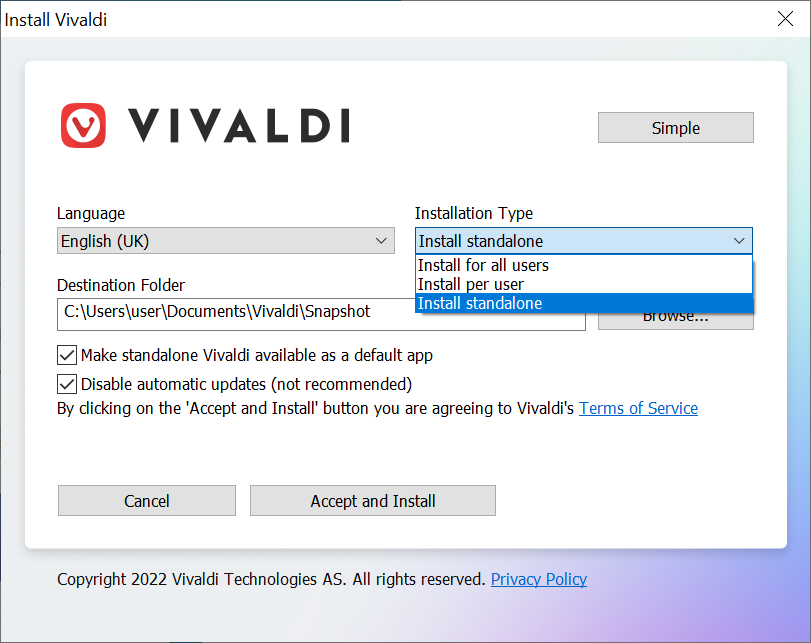
  3. In the installation window select Advanced.
  4. Under Installation type select Install Standalone.
  5. Set a destination folder (anywhere except the Program Files folder)
  6. Click Accept and Install to finish the installation.

To open the browser go to the destination folder > Application > vivaldi. To access the browser easily save a shortcut to your Desktop or pin it to the Start Menu or Task Bar.

Vivaldi browser's installer window.

We recommend that you tick the additional dialogue box “Register standalone Vivaldi” (see above). This will make the standalone version appear in the Default apps list and will be added as an entry in the Registry of the operating system.

Also, we recommend keeping the option for automatic updates enabled, to make sure you get the latest security updates, newest features and most recent bug fixes.


Updating the standalone version

If you have automatic updates enabled in Settings > General > Updates, the update will be downloaded automatically and installed on the next browser restart. Update ready message will also appear on the right side of the Address Bar when an update has been downloaded. Click on it and then on Restart to complete the update. 

To check for updates manually go to Vivaldi menu button  Vivaldi menu > Help > Check for Updates and then Install Update.

You can also download the latest update from the website. Just save it to the same folder to keep the settings or create a new folder to have a clean install.


Uninstalling the standalone version

  1. Go to the folder where you saved the Vivaldi standalone folder. If you can’t remember or can’t find it, go to Vivaldi menu button Vivaldi menu > Help > About and take note of the Executable Path.
  2. Close all Vivaldi windows
  3. Delete the folder containing the Vivaldi standalone.
    • In case you registered the standalone version as a default app, registry keys and update notifiers (if enabled) need to be deleted manually.

Was this helpful?

Yes
No
Thanks for your feedback!

Is Vivaldi Open Source?

Vivaldi is not made available under one unified open source license. It does contain the Chromium source code with changes made to allow the HTML/CSS/JS based UI to run. All changes to the Chromium source code are made available under a BSD license and can be read by anyone on vivaldi.com/source. Details in this regard are explained in the the README and LICENSE files within the package.

In addition, our UI code is written in plain, accessible code for those who read HTML, CSS and JS. This means that for all practical purposes the Vivaldi source code is available for audit.

Vivaldi also contains third party code. Licenses for these parts can be found in the source package and in the installed browser by navigating to vivaldi://credits.

Was this helpful?

Yes
No
Thanks for your feedback!