Vivaldi Social, like any social media platform, is full of people posting on a multitude of topics at various intervals. If some accounts post too much or you don’t care for the content of their posts, you have the option to mute the account or block them outright.
Mute an account
To stop seeing posts from a user and posts that mention them:
Click on ⋯ More below one of their posts or on︙Menu on their profile.
Select Mute [@username].
Choose for how long you want to mute them (from 5 minutes to 7 days or indefinitely) and whether you still want to receive notifications from them.
Click Mute.
When you mute someone, you won’t see their content, but they’ll still be able to follow and interact with your account and posts. If you don’t want that, consider blocking the account.
Mute boosts
If you like seeing a user’s own posts, but don’t want to see the content they boost:
Click on︙Menu on their profile.
Select Hide boosts from [@username].
Mute notification
Did you make a post that’s gaining traction and now you’re flooded with notifications about comments and boosts? (Temporarily) muting notifications can let you browse in peace, while the discussion is still ongoing. To mute the notifications for the post:
Click on ⋯ More below your post.
Select Mute conversation.
For additional notification settings, go to the Notifications page and click on Show settings at the top of the page to adjust your preferences.
Block an account
To hide an account’s content and prevent it from following and interacting with you:
Click on ⋯ More below one of their posts or on︙Menu on their profile.
Select Block [@username].
Click Block to confirm your decision.
Block an instance
If you’ve noticed that some Mastodon instance has a lot of users you’d like to block, you can block the whole instance instead of blocking accounts one by one. Blocking an instance will hide all content from all users on that domain and remove all followers you have from that instance. Use this option as a last resort, as you might miss posts from great users, who just happen to be on the same instance.
To block an instance:
Click on︙Menu on one of the profiles.
Select Block domain [domain name].
View muted and blocked accounts
To see who you’ve muted and blocked:
Click on︙Menu on your own profile.
Select Muted users, Blocked users, or Blocked domains.
Create a Mouse Gesture for opening the History Panel.
Browsing the history
Your browsing history is grouped into folders by date. To open or close the date folder, click on the arrow in front of the date. To open or close all folders:
Right-click on the list of entries;
Select either Expand All Folders or Collapse All Folders from the context menu.
To change the displayed history time range, click on the menu next to the search field (label shows the current view) and select between:
Hold down the Shift key to select multiple links in a row or Ctrl/⌘ key to select links that aren’t necessarily next to each other.
Use one of the latter three options listed above for opening links.
You can also open all links from a specific day or days.
Searching through History
To search for a visited link, type either part of the web page title or URL in the search field in the top left corner of the History Panel. Results will be shown as you type.
Filter by domain
To show results only from a specific website:
Right-click on one of the entries from that domain;
Select Filter by “website.com”.
Sorting visited links
To sort the history, click on the menu between the search field and the list of history entries (label shows the current sorting option). You can sort history by:
date,
title,
address, and
number of page views.
Click on the arrow on the right to switch between ascending and descending order.
Saving history entries as Bookmarks
You can save a visited link as a bookmark without having to open the link again. To do that:
Right-click on the link;
Select Save as bookmark from the context menu.
Use the Ctrl/⌘ or Shift key to select and save multiple links as bookmarks.
You can also save all links you’ve visited in a single day by right-clicking on the date and selecting Save as bookmarks from the context menu.
Deleting history
To delete a single entry:
Right-click on the history entry you want to delete;
Select Delete from the context menu or press Delete on your keyboard.
To delete multiple entries at once, select them by holding down the Ctrl/⌘ or Shift key.
To delete all history:
Click on Clear Browsing Data in the top right corner of the panel.
Select the time range you want to delete the data for and the data types you want to clear.
Click Delete.
To change how long your browsing history is saved for, go to Settings > Privacy > Save Browsing History.
Mastodon is a type of server software that provides access to a decentralized open-source social network (some people also informally use the word Mastodon to refer to the actual network itself). This network is made up of countless privately operating servers or “instances”. Some are public for everyone to join, others have restrictions on signing up.
Vivaldi Social is one such instance and everyone with a Vivaldi account can join. Vivaldi Social is run on Vivaldi’s servers in Iceland and is administered by the Vivaldi team. You can post short posts, images, links and more, to share your thoughts and ideas with the world. It works similarly to most other social networks, such as Twitter or Facebook.
Users on Mastodon instances can follow and interact with users on their instance, but they can also follow and interact with users on many other instances. You can think of Mastodon instances like email service providers. With any email account you can potentially message anyone, it does not matter who provides the underlying services or if you are on the same service as your friend. This is also true on Mastodon and the Fediverse.
What is the Fediverse?
In the same context as Mastodon, you will often also hear the term “The Fediverse”. Mastodon is currently the most popular Fediverse server software. The Fediverse, or sometimes just Fedi, stands for Federated Universe. It’s a collection of many different, independent social media servers (others include GoToSocial, Pleroma, Friendica, and PixelFed), which can interact with each other. The servers can do that thanks to a common technical standard called ActivityPub.
Joining Vivaldi Social
To join Vivaldi Social all you need to do is to go to https://social.vivaldi.net and log in with the account you use for other Vivaldi services, such as Sync. If you don’t have a Vivaldi account yet, there is an option to create one directly from the Vivaldi Social website.
You can also join Vivaldi Social from your favorite Mastodon desktop client or mobile app. When logging in, search for our instance social.vivaldi.net and follow the login instructions.
Account information and connecting with others
Your Vivaldi account’s short form username (used for login) will be of the format: JohnDoe.
Vivaldi Social’s instance name is social.vivaldi.net
To help friends to find you, give them your your username in long format @[email protected] (it looks like an email address with an extra @ at the beginning). Your friends can use this to look you up by searching for it in the search feature on their own instance. After locating you in this way, they will be able to follow or click on your name to see your profile.
Since there are no algorithms on Vivaldi Social and on Mastodon in general that show content based on your usage, you need to follow people and tags to build up a feed 100% curated by you. Thanks to the federated nature of Mastodon, you can follow accounts from any Mastodon instance with your account on Vivaldi Social.
Follow accounts
To follow accounts on Vivaldi Social:
Option 1
Open the profile of the account you want to follow.
Click on the Follow button on their profile, below the cover image on the right side.
Option 2
Search for the username (@Username@InstanceName) of the account you want to follow.
In search results, click on Follow next to the name.
Follow tags
In addition to user accounts you can also follow tags.
To follow a tag:
Click on a tag (e.g. #Vivaldi, #Caturday, #PhotoMonday) in one of the posts that includes it or search for the tag.
Browse recent posts that use the tag and see whether you want to see similar posts in your Home feed.
Click on Follow in the top right corner of the page.
Follow Vivaldi Social content with Feeds
If you’re using Vivaldi Feeds or any other feed reader, you can get new posts delivered straight to your feeds client.
To subscribe to content with Vivaldi Feeds:
Make sure that Mail, Calendar and Feeds have been enabled in Settings > General > Productivity Features.
In Vivaldi Social, open the profile or tag page you want to follow.
Add .rss to the end of the page URL. For example, https://social.vivaldi.net/@Vivaldi.rss or https://social.vivaldi.net/tags/Vivaldi.rss.
Press Enter to open the link and see a preview of the feed.
Click Subscribe below the page title.
Review and, if needed, edit the feed’s title and update frequency.
Click Add Feed.
If you use a different feed reader, copy the link with .rss at the end and add it to your feed reader using the client’s instructions.
Vivaldi introduces support for custom icon set for all toolbar buttons. Here’s how to best handle resources when creating your own icons.
Edit a theme
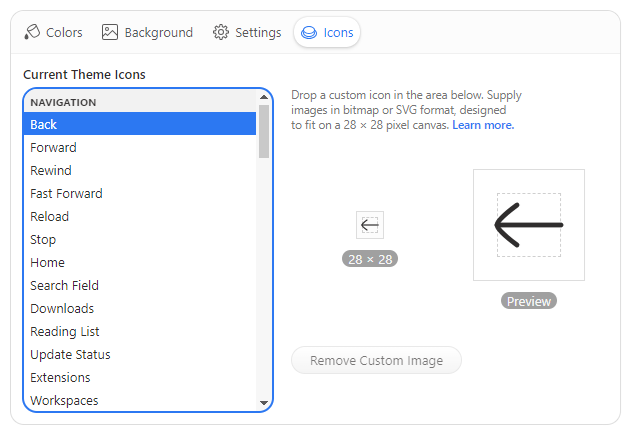
You can populate all the theme buttons right in the Vivaldi UI. To place your own icons, go to Settings > Themes > Editor > Icons to see a list of all available toolbar buttons sorted by category, and the interface to place your own icons. Custom icons will be included in an exported theme.
Button icon editor
Image size
Vivaldi supports 28 × 28 pixels bitmap or SVG images in all toolbars. Larger images will be scaled to this size.
Icon layout
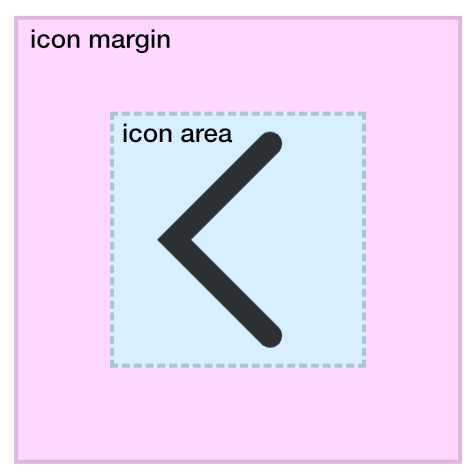
Vivaldi icon glyphs are sized at, or around 16 pixels. Your icon should leave margin around its edges, not filling the entire canvas, which can lead to big icons in a cramped toolbar. However feel free to use the available room for shapes spanning outside the imaginary boundary, or for bigger icons.
Suggested icon placement on canvas
Bitmap resources
Vivaldi supports bitmap images in GIF, JPG, JPEG, PNG, and WEBP format. Consider using a format that supports the alpha channel mask. Icons should maintain sufficient contrast against both light and dark background colors, as your theme icon set can be used in other themes as well.
Bitmap resources are best exported at double their target size to render sharply on high DPI displays and to leave room for UI scaling, i.e. export images at 56 × 56 pixels to double the resolution of the 28 pixel target.
SVG resources
Aside of bitmaps, Vivaldi supports the Scalable Vector Graphic (SVG) format, which may be produced in a few different ways.
If you’d like your icon to inherit current theme colors, do not use any fill color definitions, or use the currentColor keyword. That ensures proper color inheritance in all the different toolbar and theme combinations.
<svg
  xmlns="http://www.w3.org/2000/svg"
  viewBox="0 0 28 28"
  fill="currentColor"
>
  <!-- inherits fill color from current Vivaldi theme -->
  <path d="..." />
  <!-- uses specific fill color -->
  <path d="..." fill="#ffeea8" />
</svg>
SVG color inheritance example
On the other hand you can control all stroke and fill colors locally, independent of current theme colors. In that case you want to ensure all colors are set, so as not to inherit unexpected theme colors.
<svg
  xmlns="http://www.w3.org/2000/svg"
  viewBox="0 0 28 28"
  fill="#000"
>
  <!-- inherits default fill color #000 specified above -->
  <path d="..." />
  <!-- uses specific fill color -->
  <path d="..." fill="#ffeea8" />
</svg>
SVG code example with own color definitions
Whether you choose to use fill or stroke-based icons is up to you. In the later case define stroke properties inline.
<svg
  xmlns="http://www.w3.org/2000/svg"
  viewBox="0 0 28 28"
  fill="none"
  stroke="currentColor"
>
  <!-- no fill; stroke color inherited from current Vivaldi theme -->
  <path
    d="..."
    stroke-width="1"
    stroke-linecap="round"
    stroke-linejoin="round"
  />
</svg>
Stroke-based SVG icon example
SVG filters and masks
Filters and masks in SVG are referenced by ID, which needs to be unique. If the ID is not unique, a reference to it could be lost, and the filter or mask will break. Maintaining a unique ID for the same filter across multiple files is tedious and won’t prevent ID duplicity in the Document Object Model (DOM).
To overcome the potential issues, consider flattening the graphic instead of using masks, or replacing SVG filters with inline Cascading Style Sheets (CSS). For example to replace feDropShadow SVG glow effect:
It is good idea to minimize exported SVG icons with a tool such as SVGO. Your editor may also minimize SVG on export, but this may come with some caveats, such as maintaining unique IDs.
SVG file encoding
SVG files must be UTF-8 encoded. Import sanitation strips all JavaScript and <style> elements (inline style attributes are allowed).
Theme archive format
The current Vivaldi theme format was expanded to support icons for a growing number of toolbar buttons or command chains. Single icon resource is exported in a theme archive JSON as button ID and image path pair.
"buttons": {
  "buttonId": "imagefile01.png"
}
If you are batch-processing the icon images you may consider exporting your custom theme in Vivaldi and updating the images by replacing them in the resulting ZIP archive.
In general, mobile devices, such as smartphones and tablets, have smaller screens than laptops and desktop setups. This usually means that user interface elements and web contents are much smaller and that can make browsing on mobile more difficult. Luckily Vivaldi on Android comes with several zoom settings that you can adjust to reduce the strain on your eyes.
After exiting Settings, you’ll find a new option named Default zoom in the main Vivaldi menu, which lets you adjust the zoom level of the website you currently have open. The zoom level will be retained when you open the same site in other tabs.
Some websites want to prevent you from changing the zoom level. To still zoom in and out enable Force enable zoom in Accessibility settings.
Change the user interface zoom level
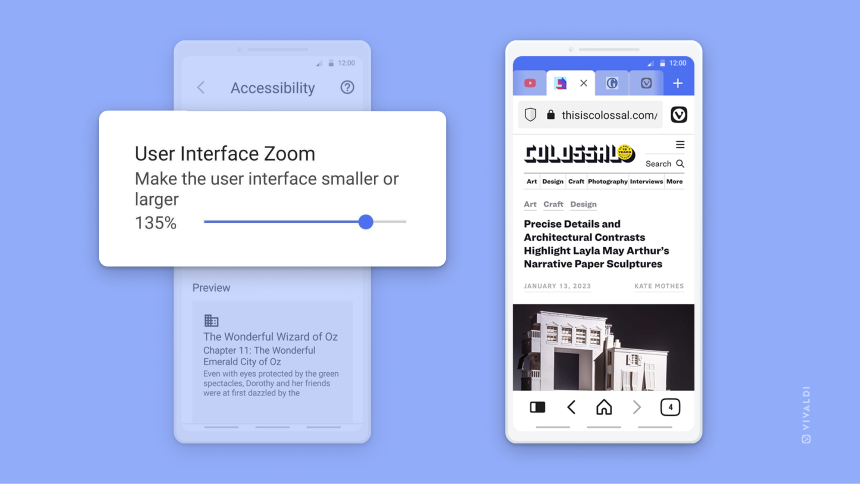
To change the size of the toolbars (Address Bar, Tab Bar, etc.), Panels and Settings interface:
Go to Vivaldi menu > Settings > Web Pages > Accessibility > User Interface Zoom.
Move the slider to make the user interface smaller or larger.
 Vivaldi menu >
  Show settings at the top of the page to adjust your preferences.
 History button on the
  Vivaldi menu > View > History Panel.
 the arrow in front of the date. To open or close all folders: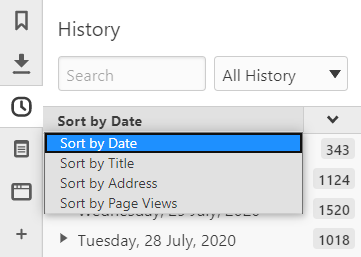
 Clear Browsing Data in the top right corner of the panel.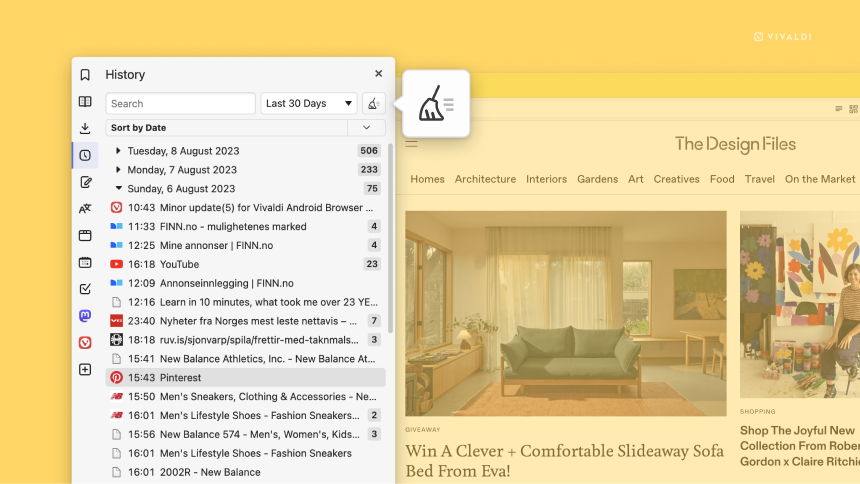
 Follow next to the name.