Scan QR codes with Vivaldi on Android

QR (Quick Response) Codes are an easy way to share links and other information. With Vivaldi’s QR Code scanner on Android you can quickly scan QR Codes and barcodes to open links, menus, payment screens, apps and get specific information unique to the code without the need to type anything. In addition to scanning, you can also create codes to share links.

Open the QR Code scanner

There are three ways to access the QR Code scanner:

  • From the right side of the URL field;
  • Through the search widget;
  • By long pressing on the app icon and selecting Scan QR Code.

Scan a QR Code

To scan a QR code:

  1. Open the QR Code scanner using one of the methods mentioned above;
  2. On first use, grant Vivaldi access to your phone’s camera;
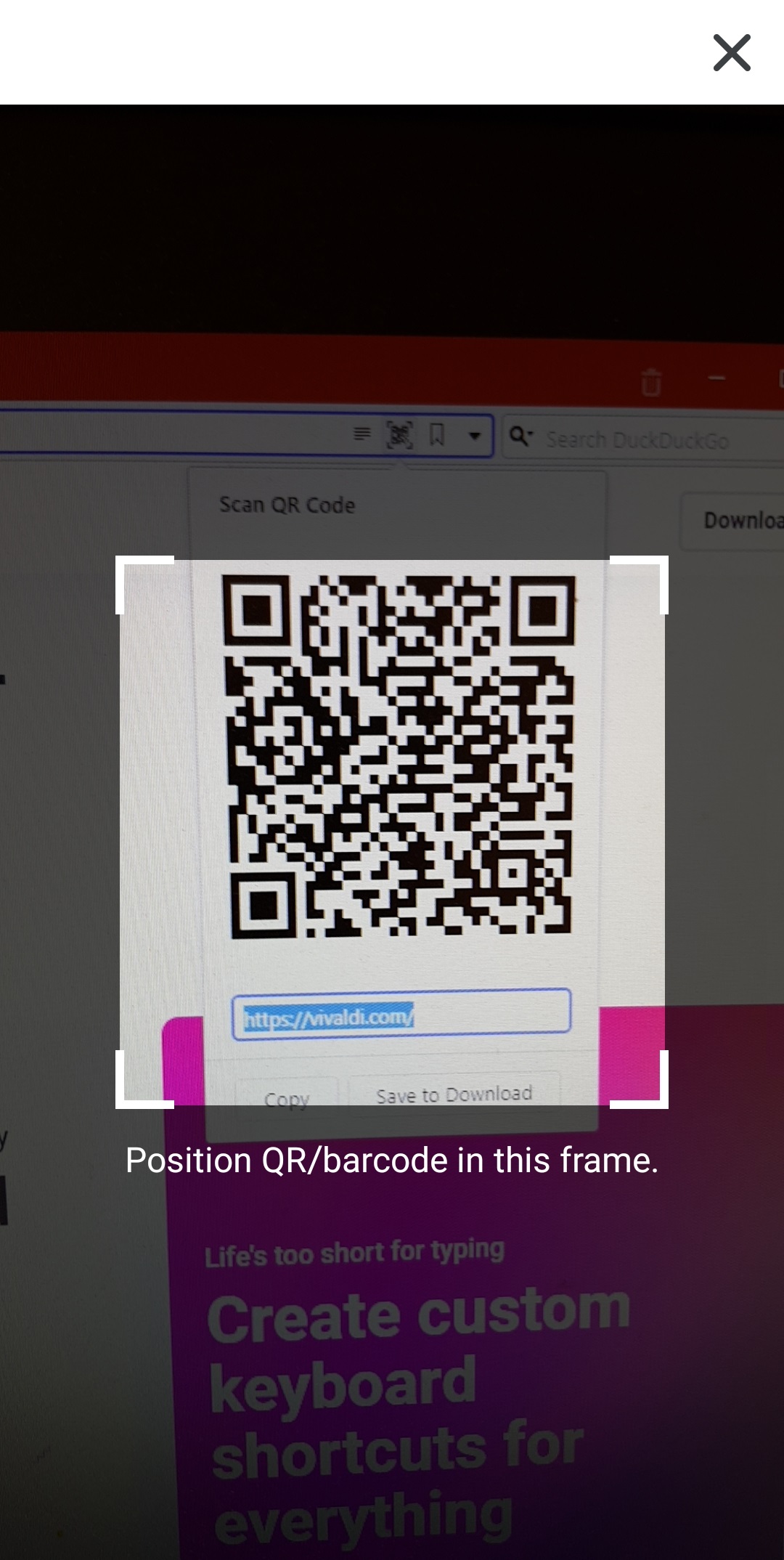
  3. Place the frame on the phone’s screen over the QR Code or barcode;

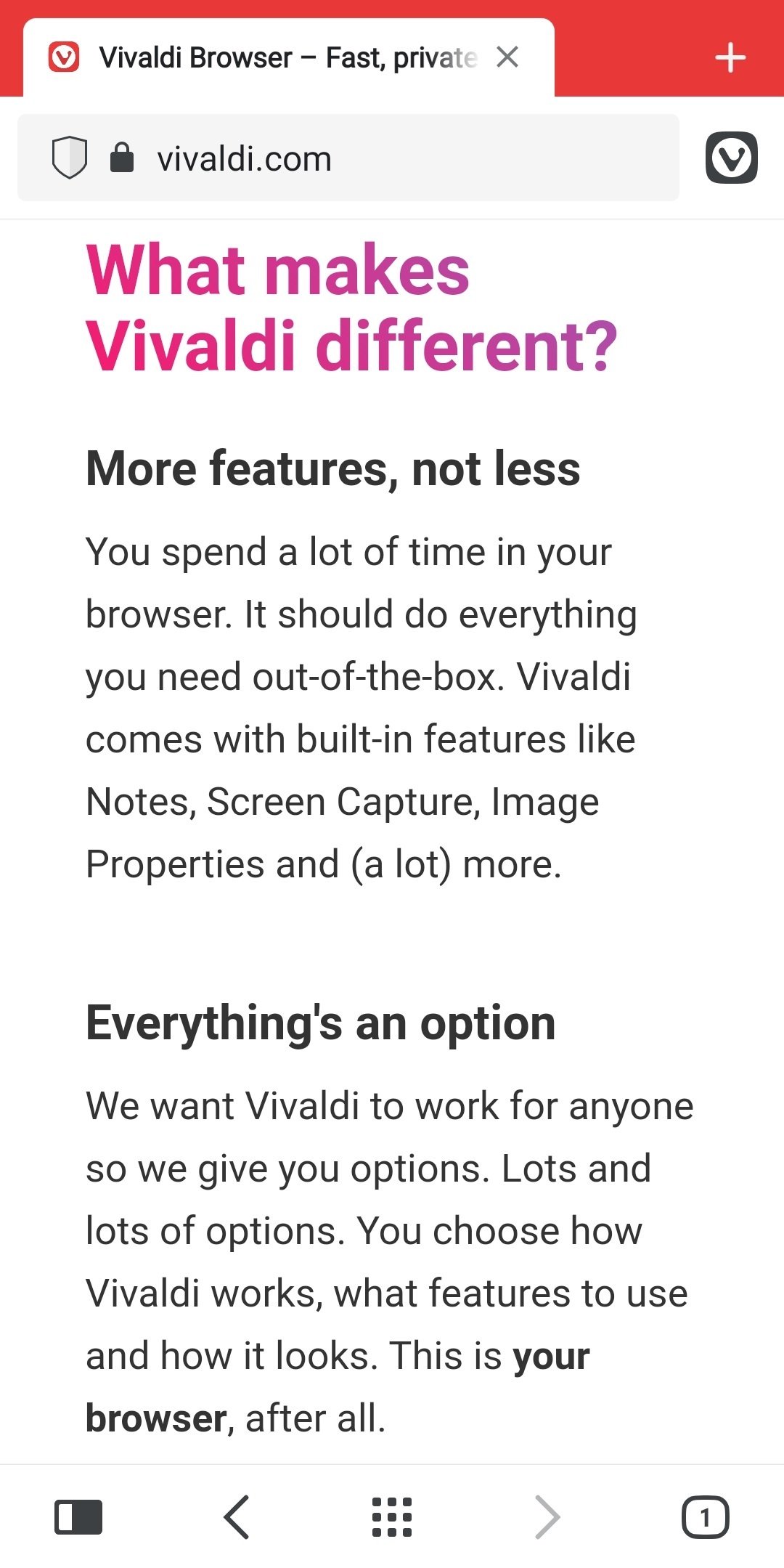
If the scanner detects a URL, it’ll automatically open the link in a new tab. In case it detects some other information, it offers to copy the information or to do a search with it.


Create a QR code

To create a QR code:

  1. Open the web page you want to share;
  2. Go to Vivaldi menu > Share;
  3. Select QR code;
  4. Show your phone to someone, so they could scan the code or download the QR code as an image.

Was this helpful?

Yes
No
Thanks for your feedback!

Change the look of web pages with Page Actions

With Page Actions you can alter the look of websites to enhance accessibility and readability, to work on your website’s CSS, or just for fun.

Apply Page Actions

To apply a Page Action to a web page:

  1. Go to the Vivaldi menu > Page Actions;
  2. Enable the option(s) you want to apply.

Available Page Actions

You can choose from the following Page Actions:

  • CSS Debugger – outlines various element types for a simple CSS inspection;
  • Filter Black and White – turns the page into black and white;
  • Filter Grayscale – changes the page’s colors to grayscale;
  • Filter Intensify – adds saturation and contrast to the images on the site;
  • Filter Invert – adds saturation and contrast to the images on the site (see screenshots below);
  • Filter Obscure – hides the content by blurring the page when the mouse cursor is moved outside of the window;
  • Filter Sepia – changes the page’s color scheme to reddish-brown;
  • Fonts Monospace – forces the text to be displayed in a monospace font. 
  • Page Minimap – shows a small overview of the page and your location on it.
  • Skewed Images – tilts images at an angle.
  • Transform 3D – distorts the whole page on hover;
  • Transitions Forced – makes transitions more prominent;
  • Transitions Removed – disables transitions;

Page actions are applied only to the active tab, but will affect any website you visit within that tab.

Disable Page Actions

To turn off Page Actions:

  1. Go to the Vivaldi menu > Page Actions;
  2. Toggle off the enabled Page Action(s).

Was this helpful?

Yes
No
Thanks for your feedback!

Use Mail, Calendar and Feeds in a separate user profile

If you’d like to use Vivaldi Mail, Calendar and Feeds separately from your main browser, we suggest setting your mail and calendar accounts up in a new User Profile. Alternatively, you can also install a second Vivaldi as a Standalone version.

Add a new Profile

  1. Click on the Profile button in the top right corner of the browser window and select Manage Profiles.
    Profile button on the Address Bar

    Alternatively, go to Settings > General > Profile Management and click on Manage Profiles.
  2. Click on Add Profile at the bottom of the menu.
  3. Pick a name for the new profile, select or upload an avatar and decide whether you want a Desktop shortcut for the profile or not.
  4. Click on Add Profile.

Once you’ve created the new profile, you can always open it from Vivaldi’s profile menu. You can also open the second profile from the desktop shortcut, if you created one. On Windows, while the second profile is open, you can also pin the profile button to the taskbar.


Set up your accounts

To use Vivaldi Calendar, make sure you’ve enabled Mail, Calendar and Feeds from Settings > General > Productivity Features. On a brand new installation or in a new User Profile, choose the Enable Mail Calendar and Feeds option in the welcome flow.

Go to Settings > Mail and Settings > Calendar to set up your accounts. For detailed instructions take a look at the following help pages:


Open links in a different profile

To open links from your Mail profile in your main browser profile:

Option 1

  1. Make sure the other profile is open;
  2. Right-click on the link in the Mail profile;
  3. Select Open link as (profile name).

Option 2

  1. Have two windows open in a way that both are visible;
  2. Hover the mouse cursor over the link;
  3. Click and start dragging the mouse cursor downwards;
  4. While dragging, move the link to the second window, for example, to the Address Field, over the Open a new tab button or to a text field.
  5. Release the mouse button to place the link.

Copy content from one profile to another

Unfortunately, it’s not possible to highlight text on a web page and use Send by Mail and Save as Calendar Event features across profiles.

But, in addition to the classic Copy and Paste option, there is another way to move content from one profile to another.

  1. Have two windows open in a way that both are visible;
  2. Hover the mouse cursor over highlighted text, link or image;
  3. Click and start dragging. ;
  4. While dragging, move the content to the second window, for example, to the email composer or calendar description.

Custom taskbar icon

On Windows, each profile gets it’s own Task Bar icon when open. To differentiate the main browser profile from the Mail, Calendar and Feeds profile, you can assign a custom icon for the Task Bar button. To do that:

  1. Open the second profile;
  2. Right-click on the taskbar button and select Pin to taskbar;
  3. Right-click on the taskbar button again;
  4. Right-click on Vivaldi (above Unpin from taskbar) and select Properties;
  5. In the Shortcut tab, click on Change icon;
  6. Browse for your custom icon (has to be in an Icon file (.ico)) and click Open;
  7. Click Ok first in the Change Icon dialog and a second time in the Properties dialog.

Unfortunately, macOS and Linux don’t support separate profile buttons on their dock/taskbar.

Was this helpful?

Yes
No
Thanks for your feedback!

Share links with QR codes

Use Vivaldi browser’s QR code generator to easily share web page links to other devices.

Locked Vivaldi account

With your Vivaldi account you can use the following services:

When you’ve tried logging in and it fails with an error message saying that the account is locked, these could be the reasons.

Account hasn’t been activated

Before logging in for the first time, you need to activate the account with a code from an email we sent to the email address you gave as the recovery email during registration.

Please check your mailbox (including the Spam folder) for the email and activate the account. Then try logging in again.

In case the code has expired or you can’t find the email, send yourself a new account activation email.

If you know you made a typo in the recovery email or gave an invalid email address, please reach out to us using the contact form at the end of this article.

Vivaldi Webmail

Vivaldi Webmail is a service for active Vivaldi Community members using Vivaldi’s services. This means that new users, who registered their account after 4th of May 2023, and users who registered between October 2019 and May 2023, but never verified their phone number, first need to build up a reputation to be granted access to the Webmail service.

The reputation system is replacing the previous requirement to verify an account via one’s phone, that was set up to limit the number of spam accounts. For additional information, read our blog post on the topic.


Used the wrong password too many times

In case you’ve forgotten your password and have tried logging in with the wrong password at least 5 times, the account will get locked for 5 minutes as a security measure. When the 5 minutes have passed, reset the login password to access your account again.


Account got locked for breaking Vivaldi’s Terms of Use

When you’re breaking Vivaldi’s Terms of Use on any of our services, the whole account will be locked and logging in to Vivaldi services will no longer be possible. Some blocking, for example due to misbehaviour on the Forum, is done manually by Forum admins and moderators. Other, such as spamming in Webmail, is mostly done automatically by our antispam filters.

If you feel this blocking has been done in error, please reach out to us and explain what happened. We’ll look into the issue.


Was this helpful?

Yes
No
Thanks for your feedback!

Tasks in Vivaldi Calendar

In addition to creating events in the Vivaldi Calendar, you can also add tasks or convert existing events into tasks. To start adding tasks, first make sure you have enabled Mail, Calendar and Feeds in Settings > General > Productivity Features.

Add tasks

To add a new task to the Calendar:

  1. Open the main Calendar view, the Calendar Panel, or the Tasks Panel.
  2. Start creating a new event or select an existing event you want to turn into a task.
  3. Give the task a title and, if you wish, add more information.
  4. In the Task section, tick the box for Is a Task.
  5. Click Add Task.

To create a task from content on a web page:

  1. Highlight text on a web page that will be set as the task’s title.
  2. Right-click on the selected text and select Add to Calendar > Task.
  3. If you wish, add more information to the task.
  4. Click Add Task.

To create a task from a Mail message:

  1. Right-click on a message in the Mail list.
  2. Select Add to Calendar > Task.
  3. Review and edit the task.
  4. Click Add Task.

In addition, you can open the task creation dialog by typing “Add Calendar Task (Dialog)” in Quick Commands, and by creating a Keyboard Shortcut or a Mouse Gesture for the command.


View tasks

Tasks with deadlines will appear in the calendar on the day they’re due. All tasks, including the ones without dates, are listed in Calendar’s Agenda view, in the panel on the right.

Tasks with out deadlines will be listed on top of the Tasks panel in the Agenda view. From the bottom of the panel you can toggle on and off showing completed tasks.


Edit tasks

To make changes to a task:

  1. Find it in the Calendar.
  2. Click on the task to open the editor.
  3. Make the changes.
  4. Click Done.

Mark tasks complete

To mark a task as complete:

  1. Find it in the Calendar.
  2. Tick the box in front of the task time and title.

Alternatively, tick the box Complete in the event editor.


Delete tasks

To delete a task:

  1. Find it in the Calendar.
  2. Click on the task to open the editor.
  3. Click Delete at the bottom of the editor.

Alternatively, right-click on the task and select Delete Event or focus on the task using keyboard navigation and press Delete.


Tasks in Panels

In addition to viewing and managing tasks in the main Calendar view, you can also access them from the Calendar Panel or from the dedicated Tasks Panel.

Was this helpful?

Yes
No
Thanks for your feedback!

Mail Filters

What are Filters?

Filters are rules you can set up either in the mail client or on the mail server to filter out emails based on the criteria you’ve set up. They’re an excellent way to organize your mailbox.

In Vivaldi Mail, you can access your filtered messages from the Filters folder on the Mail Panel.


Create a new Filter

To create a new filter in Vivaldi Mail:

  1. Go to Settings > Mail > Mail Filters.
  2. Click on  Add Mail Filter.
  3. Give the filter a name
  4. Define the criteria for filtering.
    You can create a filter for emails that match certain keywords and/or use the subject, sender, recipient and CC’d email addresses for filtering.
  5. Click Add to Search.
  6. Click Add Action and decide what should happen to the messages that match the filter criteria.
    You can add/remove labels, mark messages as read or spam and archive messages.
  7. Click Add Mail Filter.

Save a search as a filter

To save a search in Vivaldi Mail as a filter:

  1. Do a search in the Search field above the message list;
  2. Click Save on the right side of the message list search details, below the Search field.

Create a new filter on the mail server

With most email service providers you can also create filters on the server. To learn about creating filters in Webmail, have a look at the Help Page here. To create filters on the servers of other email service providers, please refer to their help documentation.


Edit a Filter

To edit a filter:

  1. Go to Settings > Mail > Mail Filters;
  2. Select a filter you want to update;
  3. Make the changes;
  4. Click Save.

To only rename a filter:

  1. Do a slow double-click on the filter in the Mail Panel;
  2. Change the name;
  3. Press Enter or focus on something else in the browser.

Delete a Filter

There are few options for deleting a filter.

Option 1:

  1. Open the filter folder from the Mail Panel;
  2. Click Delete on the right side of search details above the message list.

Option 2:

  1. Right-click on a Filter name in the Mail Panel;
  2. Select Delete Filter.

Option 3:

  1. Go to Settings > Mail > Mail Filters;
  2. Select a filter you want to delete;
  3. Click on delete button Delete Mail Filter below the list of filters.

Was this helpful?

Yes
No
Thanks for your feedback!

Filter and Search Events in Vivaldi Calendar

Filter events

To easily locate events in the current view, type a search term in the Filter and Search field in the top right corner of the tab. Events will be filtered out as you type. All events that don’t match the search term will be dimmed, leaving the spotlight to events you’re looking for.


Search events

To search for all events matching the search criteria:

  1. Type a search term in the Filter and Search field in the top right corner of the tab;
  2. Press Enter to see the first 10 results or click Search to get a full list of all events;
  3. Click on the event to see it in the calendar view you had open before searching.

Was this helpful?

Yes
No
Thanks for your feedback!

Calendar Panel

Open the Calendar Panel

To access the Calendar Panel:

In the Calendar Panel you can:

  • View events in day, week and agenda view.
  • Add, edit and delete events.
  • Open Calendar in a Tab.

Add, edit and delete events in the Panel

To add a new event in the Calendar Panel:

  1. (Double-)click on a free area in the calendar view.
  2. Enter the title, time and other information.
  3. Click Done or press Enter to save the event.

To edit an event:

  1. Click on it to open the event editor.
  2. Make the changes.
  3. Click Done or press Enter to save the event.

To delete an event:

  • Click on the event to open the event editor and click Delete.
  • Right-click on the event and select Delete Event.
  • Navigate to the event using your keyboard and press Delete, when the event is highlighted.

Tip! Use arrow keys on your keyboard to navigate between timeslots, days and events.
Press Enter to add or edit an event, Tab and Shift+Tab to move between event information fields and Enter again to save changes or Esc to cancel.

Navigate between time periods

To go to the next and previous date ranges:

  • Click on the arrow buttons in the top right of the panel.
  • Use arrow keys to move between the timeslots and continue pressing the same key to jump to next date range. For example, press the right key to go to the next day or keep pressing the down arrow to go to the next date range in week view.

In addition, you can jump between dates and get a look at the full month’s calendar using the mini calendar at the bottom of the panel. To change the size of the month view:

  1. Place your mouse cursor on the top edge of the mini calendar.
  2. Click and drag upwards to make the calendar bigger and downwards to make it smaller or hide it altogether.
    By double-clicking on the edge, you can toggle the visibility of the mini calendar without resizing it.

To focus on today, click on the Today button.

To go further back or forward in time:

  1. Click on the currently shown time period on top of the panel.
  2. Use the arrows on both sides of Today to move to the previous or next period.
  3. Click on the date (range) to open it.

Was this helpful?

Yes
No
Thanks for your feedback!

Calendar view options

Show and hide calendars

To show or hide events from certain calendars:

  1. Click on Calendars in the top left corner of the tab to see a list of all calendars.
  2. Click on the calendar name to show or hide them.
    If the circle with the calendar’s colour in front of the calendar’s name has a check mark in it, the calendar’s events are visible. If the circle is empty, the events are hidden.

Default calendar

To set a default calendar:

  1. Click on  Calendars > Default Calendar in the top left corner of the calendar view.
  2. Select a new default calendar from the list of available calendars.

When you change the calendar for an event in the event editor, that calendar will become the default calendar.


Calendar views

In Vivaldi Calendar you can see events in the following views:

  • Day (d) – one day divided into hour long timeslots. Adjust visible hours in Settings > Calendar > Calendar Settings > Day Settings.
  • Week (w) – one week divided into hour long timeslots.
  • Multiweek (n) – 3 weeks (such as previous, current and next week) not limited to the same month.
  • Month (m) – one calendar month.
  • Year (y) – full calendar year, accompanied by a day view on the side.
  • Agenda (a) – 6 weeks worth of events in a list grouped by dates.

In Multiweek and Months views you have the option to toggle the visibility of Day View Sidebar, from the Calendar view navigation bar in the top right corner of the Calendar tab.

Switch between views

To switch between different Calendar views:

Calendar view navigation
  • Click on the options in the calendar view navigation bar in the top right corner of the tab.
  • Use single key shortcuts to switch between views. For example, press M for month view. You can see all the shortcuts in the list above or by hovering over the Calendar view navigation bar in the top right corner of the Calendar tab. To enable single key shortcuts, go to Settings > Keyboard > Keyboard Shortcuts > Single Key Shortcuts.

Navigate between time periods

To go to the next and previous date ranges:

  • Click on the arrow buttons next to the Today button in the top left corner.
  • Use arrow keys to move between the timeslots and continue pressing the same key to jump to next date range. For example, keep pressing the right key to go to the next day/week in the Day and Week view or keep pressing the down arrow to go to the next date range in Multiweek and Month view.
  • Use your mouse’s scroll wheel to focus on the previous or next date range.

To focus on today, click on the Today button on the Calendar view navigation bar.

To go further back or forward in time:

  1. Click on the currently shown time period in the top center of the page or on top of the Calendar Panel.
  2. Use the arrows on both sides of Today to move to the previous or next period.
  3. Click on the date (range) to open it.

Whether you see an overview of a single month or list of months depends on the current Calendar view.

Day, week, multiweek and agenda view
Month and year view

Event layouts

There are 3 different event layout options available in Vivaldi Calendar:

  • Full – Shows the event time, title, description, location and link of the event.
    Calendar view with the full display option enabled
  • Compact – Shows the same as above, but if the description or link info are too long only limited amount of that info will be displayed.
    Calendar view with the compact display option enabled
  • Minimal – Only event time and title are shown.
    Calendar view with the minimal display option enabled

To switch between these views, click on the layout buttons in the top right corner of the Calendar tab, next to the Filter and Search field. Alternatively, change the view in Settings > Calendar > Calendar Settings > Events Layout.


Calendar spacing

In Vivaldi, the time slots in the calendar don’t have fixed widths and heights and longer events don’t necessarily take up more space. Instead the time slots adjust according to the amount of information you have about the event. Meaning, an event with a long title and description lasting only for an hour can take up more space than a 5 hour long event with a short title and description.

Was this helpful?

Yes
No
Thanks for your feedback!