Settings
Learn how to access Vivaldi’s Settings, where you can customize the browser to match your preferences.
Learn how to access Vivaldi’s Settings, where you can customize the browser to match your preferences.
Vivaldi browser lets you search the web any way you like. Here’s how.
In addition to searching for web content with a search engine, you can use the Address Field to search for Bookmarks, open Tabs, and History.
To search the subset:
To edit the nicknames:
Another option is to search the web using the Search Field on the Address Bar.
To switch between Search Engines, click on the  Change Search Engine button on the left side of the Search Field and pick a different Search Engine from the dropdown menu.
When you search with different search engines from your default one in the Search Field, your last used Search Engine will revert back to the default one when you close the browser. To keep your last used search engine, go to Settings > Search and enable Keep Last Selected Search Engine.
To search for the same search term again, click on the  Show Search History button on the right side of the Search Field to see a list of your latest searches.
To display the active Search Engine’s favicon instead of the magnifying glass, enable it in Settings > Search > Show Search Engine Icon.
The size of the search field on the Address Bar can be changed by placing the mouse cursor on the left edge of the Search field and dragging the mouse in preferred direction.
To switch between Search Engines, click on the search engine favicon button on the left side of the Search Field and pick a different Search Engine from the dropdown menu.
To search for the same search term again, click on the Show Search History button on the right side of the Search Field to see a list of your latest searches.
You can have your search results open in a new Tab, instead of the current one when you search in the Search Field. This feature could be particularly useful if you’re doing research or need to look up multiple search terms at once.
To enable it, go to Settings > Search and tick the box for Always Search in New Tab.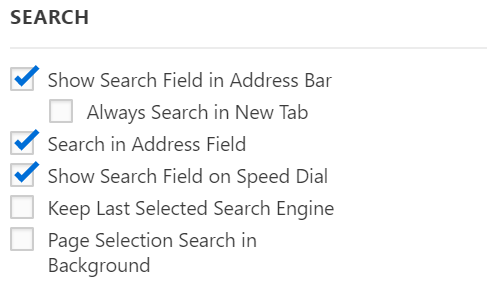
Alternatively, type the search term in the Address or Search Field and press ALT + Enter to open the results in a new tab.
You can do a reverse image search to find more information about it or to find similar images.
To do an image search:
Search results will open in a new tab.
The search is done with your default Image Search Engine. To change the default search engine for images:
Instead of copying and pasting a search term from a web page to the Address or Search Field, right click on the highlighted text > hover over Search With > select a Search engine. To open the search results in a new background tab, go to Settings > Search and tick the box for Page Selection Search in Background (see the image above).
Among other options in Settings > Search > Allow Search Suggestions, you can decide whether to enable search suggestions in the Address and Search fields. When enabled, you’ll get search suggestions as soon as you start typing in a search query. It’s a convenient feature, but has privacy implications. You can read more on our Team Blog.
Even if you have enabled search engine suggestions, in Settings > Search > Allow Search Suggestions, you can limit it to allowing search suggestions only if you type a Search Engine nickname, which is a clear indication that this is intended to be a search, not a URL.
Alternatively, you can manually disable search suggestions for particular Search Engines, by going to Settings > Search > Search Engines > selecting the Search Engine > emptying the Suggest URL field. Or you can use another Search Engine’s Suggest URL. For example, get suggestions from a more privacy conscious DuckDuckGo, even if you search with Google.
Vivaldi has several search engines available by default.
You can set any of the search engines listed in Settings > Search Engines as the default Search Engine.
Option 1
Option 2
To make your private browsing more private, you can set a different default search engine for the Private Window.
Option 1
Option 2
Some search engines allow users to use the POST method for search. The combination of POST and no-redirects, ensures that websites won’t know the search terms you use to find their site, nor will your search terms be stored in your local history. If you have enabled Use POST method, but search doesn’t come up with any results, this means that the search engine of your choice doesn’t support the POST method. If you still want to use this search engine, you should disable Use POST method.
Using Search Engine Nicknames, you can quickly switch between one Search Engine to another just by typing the nickname at the front of your search term.
You can change the default Search Engine nickname to anything you like by:
To hide search engine nicknames in drop-down menus, go to Settings > Search > Search Field Display and disable Show Search Engine Nickname in Drop-Down Menu.
Vivaldi lets you add your preferred search engines in a few simple steps.
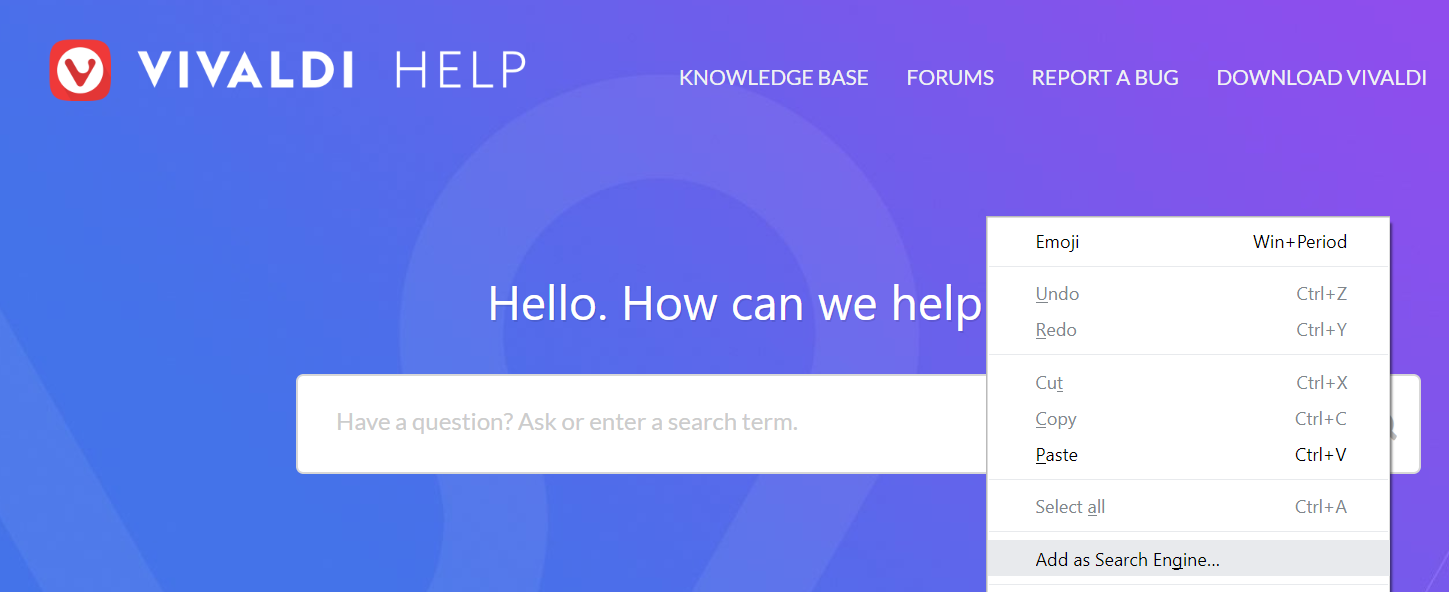
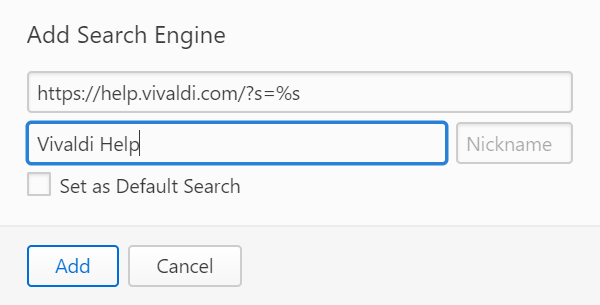
 Add Search Engine button to add a new Search Engine.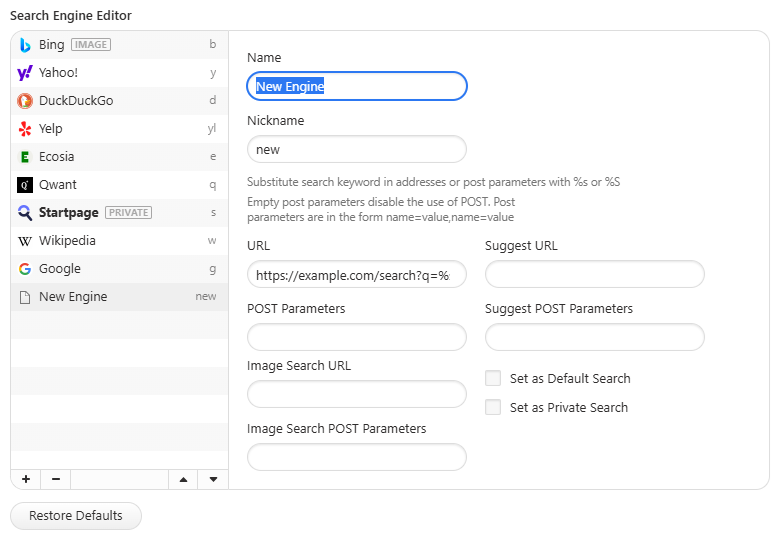
To remove a Search Engine:
 Delete search engine button.
Some websites make sure to check from which browser you’re viewing their pages from and based on the information may alter what you see. The websites may also block access to their content and features altogether. To check whether a website is displayed differently because you’re using Vivaldi, you can change the browser’s Sec-CH-UA identity and check the website again.
To change which browser brand is reported:
Tick the box for Append Vivaldi Brand to, in addition to the chosen brand, add Vivaldi’s brand information at the end of the reported identity.
Important! Please note that changing the reported browser brand can cause compatibility issues with sites.
Reading List allows you to add web pages to a list to keep for later. It prevents endless tabs from accumulating on your Tab Bar/Tab Switcher and Bookmarks being filled with entries you only need once.
Though, there are similar services out there, Vivaldi’s Reading List doesn’t require an external app nor do you need to sign up for an account. Also, you can keep your lists in sync on all Vivaldis on all your devices.
To add an open web page to the Reading List.
Option 1
Go to the  Vivaldi menu > Add Page To > Reading List.
Option 2
Vivaldi menu > Reading List.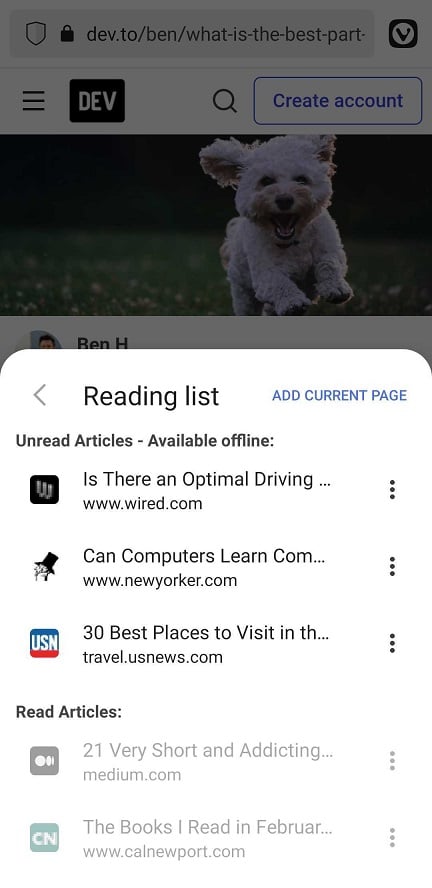
To add a link on a page to the Reading List:
To add a web page from another app to the Reading List:
To open an article from the Reading List:
Vivaldi menu and select Reading List.Opened articles will be marked as read automatically and moved to the Read Articles section.
To open an article from the Reading List in a Private Tab:
Vivaldi menu and select Reading List. menu button.
To mark an article read without opening it:
Vivaldi menu and select Reading List.You can remove both unread and read articles from the Reading List. To do that:
Vivaldi menu and select Reading List. menu button.Alternatively, long press on a saved entry and tap on the  Trash button above the list of entries.
To remove multiple articles at once:
Vivaldi menu and select Reading List. Trash button above the list of entries.Saved pages in your Reading List can be synced with Vivaldi on your other devices. (Currently available only on desktop.)
To sync your reading list:
Vivaldi menu > Settings > Sync.Lists from different devices will be merged when synced.
Reading List allows you to add web pages to a list to keep for later. It prevents endless tabs from accumulating on your Tab Bar and Bookmarks being filled with entries you only need once.
Though, there are similar services out there, Vivaldi’s Reading List doesn’t require an Extension nor do you need to sign up for an account.
To open the Reading List Panel:
 Reading List panel button on the side of your browser window.
 Vivaldi menu > View > Reading List Panel.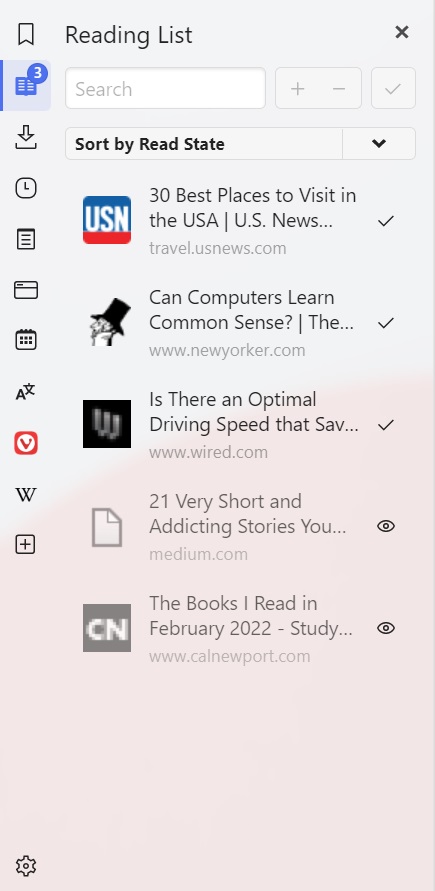
To add an open web page to the Reading List:
Reading List Panel. Add Current Page at the top of the panel, near the search field.
Alternatively:
Show the Reading List on the Address Bar and then on Add Current Page.To open an article from the Reading List:
Reading List Panel.Opened articles will be marked as read automatically.
To mark an article read without opening it:
Reading List Panel. Mark as read.
To mark an article unread:
Reading List Panel. Mark as unread.
To find an article from the long list of saved pages:
Reading List Panel.To change the sorting order of articles:
Reading List Panel.To reverse the order, click on Sort Ascending/Descending on the right side of the Sort by menu.
You can remove both unread and read articles from the Reading List. To do that:
Reading List Panel.To open a page from the Reading List Panel with a single click, instead of a double-click:
To keep track of how many unread articles you have on your Reading List, make sure Show Unread Counter has been enabled in Settings > Panel > Reading List Panel. If the counter is a distraction untick the box.
Saved pages in your Reading List can be synced with Vivaldi on your other devices.
To sync your reading list:
Lists from different devices will be merged when synced.
To export your Reading List:
Vivaldi menu > File > Export > Export Reading List.Alternatively:
The list will be exported as a CSV file.
To import a Reading List:
Vivaldi menu > File > Import from Applications or Files.Alternatively:
Break down language barriers and open up the web with Vivaldi Translate.
To open the Translate Panel:
 Panel button.
 Translate panel button at the bottom of the page (on the side on tablets and larger screens).
To translate text in the panel:
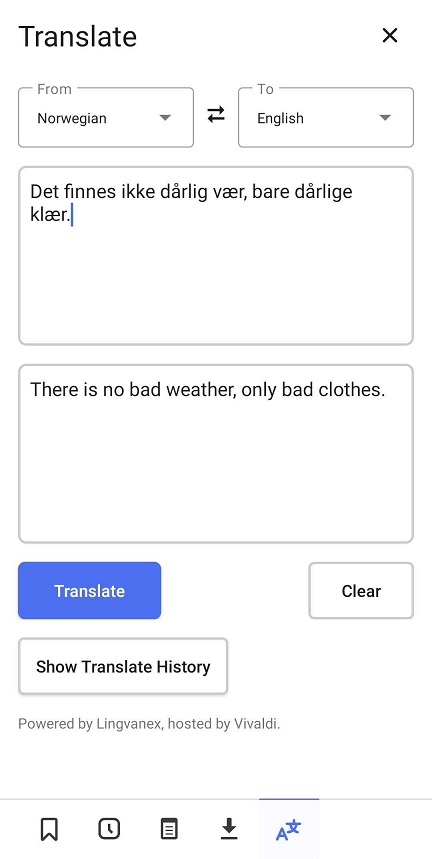
When you’re done with the translation or want to translate something else, tap Clear below the output field.
To translate content on a website you can use the full page translation option accessible from Vivaldi menu > Translate. To translate only some sections of the web page, you can use translation of selected text. The output of translation will be displayed in the Translate Panel.
To translate just a small block of text:
The Translate Panel will open with both the source text and the translation. If your selected text is very short, you may have to select the source language manually.
To view past translations, tap on Show Translate History at the bottom of the panel.
To delete all history:
To import calendar files ending with an .ics extension that you have exported from other calendars, downloaded from the web (for example, local holiday calendars) or someone has shared with you:
Vivaldi menu > File > Import from Applications or Files.When you have enabled Open ICS files in Vivaldi in Calendar Settings, you can import calendars by opening the .ics file
Vivaldi menu > File > Import from Applications or Files.To import and sync your online calendars with Vivaldi Calendar, go to Settings > Calendar > Calendar Accounts and add the accounts there. For more detailed instructions, take a look at the Help page about Adding and managing Calendar accounts.
If there’s something odd going on in Vivaldi Calendar, there are a few things you can do in order to troubleshoot the issue.
If you don’t see an event you’ve added:
 Calendars in the top left corner.
When you don’t see events from an online calendar in Vivaldi Calendar:
If you’ve encountered issues with an online calendar, you can try whether removing and adding it again will help. Since the events are stored on the calendar service provider’s servers, there will be no data loss.
To remove an account:
 Delete Account below the list of accounts to remove it.
To add an account:
If you don’t have any important data in Calendar, you can reset it by deleting the calendar database. Your local account and calendars will be deleted and online accounts with their calendars will be removed. Follow these steps to reset the Calendar:
Vivaldi menu > Help > About or type vivaldi://about in the Address Field.To check Vivaldi Calendar’s logs for any errors:
Calendar Status button on the Status Bar.Some examples of errors that can be seen in logs:
You can copy the logs or save them in a file to include them when reporting issues on the Forum or in a bug report.
The logs are cleared on browser restart. To get relevant logs go through the steps that cause the issue.
Events from an .ics file can be imported via Vivaldi menu > File > Import from Applications or Files. When it fails, it’s possible that file includes some invalid or corrupt content.
To see if the file is valid or whether there is a problem with it you can use a validator. For example, https://icalendar.org/validator.html.
To discuss Calendar issues with the team and expert users in the Community, find an ongoing discussion about the same issue or, if there aren’t any, create a new topic on our Forum.
We encourage people to actively log in and use Vivaldi services when they register an account. To keep your account active, be sure to log in at least once every 6 months. Accounts and their contents may be permanently removed due to prolonged inactivity.
Inactivity is based on a combination of participating in community activities on Vivaldi Social, Forum, Blogs, Themes, using the browser’s Sync feature or webmail. Therefore, unconfirmed or mass-produced accounts without virtual practice in any of these community activities are also subject to permanent removal at any time. Please note that you may not be able to tell whether an account is currently inactive, as not all signs of account activity are publicly visible.
To keep your account active, log in to your Vivaldi account at least once every 6 months. A login to any of the following counts:
When an account is regarded as inactive and is in danger of deletion, we’ll send three warning emails to the account’s recovery email. With a couple of weeks between each email, you will have plenty of time to log in to your account. After the date given in the 3rd email, the account with all its data will be deleted.
That’s one of many reasons, why it’s important to keep the account’s recovery email up to date. You can review the recovery email and, if needed, update it on your account’s profile on Vivaldi.net. For detailed instructions, take a look at our Help page about updating Vivaldi account information.
When the owner of the inactive account doesn’t log in before the given deadline the account and all its data will be permanently deleted.
For security reasons, we don’t recycle usernames, so the username will be lost too and a new account needs to be created with a different username. The recovery email that was linked to the account will become available again.
Once the account and data have been deleted, there is no way to recover neither the account nor the data. To use Vivaldi services, please create another account with a new username.
Reading List allows you to add web pages to a list to keep for later. It prevents endless tabs from accumulating on your Tab Bar and Bookmarks being filled with entries you only need once.
Though, there are similar services out there, Vivaldi’s Reading List doesn’t require an Extension nor do you need to sign up for an account.
To add the button to one of the Toolbars:
Vivaldi Menu > View > Customize Toolbar. Reading List button to your preferred location on the Address Bar or Status Bar.Then you can access and manage your Reading List from a popup
To add an open web page to the Reading List:
 Show the Reading List button on the Address Bar or Status Bar and then on Add Current Page in the popup. Add Current Page.
To open an article from the Reading List:
Show the Reading List on the Address Bar.Opened articles will be marked as read automatically and moved to the Read Articles section.
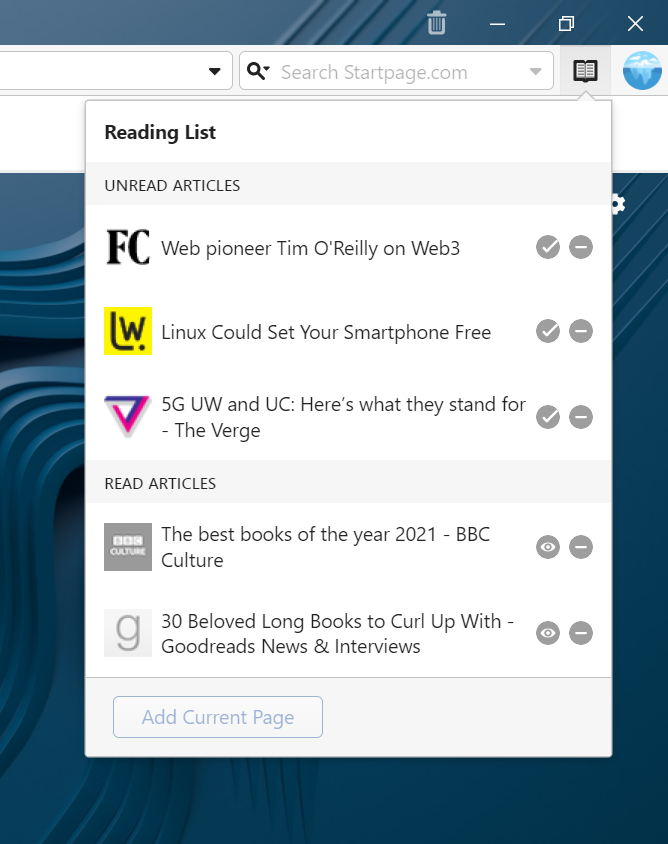
To mark an article read without opening it:
Show the Reading List on the Address Bar. Mark as read.To mark an article unread:
Show the Reading List on the Address Bar. Mark as unread.You can remove both unread and read articles from the Reading List. To do that:
Show the Reading List on the Address Bar. Remove from Reading List.
Saved pages in your Reading List can be synced with Vivaldi on your other devices. (Currently available only on desktop.)
To sync your reading list:
Lists from different devices will be merged when synced.
In addition to the Reading List popup, you can use the feature in a Panel. Find out more about it on the Help page about the Reading List Panel.