Web Page options in Vivaldi on Android
Vivaldi offers several options to customize your browsing flow in the Android app. Continue reading to learn about a few of them.
Desktop view
To display a desktop version of the website, instead of the mobile version commonly displayed on smaller screens, open the  Vivaldi Menu and tick the box for Desktop Site.
To permanently display desktop versions of all websites:
Option 1
- Go to Vivaldi Menu > Settings > Content Settings.
- Enable Always Show Desktop Site.
Option 2
- Go to Vivaldi Menu > Settings > Content Settings > Site Settings > Content > Desktop site.
- Enable Request desktop view.
To add exceptions to the current default setting:
Option 1
- Open the website you want to create an exception for.
- Open the Vivaldi Menu.
- Toggle Desktop site on/off.
Option 2
- Go to Vivaldi Menu > Settings > Content Settings > Site Settings > Content > Desktop site.
- Tap on Add site exception.
- Enter the URL.
- Choose whether you want to create an exception for the specific page or for all pages on that domain.
- Tap Add.
In some cases, like in Vivaldi in Polestar’s infotainment center, it’s best to enable desktop view for websites that, in mobile view, try to open an app to show content (even if the app is not available).
Homepage
To open a website of your choice, when tapping the  Home button or opening a new tab:
- Go to Vivaldi Menu > Settings > General > Homepage.
- Toggle the setting On.
- Select Enter custom web address.
- Type or paste the link.
- Exit settings.
Home Screen shortcut
Take a look at the Help page about Progressive Web Apps on Android to learn about Progressive Web Apps and Home Screen Shortcuts.
Stay in the browser
If you have the app installed on your phone, links from the same service will often want to open in the app to display the content. For example, YouTube and Google Maps. If you prefer to stay in the Vivaldi browser, you can enable a setting that will prevent the external app from opening. Instead, the link will open in a new browser Tab.
To turn on this option:
- Go to Vivaldi Menu > Settings > Privacy and Security.
- Enable Don’t open links in external apps.
Audio playback in the background
By default, audio and video playback will continue when you switch tabs or apps. To stop the content from playing in the background while browsing in other tabs or using other apps:
- Go to Vivaldi Menu > Settings > General.
- Disable Allow background audio playback.
 Reader View button in the Address Field. If you don’t see the button, it means that there isn’t enough text content to enable the feature.
 Settings button in the bottom right corner.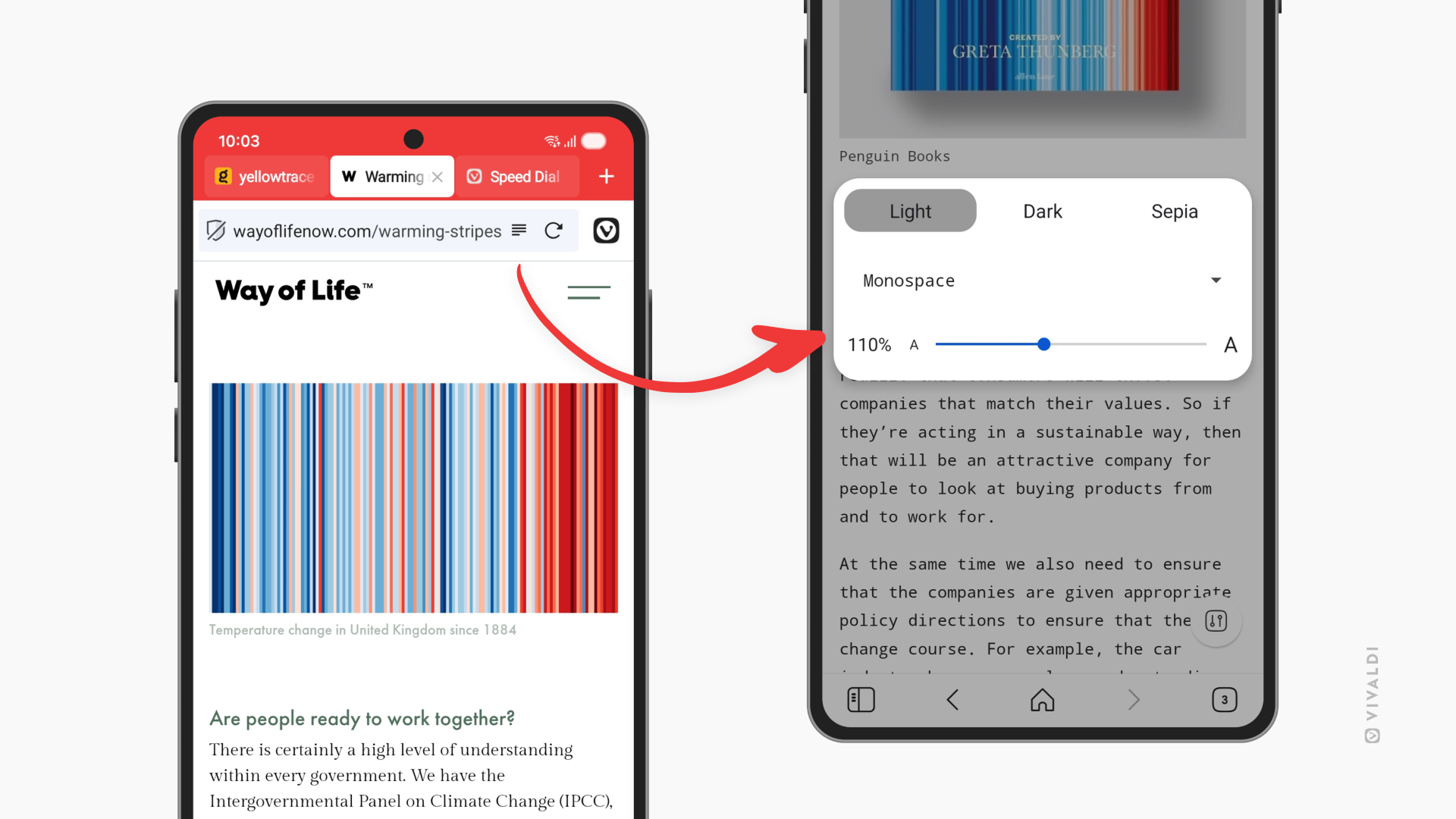
 Settings > Never, if you don’t want to save any passwords for the site.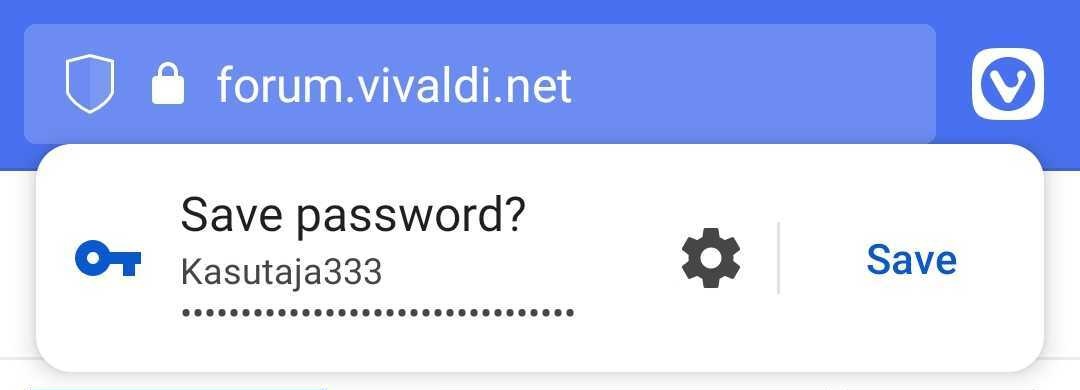
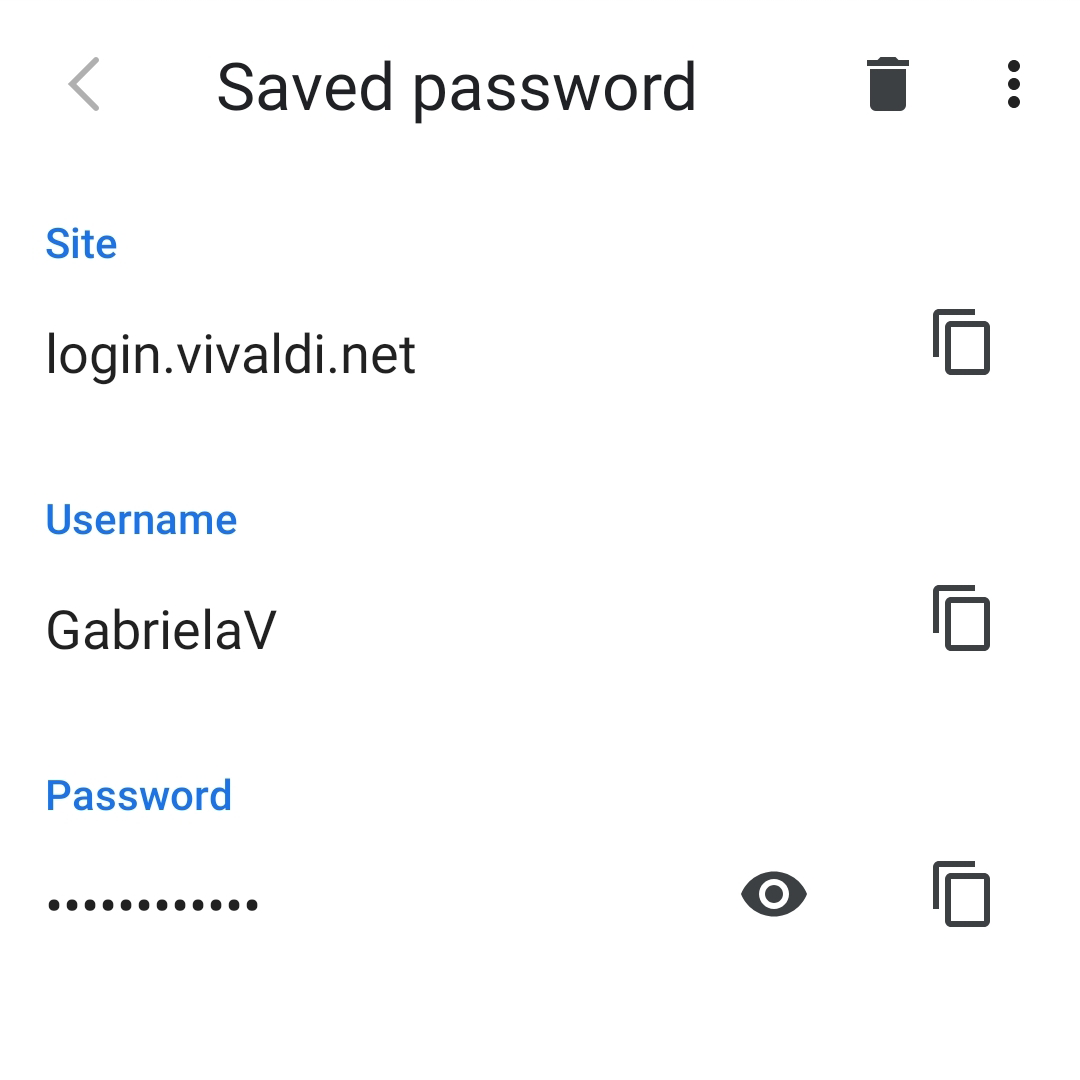
 Delete button and then login on the site again to get a prompt for saving the password.
 3-dot menu in the top right corner and select Export passwords.
 Downloads button in the bottom menu.
 Search button in the top right corner and enter your search term.