Panels on Android
Discover which features are available in Vivaldi on Android’s Panels and how to access them.
Discover which features are available in Vivaldi on Android’s Panels and how to access them.
To take a screenshot of the web page you’re viewing on your mobile use Vivaldi’s built-in Capture tool.
To capture a screenshot of the current page, open the  Vivaldi menu > Capture Page.
Select between the following two options:
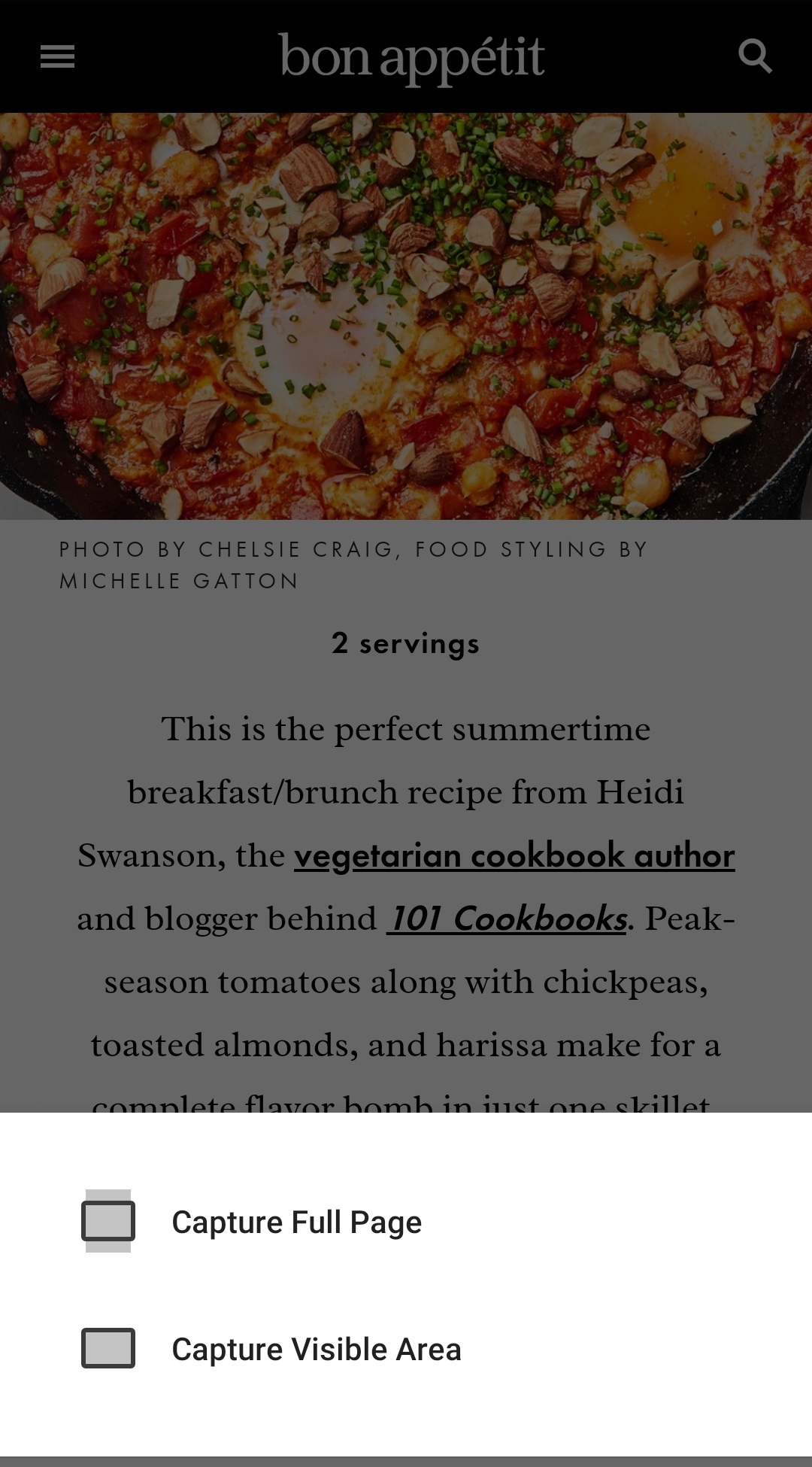
The screenshot will be saved to your pictures in a folder named Vivaldi Captures.
In addition to the visible area and full page capture, there’s a third option – long screenshot, where you determine the size of the captured area. To take a long screeshot:
Vivaldi menu > Share. Capture button in the bottom right corner.
 Use Notes to quickly add checklists, agenda items or facilitate a research project without the disruption of switching apps.
To view and manage your Notes:
 Panels from the left side of the bottom toolbar;
 Notes (between History and Downloads) or tap on the Notes icon.
To create a new note:
 Add Note button in the bottom right corner;
To discard the new note, tap on  Delete in the top right corner.
To make a note of something you found on a web page:
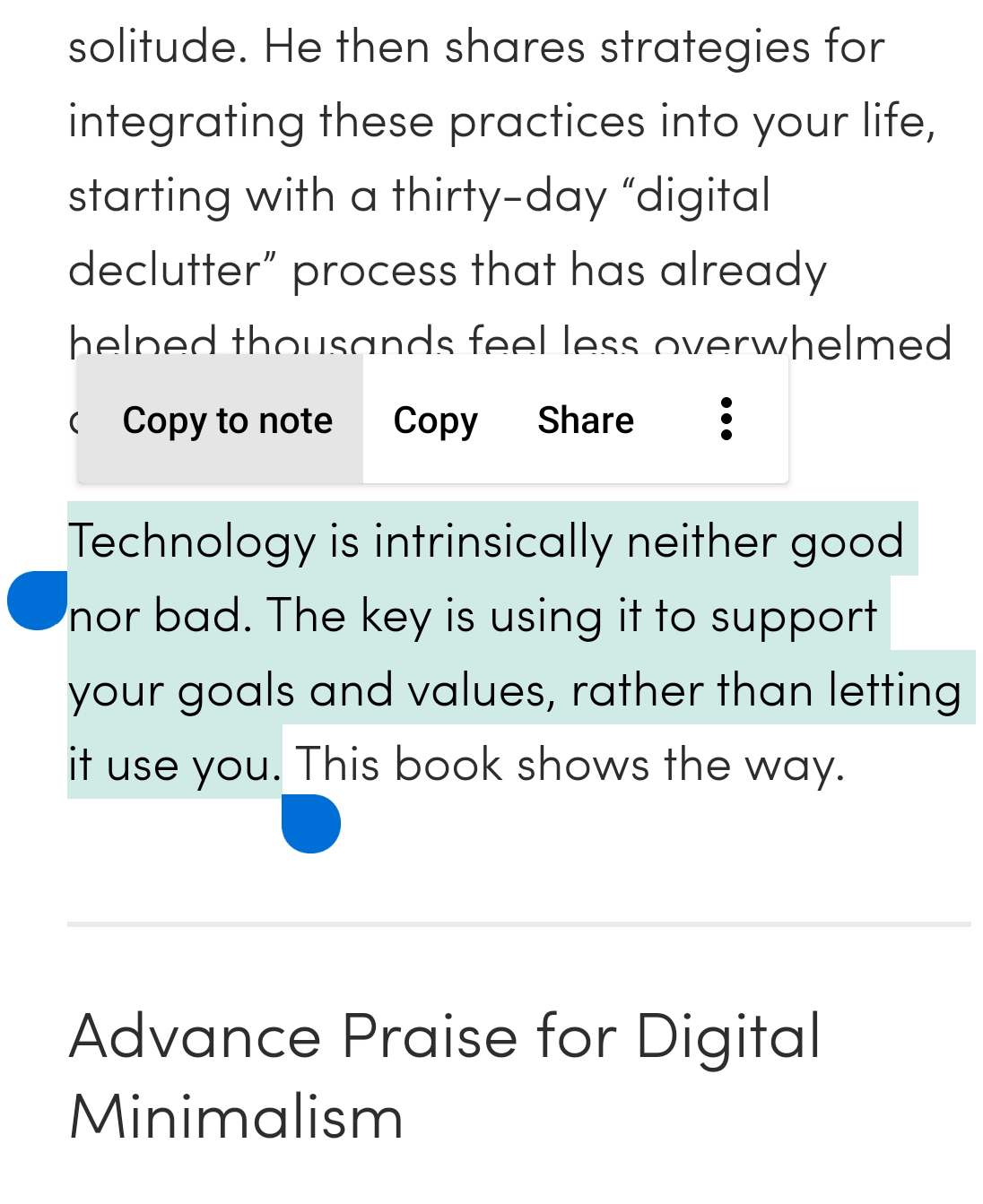
The note will be added to the folder you viewed last.
To add more content to an existing note:
To create a new folder for your Notes:
 Move button.
To edit a note:
To rename a note:
 Edit button.
To move a note to a different folder:
Move button, to select an existing folder or create a new one.To delete a note, open the note and tap on Delete in the top right corner.
To delete multiple notes at once:
Delete in the top right corner.Add your favourite and often visited sites to Bookmarks to access them faster.
To view your bookmarks, tap on the  Panel button in the bottom left corner of the window to open the Bookmarks Panel.
To search bookmarks, tap on the Search button on the left side of the bottom toolbar.
To open a bookmark in the active tab, just tap on it. To open a bookmark in a new tab or a private tab:
 overflow menu in the top right corner;
When you type in the Address Field, you can get autocomplete suggestions from Bookmarks, History, Direct Match, and Search Engines. Bookmarks are prioritized by default, but you have a couple of options there. For example, instead of prioritizing suggestions based on the bookmark title, you can prioritize Bookmark Nicknames.
If you prefer Bookmark Nickname matching:
Vivaldi Menu > Settings > Address Bar.When you also disable Bookmark Nicknames, upon a match, your typed keyword will be autocompleted from History.
There are multiple ways to add a new bookmark on Vivaldi Mobile.
To add an open web page to your bookmarks, tap on the Vivaldi menu > Add Page To > Bookmarks. You’ll get a notification on the bottom of the screen, telling you in which folder the bookmark was saved to. If you wish to change the folder, name, description and/or nickname, tap on Edit.
 Add New Speed Dial button after your Speed Dials; Add New Speed Dial button and select New Speed Dial Folder to add a new folder to the Speed Dial;
The bookmark will be saved to that Speed Dial folder.
Add Bookmark button in the bottom right corner, to add a new bookmark.The new bookmark will be saved to the folder that’s currently open in the Bookmarks Panel.
To edit a single bookmark or a folder, find it in the Bookmarks Panel and long press on it until the bookmark favicon / folder icon is replaced with a checkmark and a new menu appears. Tap on the Edit button to edit the bookmark. Alternatively, while you have the bookmarked page open in the active tab, open the Vivaldi menu and select Edit bookmark.
To move bookmarks:
 Move button;
To edit a Speed Dial bookmark on the Start Page:
To change how bookmarks are sorted:
 sort button on the top menu bar;
All bookmark folders will be sorted by the same rule.
To reorder bookmarks:
 Reorder button and drag the bookmarks one by one to their new location on the list of bookmarks;
Manual reordering is, unfortunately, not possible with Android’s accessibility settings enabled.
Bookmark Nicknames allow you to open bookmarks faster from the Address Field. Instead of typing the URL you can just enter a short nickname to open the bookmarked web page.
To give a Bookmark a nickname:
Edit bookmark. Done to save the changes.
To access your desktop bookmarks on your phone and vice versa, use Sync with the same Vivaldi account both on your phone and desktop browsers.
To delete a bookmark:
 Delete button to remove the bookmark.
To delete a Speed Dial bookmark:
When you delete a bookmark, it will be moved to a special folder, from where you can restore deleted bookmarks should the need arise.
To restore a bookmark:
 Back button in the top left corner to move out of the Bookmarks folder; Move button;
To empty the folder of deleted bookmarks:
 Back button in the top left corner to move out of the Bookmarks folder;
Bookmark folders help to keep your favorite sites organized in neat groups.
To add a new bookmark folder:
Done in the top right corner.To move a bookmark folder:
Move button. Done in the top right corner.To rename a bookmark folder:
Edit bookmark button. Done in the top right corner.To learn about Start Page bookmarks, Speed Dials, on Android, check out the Help Page here.
To import bookmarks from a Vivaldi on another device, such as a desktop computer, the easiest option is to use the Sync feature with the same Vivaldi account on both devices.
To import bookmarks from a bookmarks HTML file:
3-dot menu in the top right corner of the panel.You’ll find your imported bookmarks in a folder named “Imported”. If you’ve imported multiple files, the folder name will also include a number.
To export bookmarks on Vivaldi on Android to an HTML file:
3-dot menu in the top right corner of the panel.You’ll find the exported bookmarks file in your Android device’s Files > Downloads. On some devices, you’ll find them in Files > Internal Storage > Downloads.
Sync bookmarks, password, open tabs and more between your desktop and mobile devices.
Change your Vivaldi Android preferences in Settings. Click the links (underlined blue text) for additional information.
To open Settings:
Option 1
Vivaldi menu on the Address Bar. Settings.
Option 2
menu in the bottom right corner. Settings.To close Settings, tap on the X button in the top right corner.
Instead of browsing through the numerous categories, you can also tap on the  search icon in the top right corner, to search for a setting.
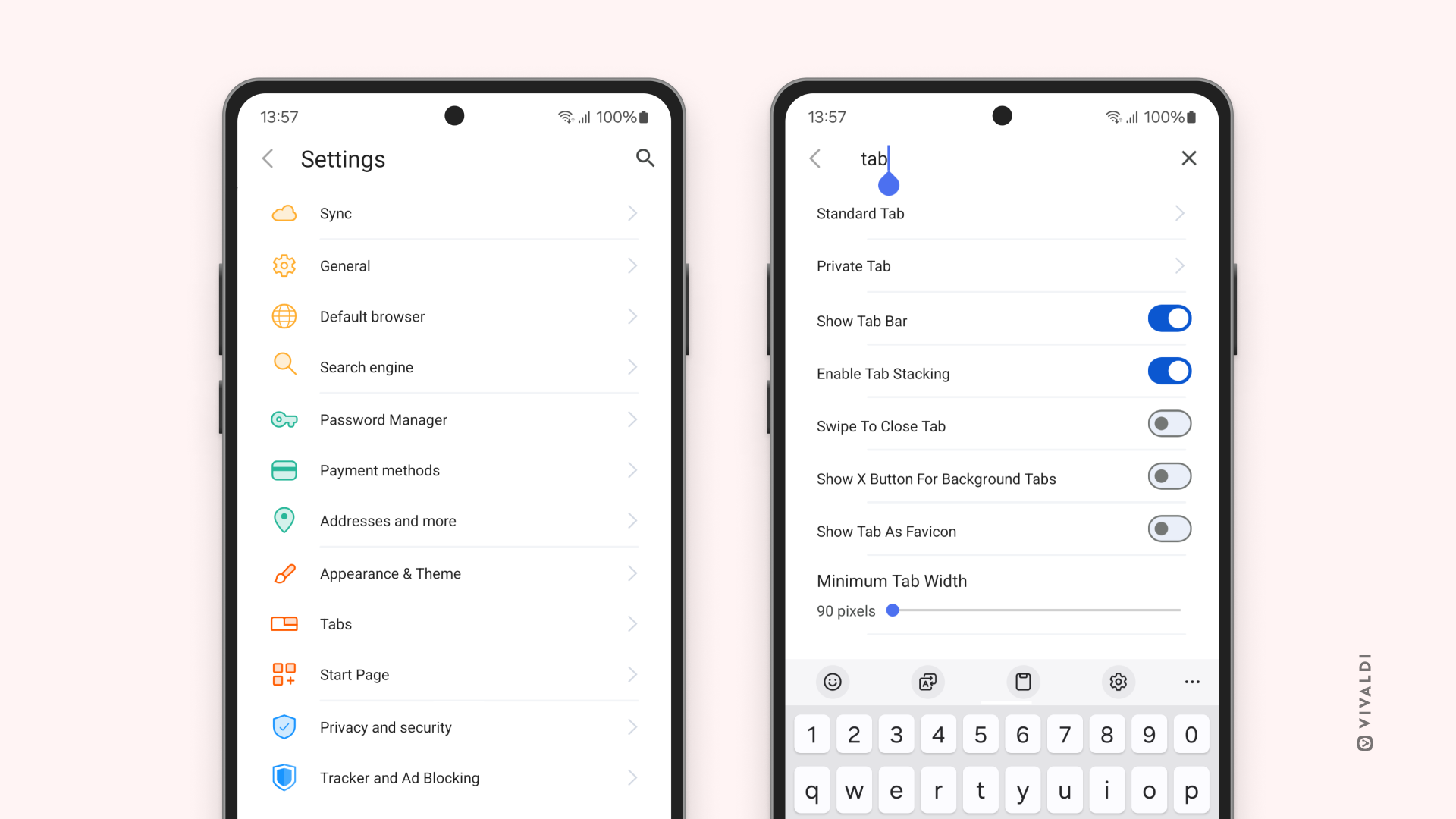
These are the following options available to you in Vivaldi on Android’s settings.
Sync
General
Default browser
Search engine
Password Manager
Payment methods
Addresses and more
Autofill services
Appearance & Theme
Tabs
Start Page
Privacy
Tracker and Ad Blocker
Content settings
About
Get to know your Vivaldi browser’s interface and learn how to customize it.
To install Vivaldi on your Android device:
The oldest Android version Vivaldi is supported on is Android 10 – Quince Tart.
Vivaldi on Android is also available on:
In case you don’t want to get Vivaldi from an app store, you can download the .apk version of Vivaldi from Vivaldi.com/android (click Don’t have Google Play? below the Google Play button).
Important! Updates via .apk install are not automatic. To ensure you are aware of the latest fixes and security updates, we strongly advise subscribing to our Newsletter or RSS feed.
The app will be updated silently in the background when you have automatic updates enabled in Play Store > account menu (top right corner) > Settings > Network Preferences > Auto-update apps. You can tell that the app has been updated to a new version, when Android’s What’s New page is opened in a new tab.
In case you have automatic updates disabled:
To uninstall Vivaldi:
Option 1
Option 2
Option 3
Widevine is a “Content Decryption Module” (CDM) that provides Vivaldi with support for Encrypted Media Extensions (EME). EME are a form of Digital rights management (DRM) that are required by many, popular audio/video streaming services (Netflix, Amazon Prime, Spotify, Tidal, etc.).
To test Widevine support, go to demo.castlabs.com and attempt to play the videos that are tagged with “DRM”.
If DRM videos will not play:
If the DRM test video will still not play, file a bug report stating that you cannot play proprietary media. Mention your Operating System (including architecture and version).
Working with browser windows in Vivaldi is straightforward. This article explains some important terms and actions.
To open a new window:
 Vivaldi menu (Windows and Linux) > File > New Window;
To open a link or a Bookmark in a new window, right-click on the link and select Open Link in New Window or Open Link in a Private Window.
To close a window:
Vivaldi menu (Windows and Linux) > File > Close Window;By default when you close a window, you’ll be asked to confirm your decision. You can disable this option by checking the box Do not show confirmation again next time you see the dialog window or disable/enable it in Settings > General > Close Window > Close Window Confirmation.
To close all windows and exit the browser:
Vivaldi menu > File > Exit. On macOS Vivaldi > Quit Vivaldi;On Windows and Linux, there’s also an exit confirmation option, which you’ll see when you’re about to close the last open window. You can also disable this option by checking the box Do not show confirmation again next time you see the dialog window or disable/enable it in Settings > General > Exit > Exit Confirmation.
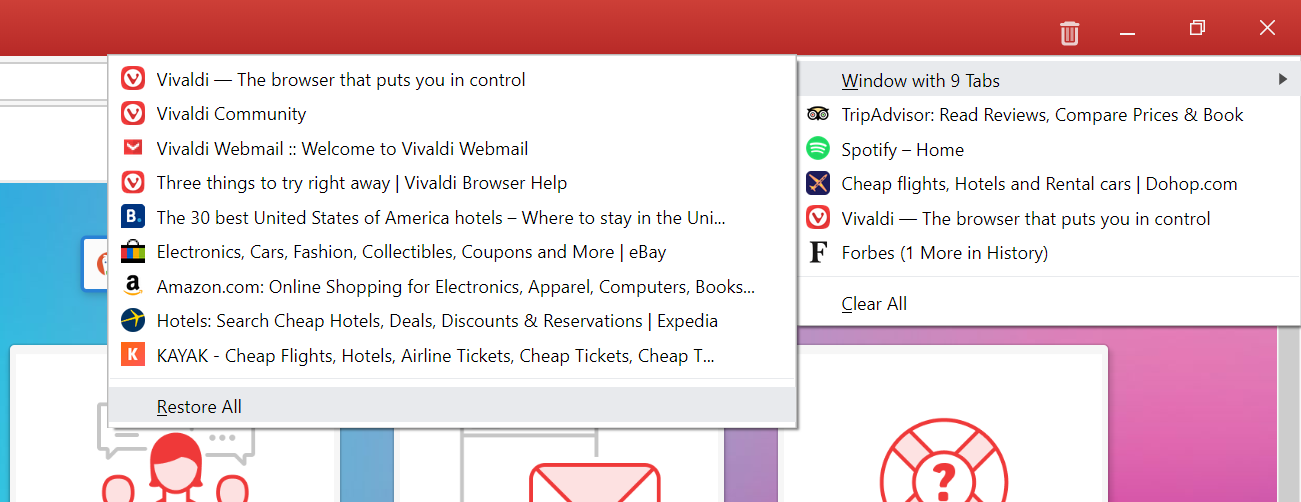
The  Closed Tabs button, located at the far end of the Tab Bar and in the Window Panel, contains a list of previously closed Tabs and windows within the latest session.
To reopen a window:
Closed Tabs menu;It’s also a good place to look for your Tabs and windows if, for some reason, the browser didn’t open with your previous session (after a crash for example). Please note that multiple browser restarts will erase the Close Tabs history.
For a complete overview of visited pages, visit History by:
Vivaldi menu > Tools > History menu;To open a new private window:
Vivaldi menu (Windows and Linux) > File > New Private Window;To learn more about browsing in private, visit our Help Page about Private Windows.
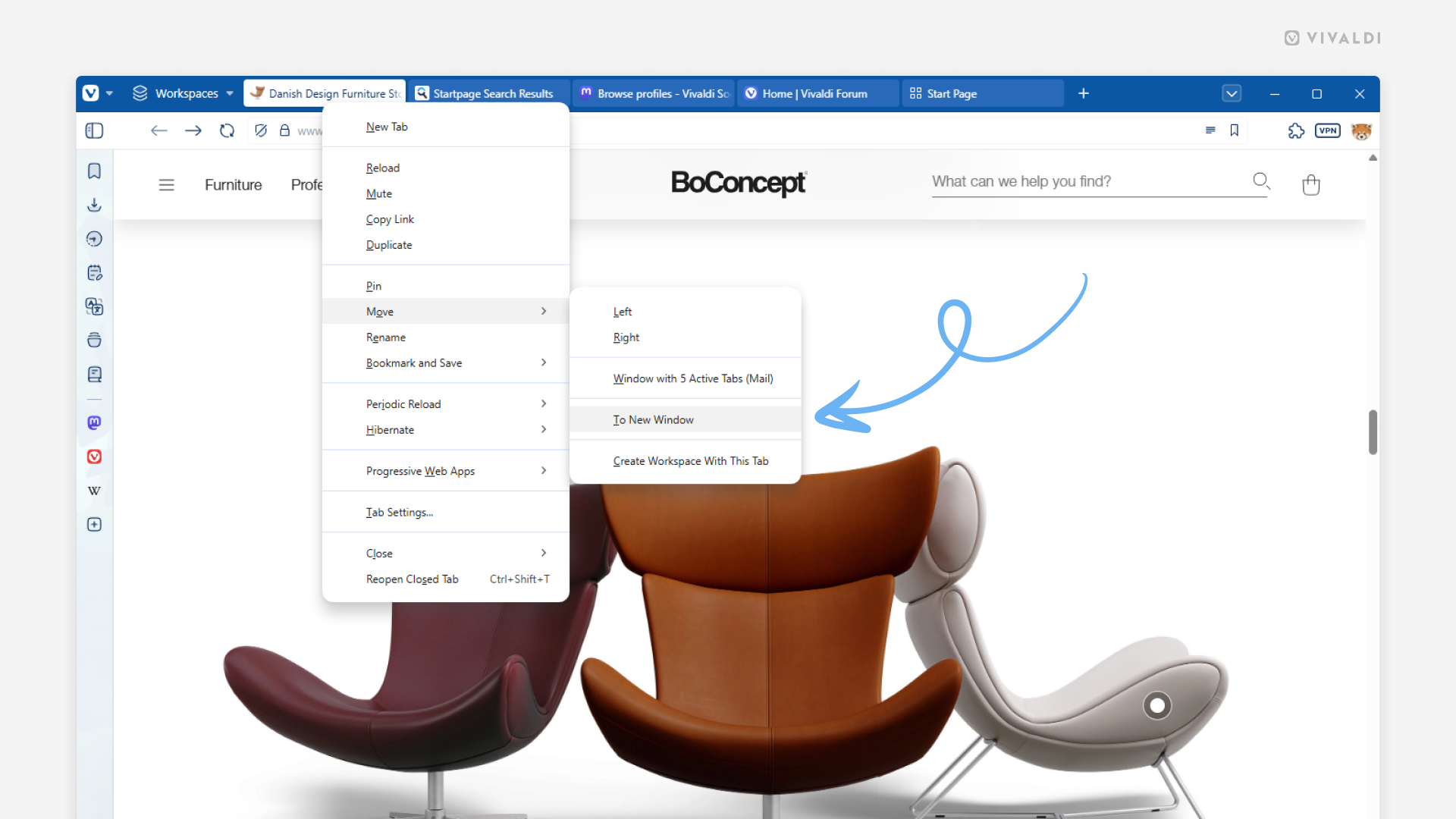
To move a Tab to another window:
To move an Active Tab to a new window, create a Keyboard Shortcut or Mouse Gesture for the action.
It’s also possible to move multiple tabs at once. Select the tabs, right-click on one of the selected tabs and choose where to move them.
To enable the Native Window:
Using the Native window allows you to:
Many modern operating systems have made it easy to tile different apps and windows on the screen.
To tile Vivaldi with other apps on Windows:
You can also click on the Tab Bar or the native window’s title bar and drag the window to different points on the edge of the screen to snap the window to a grid.
To tile Vivaldi with other apps on macOS:
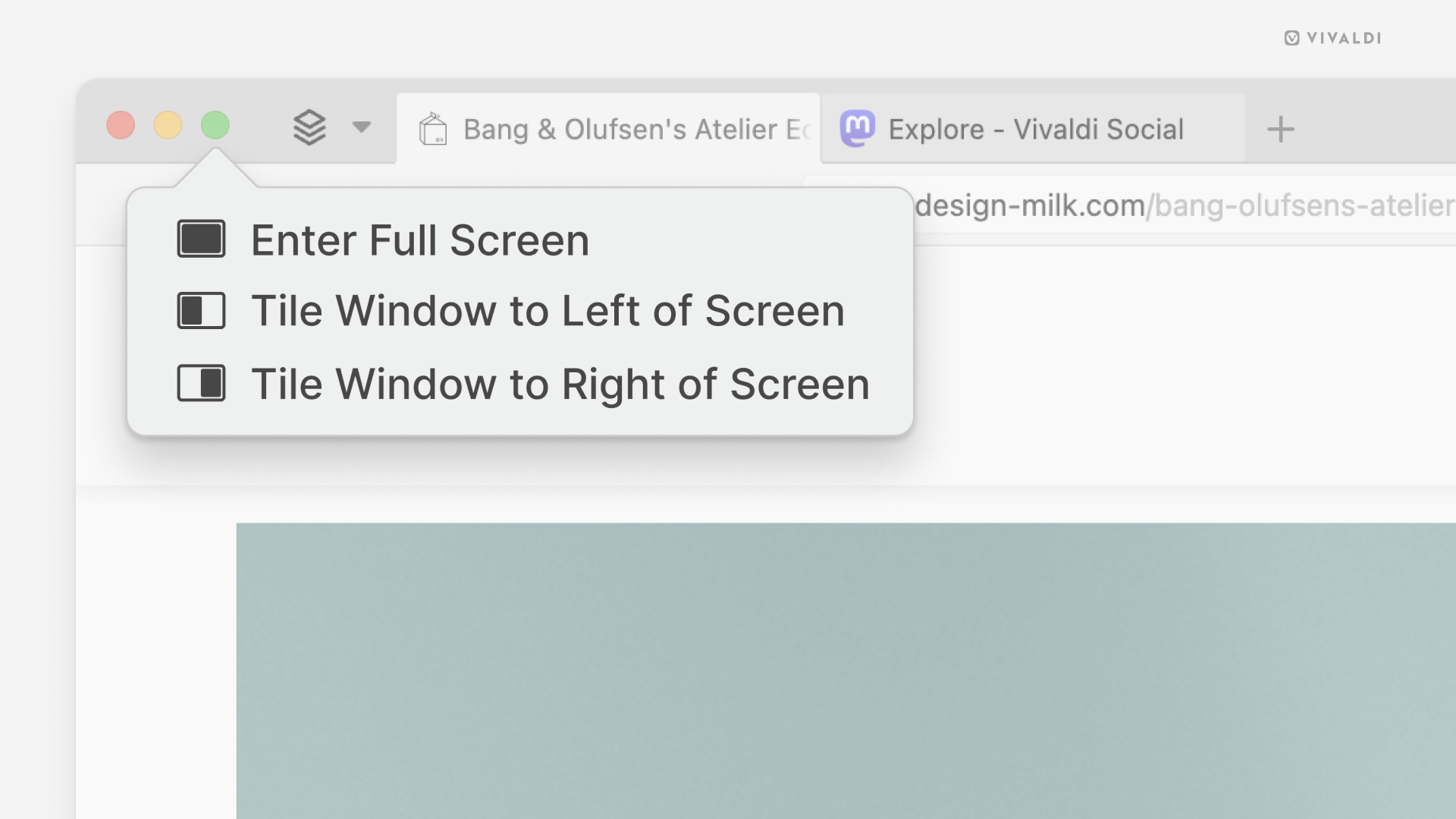
On Linux, tiling windows and apps depends on the distro’s window manager, but many allow snapping to a tiled grid by dragging the window or using keyboard shortcuts.