Bookmark Bar
In Vivaldi you can manage your Bookmarks from the Bookmark Panel, Bookmark Manager, Bookmark Bar and Bookmark Menu. In this article we’ll focus on the Bookmark Bar.

Showing the Bookmark Bar
To display the Bookmark Bar:
- Go to Settings > Bookmarks > Bookmark Bar and tick the box for Show Bookmark Bar;
- Use a Keyboard Shortcut Ctrl+Shift+B / ⌘ Shift B to toggle Bookmark Bar visibility on/off;
- Create a Mouse Gesture for showing and hiding the Bookmark Bar.
In Settings > Bookmarks > Bookmark Bar you can:
- Select which bookmark folder will populate the Bookmark Bar;
- Change the location – top or bottom of the window;
- Decide whether bookmarks are displayed with:
- Text and Icon,
- Text only,
- Icon only,
- Bookmark Icon only (folders will be displayed with text and icon).
Managing bookmarks on the Bookmark Bar
Adding a new bookmark
To add a new bookmark:
- Right-click on the Bookmark Bar and select:
- Add Active Tab,
- New Bookmark.
- Click the
 Add bookmark button on the right side of the Address Field and save the bookmark in the Bookmark Bar folder;
 - Start dragging from the
 Site info badge on the left side of the Address Field and drop it on the Bookmark Bar.
Opening a bookmark
Clicking on the bookmark will open the website in the active tab (unless changed in Settings > Bookmarks). From the right-click context menu you’ll find the following options for opening a bookmark:
- Open in New Tab;
- Open in Background Tab;
- Open (in Active Tab);
- Open in a New Window;
- Open in Private Window.
You can also hold down the Shift key while clicking on the bookmark to open it in a New Tab or Ctrl / ⌘ key to open the bookmark in a New Background Tab.
Editing a bookmark
To edit a bookmark, right-click the bookmark and select Edit. To change just the title, right-click the bookmarks and select Rename.
Deleting a bookmark
To delete a bookmark, right-click on the bookmark and select Delete from the context menu.
Organising bookmarks
Sorting bookmarks
Bookmarks can be sorted by Title, Address, Nickname, Description, Date Created and manually. Right-click on an empty area on the Bookmark Bar, select Sort from the context menu and from the sub-menu your preferred sorting criteria.
Rearranging bookmarks
To move bookmarks around on the Bookmark Bar:
- Make sure sorting is set to Manually,
- Drag and drop to reorder or move a bookmark to/from a folder.
Bookmark Folders
To create a new folder, right-click on the Bookmark Bar and select New Folder from the context menu.
To create a new sub-folder, right-click on the parent folder and select New Folder.
Importing and exporting bookmarks
To import bookmarks from another browser or HTML file, go to the  Vivaldi menu > File > Import Bookmarks and Settings.
To export bookmarks as an HTML file, go to the Vivaldi menu > File > Export Bookmarks.

 Show or hide
  Turn
Turn  Shortcut to
  Check
Check  Check
Check  Take a screenshot of the web page with page
  View multiple tabs side by side in the same window with
  Choose whether images are to be visible in web pages or not or if only cached images are to be shown. Also, decide whether to loop animations, play them just once or never.
 Vivaldi menu > Settings > Address Bar.
  Panels from the left side of the bottom toolbar.
 Notes icon.
 Add Note button at the bottom of the Panel.
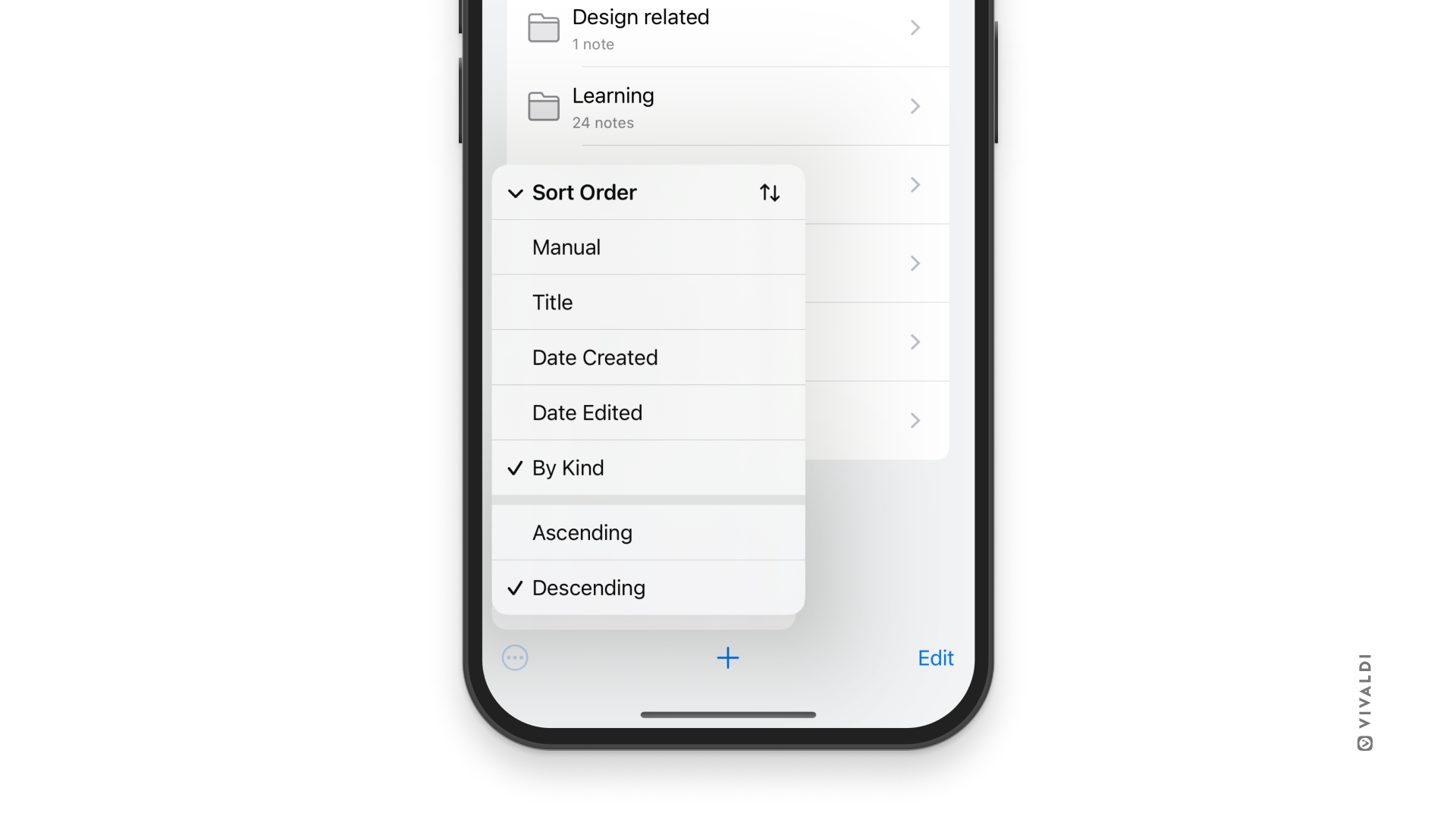
 3-dot menu in the bottom left corner.
 Markdown button in the top right corner of the Notes Panel.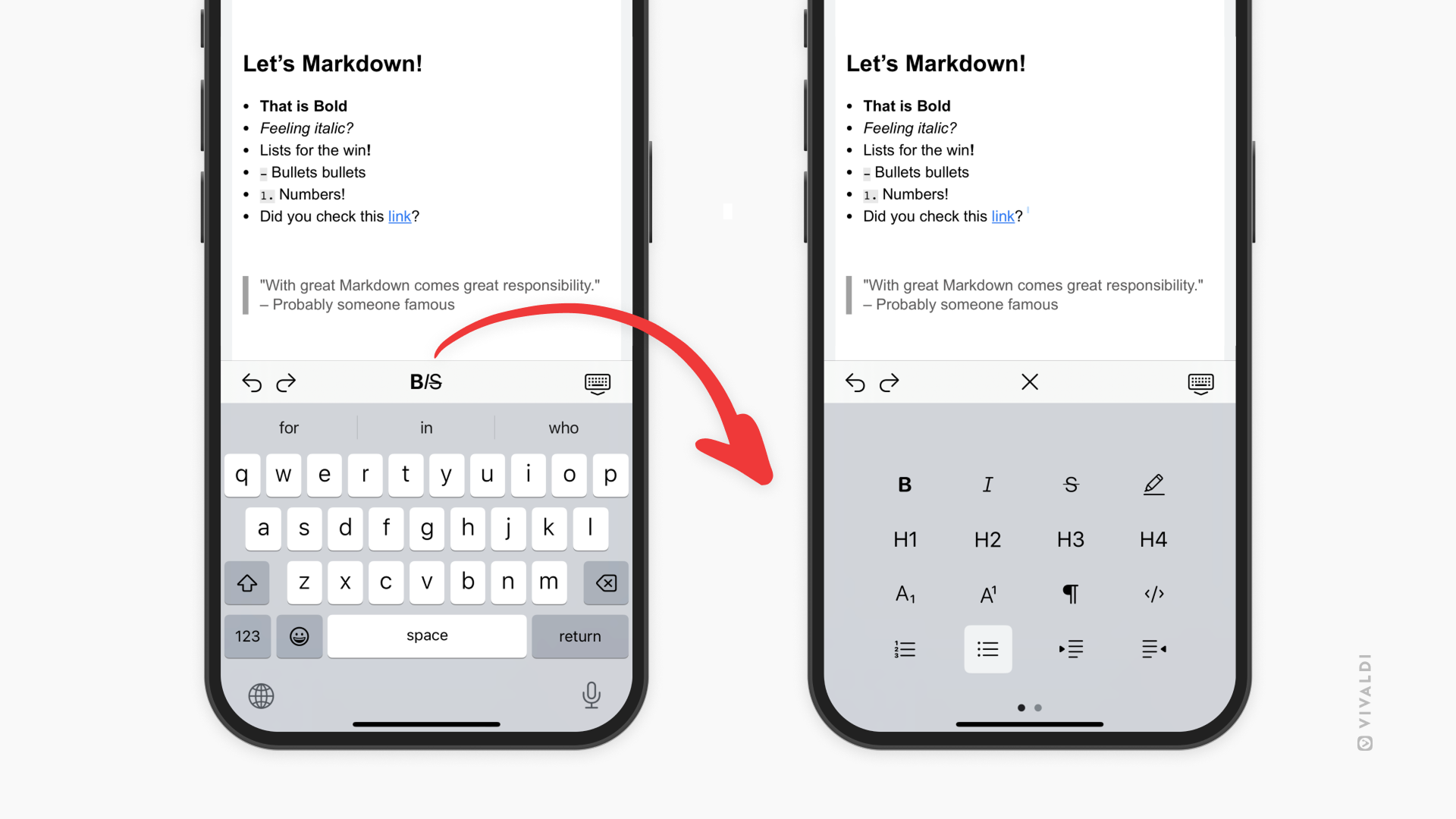
 Panel button on the left side of the bottom toolbar and tap on the
  History option on the menu.
 Search field and enter the search term.