In Vivaldi, you can choose how to display your tabs in a few simple steps.
Tab Bar position
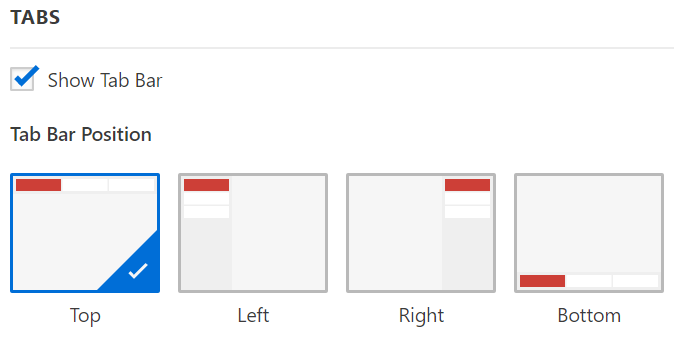
The Tab Bar can be located on any side of the browser window – top, bottom, left, right. To change the position, go to Settings > Tabs > Tab Bar Position.
Toggle Tab Bar visibility
To toggle the visibility of the Tab Bar, either:
Open Settings > Tabs and untick the box for Show Tab Bar to hide it. Tick the box again to show the Tab Bar;
When the Tab Bar is either on the top or bottom of the window, you can assign a minimum tab width for the active tab. In Settings > Tabs > Tab Display, select how many pixels the width should be and then, no matter how many tabs are open, the active tab will always be easily noticeable.
If the Tab Bar is on the side of the browser window, adjust the width of the Tab Bar by placing the mouse on the edge of the Tab Bar and drag in the desired direction.
Scrollable Tabs
When the Tab Bar is placed horizontally on the top or bottom of the browser window, by default, tabs start to shrink in size, the more you open them. That can result in page titles or even favicons becoming invisible. Enabling Scrollable Tabs can prevent that. When enabled, tabs won’t shrink in size. Instead, they’ll go out of view and you can scroll the Tab Bar to browse through the open tabs.
To enable Scrollable Tabs: 1. Go to Settings > Tabs > Tab Display > Tab Bar. 2. Check the box for Enable Horizontal Scrolling.
To scroll through the tabs:
Hover the mouse over the Tab Bar and use the mouse wheel.
Click on the < > buttons on either side of the tabs.
Long click on the < > buttons to display all open tabs as a list.
In case you have enabled switching tabs by scrolling in Settings > Tabs > Tab Cycler, hold down the Shift key to scroll on the Tab Bar without switching tabs.
Loading progress indicator
When a page is loading the Address Field displays the progress. Additional loading indicators are displayed also on the Tab, which is especially useful for Tabs loading in the background.
In Settings > Tabs > Tab Display > Page Load Progress you can pick between 4 options:
Progress Bar
Favicon Progress
Favicon Spinner
None
Window Background Image
In addition to the active tab colour or Theme’s accent colour, you can show your Start Page background image on the Tab Bar. To enable it:
A “crash” occurs when Vivaldi encounters an unrecoverable error and shuts down unexpectedly or a tab’s contents disappear and are replaced with a “dead bird” image. Information pertaining to the crash is logged by Vivaldi.
Enable automatic crash reporting
When you enable automatic crash reporting, we will receive the crash logs automatically. You can enable crash reporting during the welcome flow after installing the browser, or any time in Settings.
Enable Allow Vivaldi to Send Automatic Crash Reports.
Provide additional information
By adding context to the crash, the team will have an easier time fixing the bug that’s causing the crash. You can do that by filing a bug report that gets linked to your crash log.
To file a bug report about the crash:
Go to vivaldi:crashes.
Look for a crash log that was created around the time you witnessed the crash.
Click on Provide additional details. You’ll be taken to our bug report page, where the crash’s ID is already prefilled in the Summary field.
Fill out the form with information you think is relevant to the crash, such as steps to trigger the crash.
Submit the bug report.
Manual crash reporting
Copy and Paste the following text into a terminal window and press “Enter”—triple click to select find "${XDG_CONFIG_HOME:-$HOME/.config}/vivaldi/Crash Reports" -mtime -7 -name \*.dmp | sed 's,.*Crash Reports/,,' | tar CvcJTf "${XDG_CONFIG_HOME:-$HOME/.config}/vivaldi/Crash Reports" - /tmp/Vivaldi_Crash_Logs_$(date '+%Y%m%d-%H%M').tar.xz
You will find a dated “Vivaldi_Crash_Logs” tar archive in your /tmp directory, that you can attach to your bug report.
Then, go to vivaldi.com/bugreport and fill out the form with details about the crash and attach the crash log file to the report.
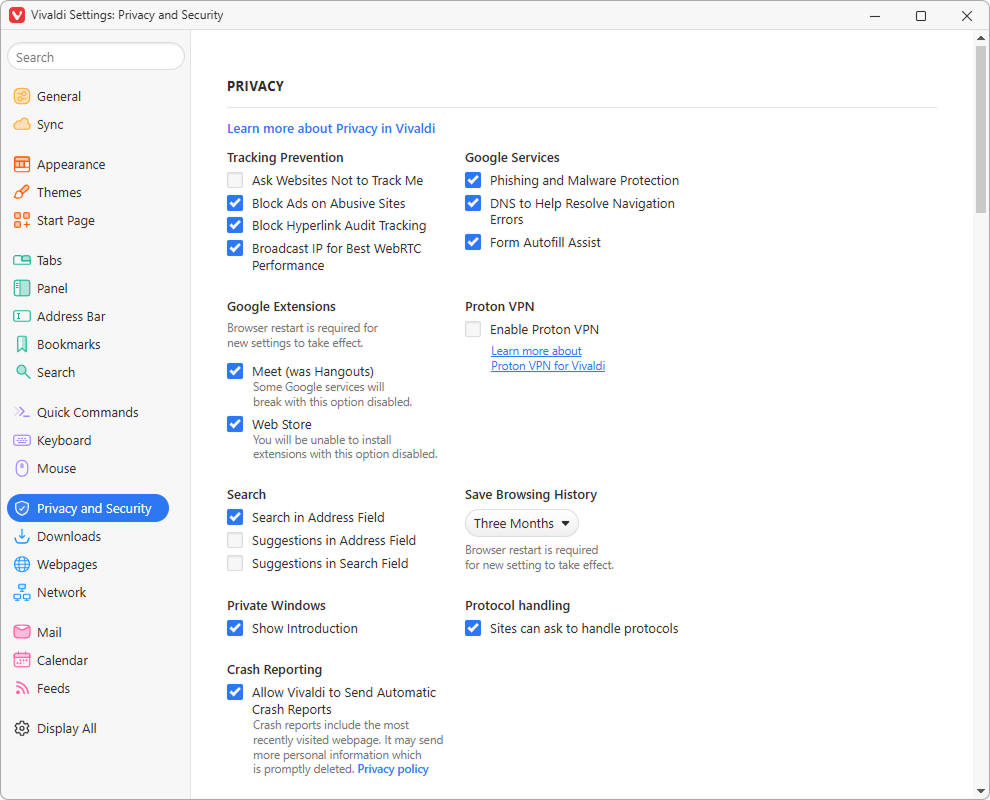
Vivaldi’s privacy and security settings give you solid control to safeguard your private data.
By default, each setting has either been enabled or disabled based on what we believe is in our users best interest, but you’ll of course have the option to toggle each setting in Settings > Privacy and Security.
Tracking Prevention
In Settings > Privacy and Security > Tracking Prevention, you can enable the option Ask Websites Not to Track Me. It’s a polite way of asking websites not to set tracking cookies. However, they can simply ignore it, and in most cases, the ones you want to avoid will be the ones who do not respect your request.
Block Ads on Abusive Sites
Enabled by default, Vivaldi blocks advertisements on sites with abusive ad practices. Learn about it on our Help Page about the Abusive Ad-Blocker.
Some web links include parameters that “ping” the website owner when the link is used allowing them to track user behavior in relation to the link. To prevent this kind of tracking, enable Block Hyperlink Audit Tracking in Settings > Privacy and Security > Do Not Track. Please note that enabling the setting may break some websites.
WebRTC IP Handling
Broadcasting IP for Best WebRTC (Web Real-Time Communication) performance is most relevant for users browsing over a VPN connection, who want to hide their IP even from websites using WebRTC to check real IP addresses.
In Vivaldi, broadcasting has been enabled by default, meaning websites can see your IP address, though, often just the internal network IP address. Disabling this setting will increase your privacy, but can cause issues with how websites function.
Google Phishing and Malware Protection
The Safe Browsing API by Google, which is enabled by default, checks the site you are visiting against a master blacklist of known suspected phishing and malware sites before loading the website. If the site is on the blacklist instead of loading the site you’ll be shown a warning message and encouraged to return to the previous website.
To protect your privacy, instead of sending a list of websites you’ve visited to the service provider, Vivaldi is given a file which describes every URL that is known to be malicious, using an approximation method.
Resolving Navigation Errors with Google DNS Service
The Google DNS (Domain Name System) Service will give you the IP address of the website you want to visit in case your ISP (Internet Service Provider) fails to do so properly (in some cases the ISP may have faulty DNSs).
The Google DNS server addresses (8.8.8.8 and 8.8.4.4) have been hardcoded into Chromium, on which Vivaldi is built. The setting is enabled by default, but can be disabled in Settings > Privacy and Security.
Assist in Form Autofill using a Google Service
For user convenience, the browser saves your form fill data (such as addresses and payment details) and fills forms automatically next time a site includes a similar form. This feature has been provided by Google, but none of the data you enter will be sent to Google, only the types of data you submit.
To edit and delete entries or disable autofill altogether, go to Settings > Privacy and Security > Payment methods / Addresses and more.
Google Extensions
Google provides many popular services. The use of some of these services are tied to Google extensions that are bundled into Chromium based browsers. They’re enabled by default, to provide a smooth user experience for users, who use these services. At the same time, we want to give users that are more privacy conscious and don’t use Google’s services an option to disable them.
Google Services Token – login to Google accounts will not be possible, when this extension has been disabled.
Hangouts – needs to be enabled to share your screen during Google Hangouts/Meet calls.
Web Store – it won’t be possible to add Extensions from Chrome Web Store to Vivaldi, if this setting has been disabled.
Proton VPN
Proton VPN is integrated into Vivaldi, allowing you to connect to a VPN server effortlessly with your Vivaldi account for free and access extra features after upgrading to a paid plan.
In Privacy and Security settings you can enable/disable the feature.
Search Suggestions
Search suggestions have been disabled by default, as everything you type, even if you don’t complete the search, is sent to your selected search engine. Read more on this topic on our blog.
By default, Vivaldi blocks advertisements on sites with abusive ad practices, such as ads which are purposefully misleading users and ads using abusive technologies – for example, pop-ups that prevent you from leaving the site.
The abusive ad-blocker feature can be disabled in Settings > Privacy and Security > Tracking Prevention > Block Ads on Abusive Sites, but we strongly advise you to keep it enabled.
The abusive ad-blocker gives the browser access to a blocklist which is hosted on our end-to-end encrypted servers. It is updated from the server automatically by the browser, and applied to intrusive websites without needing to contact the server each time.
If you’re looking for additional content blocking options, consider enabling Vivaldi’s Tracker and Ad Blocker or using an Extension.
Page Actions are custom filters that modify the look of a page. They allow you to make adjustments to individual webpages, and to make browsing more effective and focused on your individual needs. Page Actions are great for accessibility.
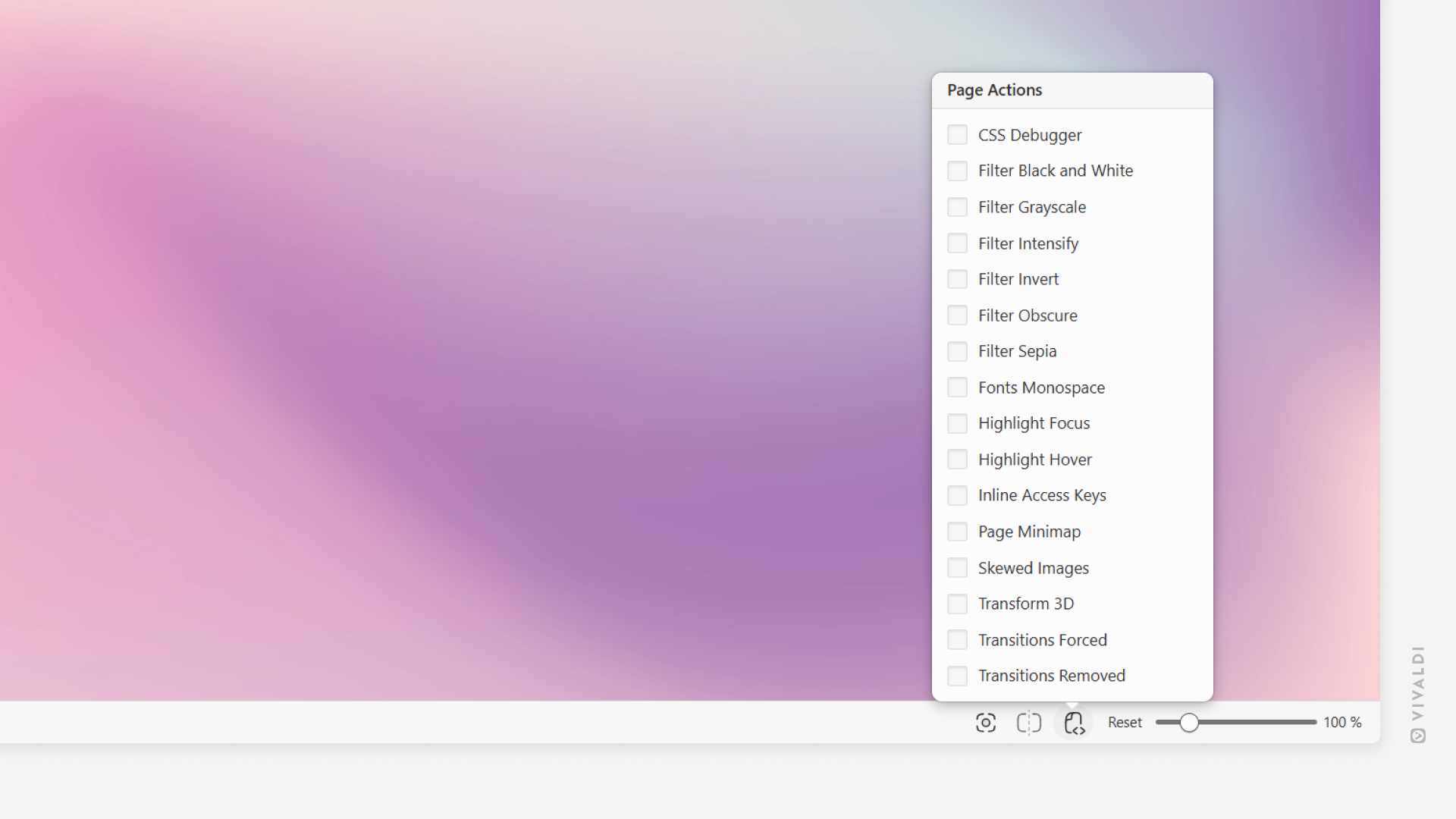
To apply an action, click on the Page Actions button on the right side of the Status Bar and select the one you want to use. Alternatively, type the action’s name in Quick Commands, or create a Keyboard Shortcut or a Mouse Gesture to toggle your favorite actions on and off.
The action will only be applied to the active Tab and won’t be disabled if you navigate to a different website in that tab. In many cases, multiple page actions can be applied simultaneously.
When you turn off a Page Action, the page will reload.
Available Page Actions
CSS Debugger – outlines various element types for a simple CSS inspection;
Filter Black and White – turns the page into black and white;
Filter Grayscale – changes the page’s colors to grayscale;
Filter Intensity – adds saturation and contrast to the images on the site;
Filter Invert – flips the page colors (i.e. turns white to black);
Filter Obscure – hides the content by blurring the page when the mouse cursor is moved outside of the window;
Filter Sepia – changes the page’s color scheme to reddish-brown;
Fonts Monospace – forces the text to be displayed in a monospace font. You can change the used font in Settings > Webpages > Fonts > Monospace;
Highlight Focus – displays a box around the focused content;
HighlightHover – displays a box around the content the mouse cursor is hovering over;
Inline Access Keys – shows the available keyboard shortcuts to interact with the website’s key features;
Page Minimap – shows a miniature schematic of the current page with visible area highlighted. Click or drag on the map to change your location on the page.
Skewed Images – tilts images at an angle;
Transform 3D – distorts the whole page on hover;
Transition Forced – makes transitions more prominent;
Create a Mouse Gesture and use it to open Print Preview.
Print Preview
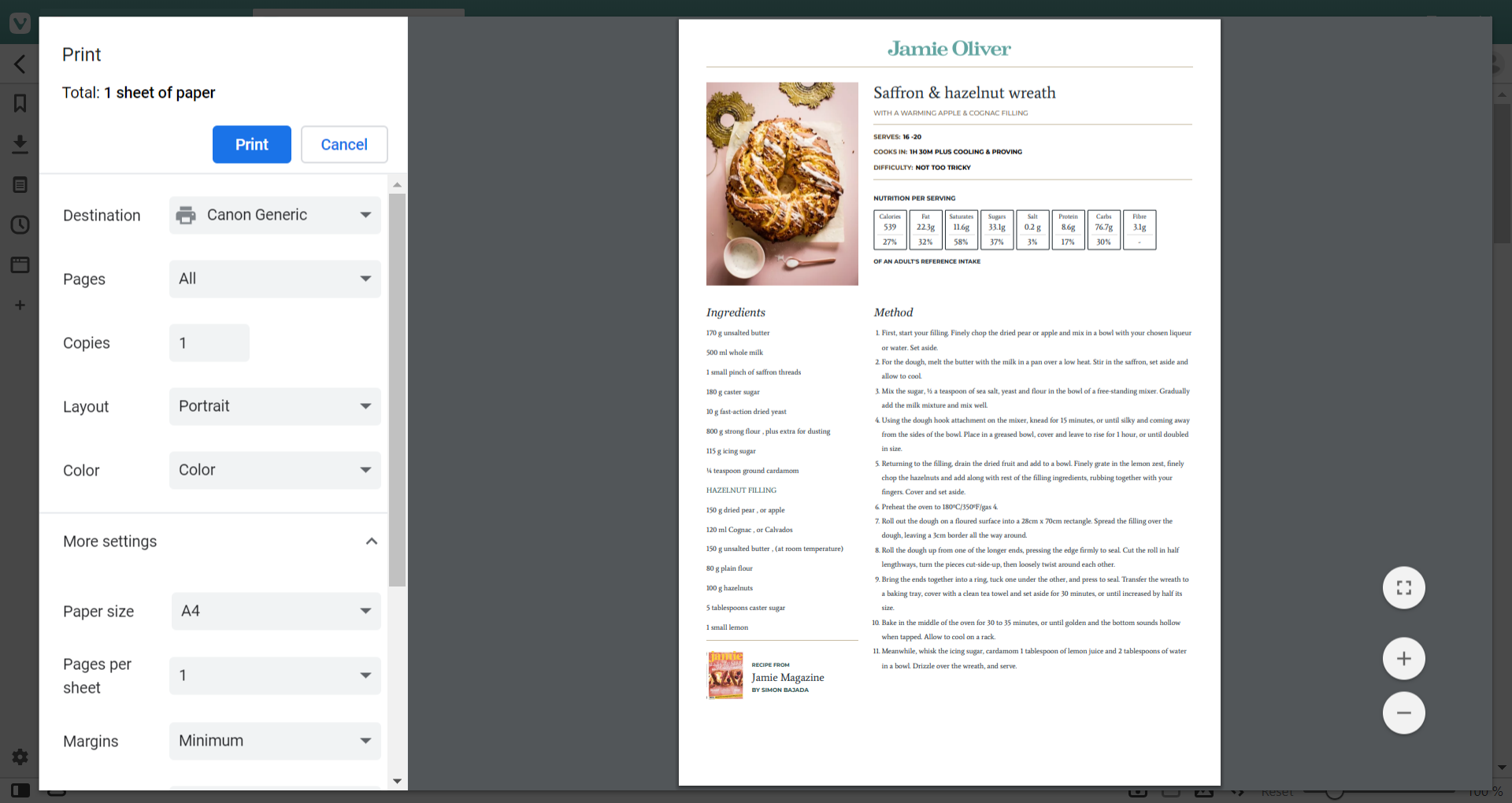
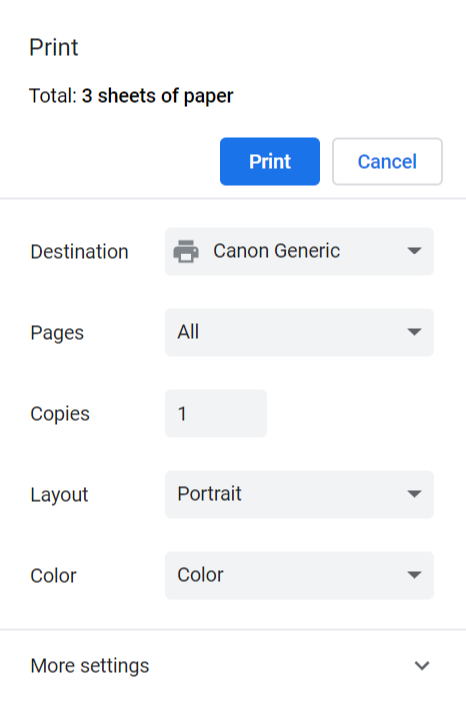
In the print preview window you can make many adjustments for the printable page.
Print destination – Pick which of your connected printers should print the page. Save as PDF is also an option.
Pages – If you don’t want to print everything, select Custom and type the page numbers of the ones you want to print.
Copies – Change the number if you need more than one copy of the page.
Choose layout – Choose between portrait and landscape.
Color – If you have a color printer, but want to print the page in grayscale, select Black and White.
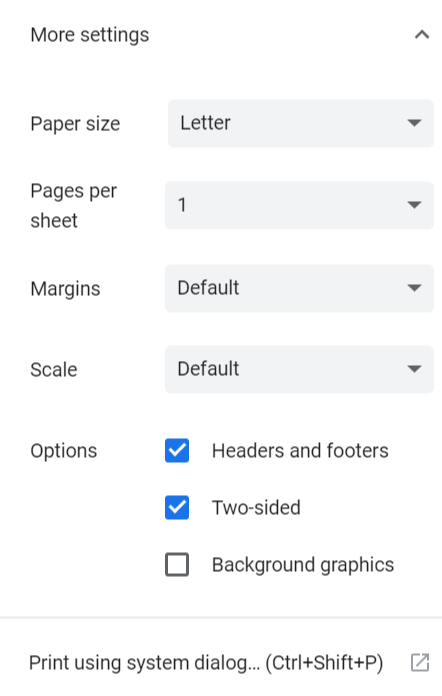
Click on More settings to reveal even more options.
Paper size – To make the print fit perfectly, change the paper size to match the paper you’re printing on.
Pages per sheet – Fit more on less paper.
Margins – Determine, how much space should be between the edge of the paper and printable content. Be careful to leave enough space as most printers won’t print very close to the edge.
Scale – Zoom in for bigger text and zoom out for the opposite.
Headers and footers – Decide, whether you want to print the date, title and URL.
Two-sided – In case your printer can print on both sides of the paper, you can
Background graphics – Tick the box, if you need the page’s background graphics (e.g. color) to be printed as well.
If you prefer the system dialog for printing click on Print using system dialog.
Print with Reader View
Many websites, especially news sites, strip the printable page of irrelevant content. In case the web page you’re trying to print doesn’t do that, you can switch to Reader View, which will remove unnecessary sections and lets you print just the article. In addition, by using Reader View, you can adjust the font, font size, and line height before printing.
Print with Screen Capture
To print the whole website or sections of it, use Vivaldi’s Screen Capture tool to take the screenshot and print the saved file.
Hold down the Shift key to select multiple tabs in a row or Ctrl/⌘ key to select tabs that aren’t necessarily next to each other.
While you hold down the key, click on the tabs you want to select.
Quick Commands
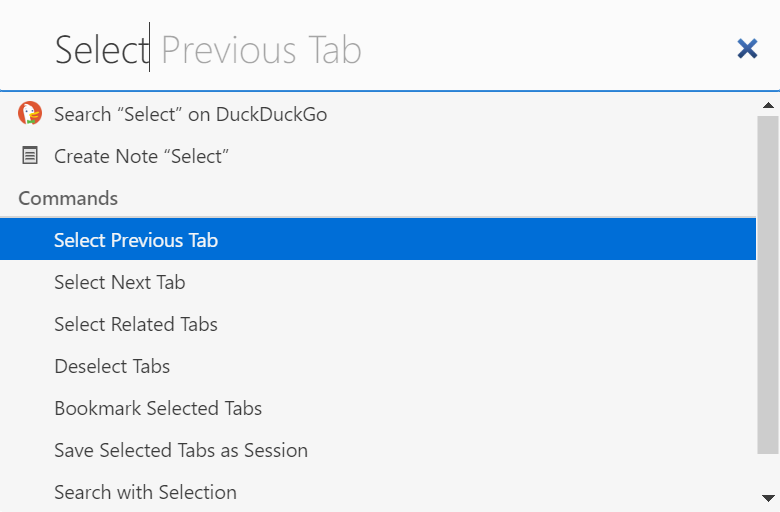
Open Quick Commands (F2/⌘ E) and start typing either: Select Previous Tab, Select Next Tab, Select Related Tabs or Deselect Tabs to execute the command.
Keyboard Shortcuts
In Settings > Keyboard > Tabs you can configure new Keyboard Shortcuts for selecting and deselecting tabs.
Mouse Gestures
If you prefer Mouse Gestures, create gestures for tab selection in Settings > Mouse > Gesture Mapping.
Combine Vivaldi on Windows with Razer Chroma to make browsing more immersive and personal.
Enabling Razer Chroma on Vivaldi
Make sure your Chroma devices are connected to your computer.
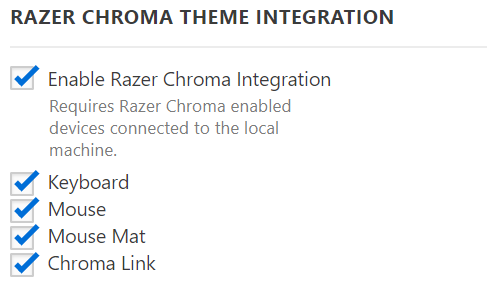
Go to Settings > Themes > Razer Chroma Theme Integration.
Make sure the box for Enable Razer Chroma Integration is ticked.
Select the devices you want to sync with Vivaldi.
If Chroma integration is enabled in Vivaldi, but the device colors don’t match the browser, check Razer’sSynapse > Connect > Apps and make sure Vivaldi is enabled and on top of the list.
If Accent Colour from Active Page is enabled in Settings > Themes > Edit Theme > Theme Preferences, the Chroma devices will change color based on the active tab’s webpage color. When disabled, your theme’s accent color will be used. If you’ve set up Scheduled Themes, Chroma colors will change when the Theme changes.
With Vivaldi’s Quick Commands feature you can do various calculations in a blink of an eye.
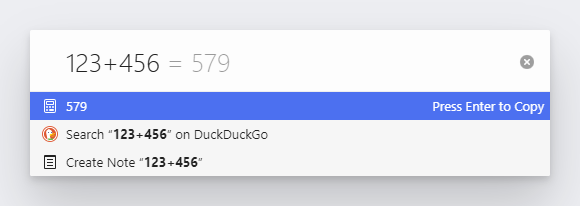
Open Quick Commands by pressing F2 / ⌘ E on your keyboard and start typing the equation. For example, “5166/123”, “sqrt 9”, etc.
The solution will appear below the input field and in a faded color also after the equation in the input field. When you press Enter, the solution will be automatically copied to your clipboard.
Types of calculations currently available:
Addition (x+y)
Subtraction (x-y)
Multiplication (y*z or y x z)
Division (x/y)
Remainder (x%y)
Power / exponentiation (x^y)
Root (sqrt x)
Factorial (x!)
Logarithms (ln x, log x, log10 x)
Trigonometric functions (sin x, cos x, tan x)
Inverse trigonometric functions (asin x, acos x, atan x)
 Vivaldi Menu > View > Show Tab Bar.





 Close button on the Find in Page bar or press Esc.
 Page Actions button on the right side of the