Calculator
Learn how and what kind of calculations you can do in the Vivaldi browser.
Learn how and what kind of calculations you can do in the Vivaldi browser.
It’s always good to keep your browser up to date in order to enjoy the newest features and get the latest bug fixes and security updates. A new version of Vivaldi is released roughly every 8 weeks, with a few minor updates in between.
Here’s how to update your Vivaldi browser:
 Restart Required message will also appear on the right side of the Address Bar when an update has been downloaded. Click on it and then on Restart to complete the update.
  Vivaldi menu > Help > Check for Updates.
 Visit Vivaldi.com, download the latest version, and install it to the same location with the same settings as the current browser.
When you have Automatically Download and Install Updates enabled in Preferences > General > Updates, the update will be downloaded in the background and installed on the next restart. Restart Required message will also appear on the right side of the Address Bar when an update has been downloaded. Click on it and then on Restart to complete the update.
Check for Updates manually from the top menu Vivaldi > Check for Updates. If the menu item is inactive, you already have the latest version.
Visit Vivaldi.com, download the latest version and install it to the same location with the same settings as the current browser.
Vivaldi on Linux gets updated automatically with the rest of the OS components.
If, after an update, the browser doesn’t function as it used to, try troubleshooting the issue. It’s strongly discouraged to downgrade to an older version as it can corrupt the browser profile and cause issues, if not immediately, then in the future.
Cookies are small pieces of data (text files) that a website – when visited by a user – asks your browser to store on your device in order to remember information about you, such as your language preference or login information. The cookie will be used to recognize you and your preferences the next time you visit the site.
To adjust cookie settings globally:
When First-Party Cookies are set by the website you see in the address field, then Third-Party Cookies are set by other domains. These cookies may be used for showing content from other domains (for example, an embedded YouTube video), advertising (to show you ads based on your browsing habits), etc.
Third-party cookies are blocked by default only in Private Windows. To block third-party cookies in all windows:
In Settings > Privacy, you can also enable the option Ask Websites Not to Track Me. It’s a polite way to ask websites not to set tracking cookies. However, they can simply ignore it, and in most cases, the ones you want to avoid will be the ones who do not respect your request.
One option to delete all cookies is to clear the browsing data.
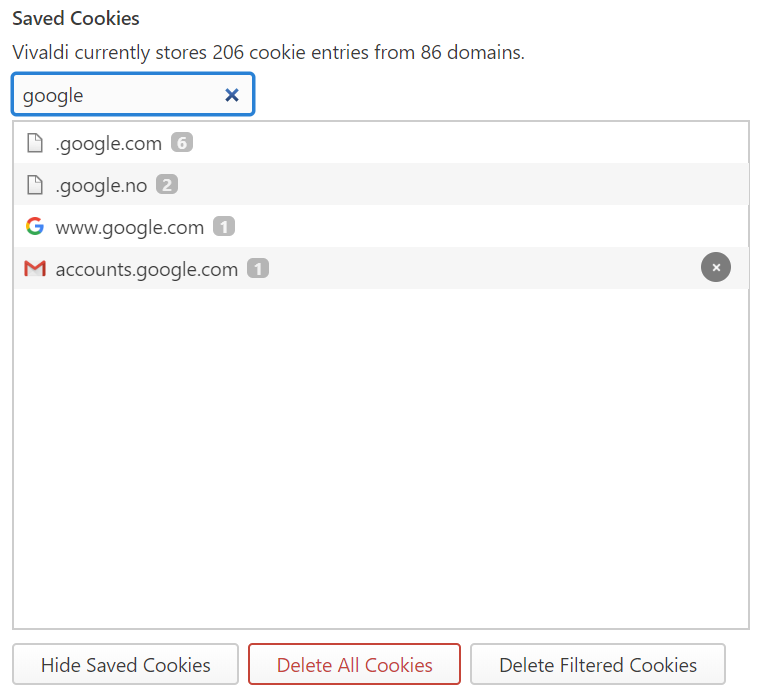
Vivaldi menu > Tools > Delete Browsing Data. Alternatively, go to Settings > Privacy > Cookies. There you can view all the saved cookies by clicking on Show Saved Cookies. You can also filter them by domain. To delete all cookies, click on Delete All Cookies.
To delete all cookies by the same domain:
To delete a single cookie, hover the mouse cursor over it and click on X that appears on the right side.
To delete all site data, including cookies for one site:
 Site Info button on the Address Bar and select Site Settings from the menu. Site Info button on the Address Bar and select Cookies and site data > Manage cookies and site data from the menu.
 Delete saved data from [site name] for each item you want to delete.
To block or allow cookies on a specific website:
Site Info button on the Address Bar and select Cookies and site data > Manage cookies and site data from the menu. More Actions next to each site that wants to save data on the current website.
For an overview, go to Settings > Privacy and Security > Website Permissions, where you can see and manage all sites with customized settings.
Since Europe’s GDPR and a few other user privacy laws don’t allow placing cookies in your browser without consent, most websites ask for your permission as the first thing after the web page is loaded. The fastest option is to just accept everything, which always serves the interests of the website not the user. The other option is to manage your preferences and disable the data usage options all at once, if you’re lucky, or one by one, if the website wants to make it especially cumbersome.
Vivaldi offers a third option by including two blocker lists in the Ad Blocker that hide annoying cookie banners and dialogs on most websites.
To enable these lists:
If you only wish to hide the cookie warnings, but don’t want to block ads, disable other blocking sources.
Please note that not all cookies are used for creating behavioral profiles about users. Some are necessary for the website to function. When the website you’re viewing doesn’t look or work as it should, please disable the blockers. You can do so per site from the Content Blocker menu on the Address Bar.
User profiles allow multiple “users” to share one Vivaldi installation, without requiring you to log in to a different operating system user account, or maintain multiple Standalone installations.
Each profile can have a different set of Extensions, Bookmarks, Speed Dials, Cookies, History, etc. In addition, each profile can have its own look and configuration (Keyboard Shortcuts, Mouse Gestures, etc.).
If a second profile is needed only briefly, for example, for a friend to use your browser (without messing up your setup or interacting with your open tabs), use a temporary Guest Profile.
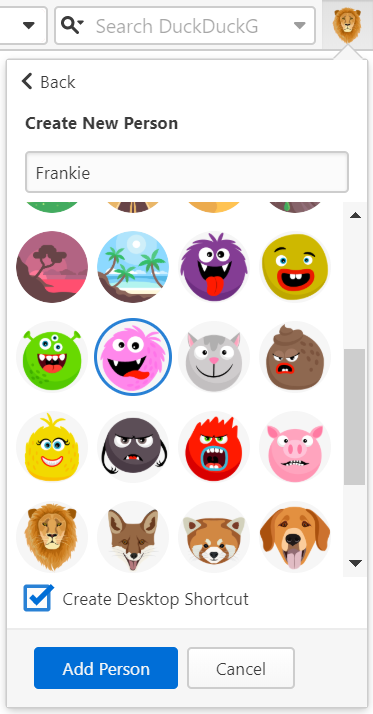
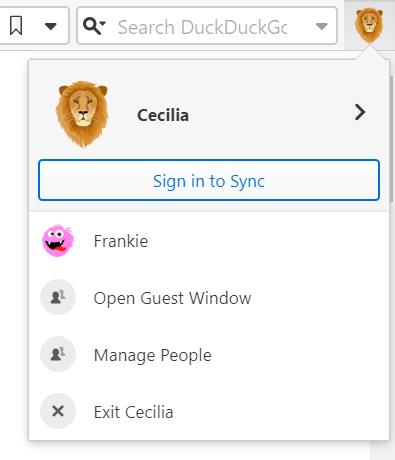
You can also manage profiles from Settings > General > Profile Management and click on Manage Profiles, or type “Manage Profiles” in Quick Commands.
When you are logged in to your Vivaldi account to use Sync, your account’s username and profile image will be shown instead.
To choose which profile to open when you start Vivaldi:
When enabled, before the browser opens, you’ll see the window shown on the image below.
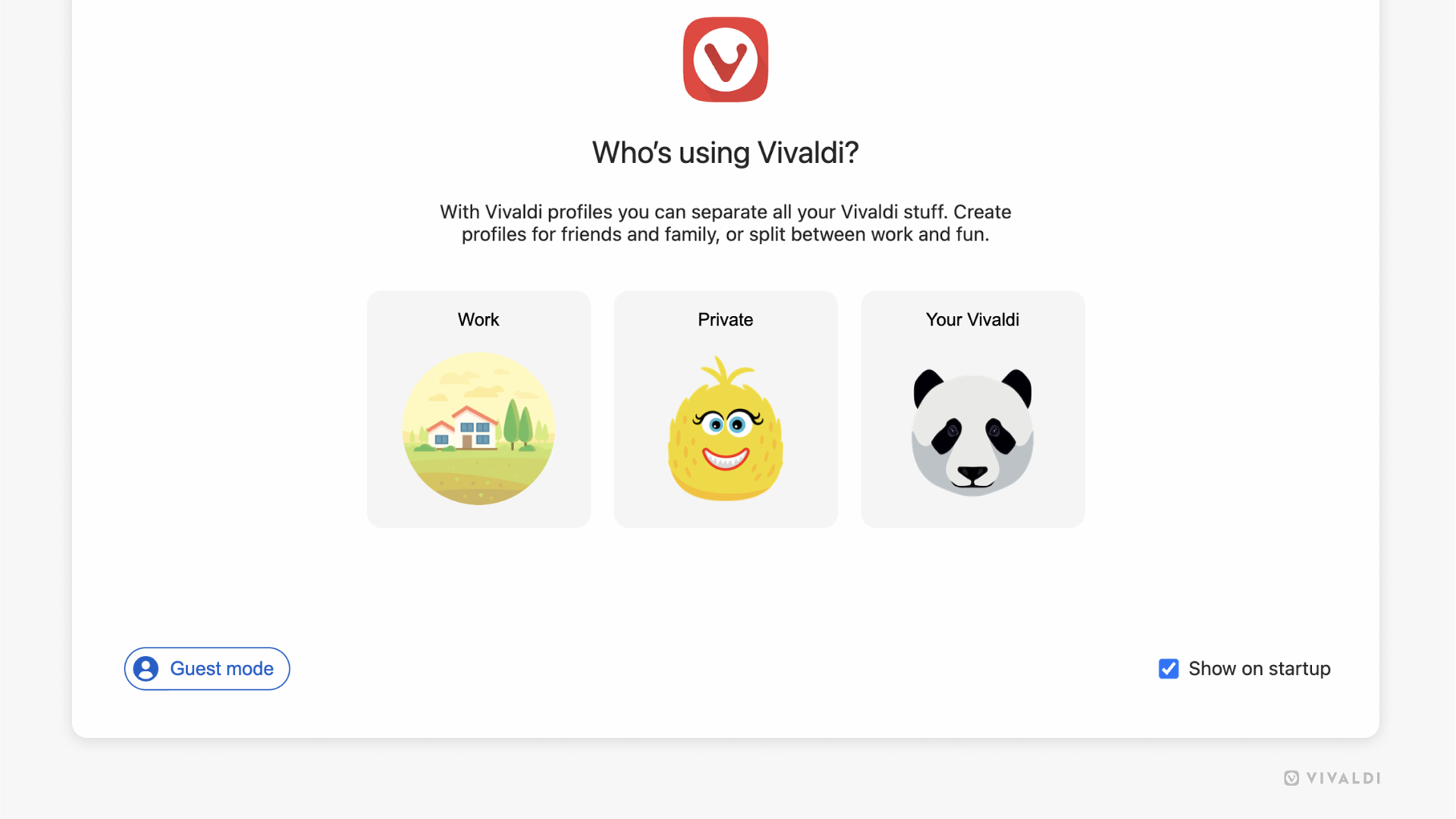
To change the name or avatar of the profile or create a desktop shortcut:
In case you’re logged into your Vivaldi account, you can update the profile image on your account’s profile on Vivaldi.net.
To remove a profile:
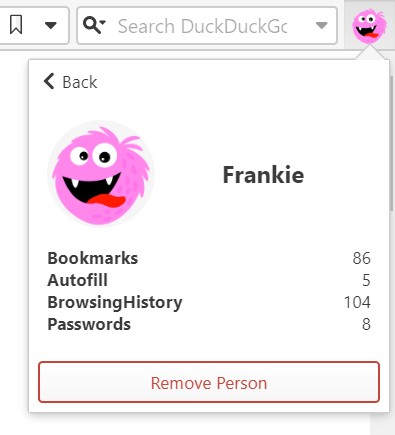
You can change the location or remove the User Profiles button by Editing Toolbars.
If you don’t want to use the multiple profile feature or don’t want the button to clutter your Address Bar, right-click on the User Profiles button > Edit > Remove from Toolbar.
To Sync profile data across devices, currently, a separate Vivaldi account is needed for each profile.
Browsing in Guest Profile means that searches, sites visited, cookies, and temporary files won’t be stored by Vivaldi.
The Guest Profile will have Vivaldi’s default look and settings and the Guest won’t be able to change any of your browser settings or access your data from the Guest Profile. If all you want is to browse privately – with access to your customizations – use Private Windows instead of the Guest Profile.
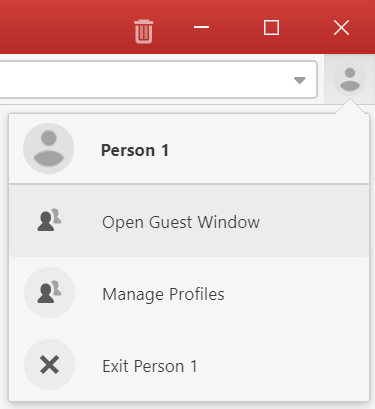
Alternatively, for example if you’ve hidden the Profile button, go to Settings > General > Profile Management > Manage Profiles > Guest mode.
If the Guest Window was the very last window you closed, then on restart Vivaldi will display the profile manager.
Guest Profile does not encrypt or otherwise modify your connection. Note that if you log in to any websites, the website may still record your activity on any websites they have access to, and associate it with your account on that website. Use of guest mode will not hide your browsing activity from the website – it does not offer any anonymizing service. You would need to use a VPN or anonymizing proxy service if that is required.
Your activity might be visible to:
Save your login credentials in the Vivaldi browser to quickly access your online accounts.
Pinning Tabs allows you to keep your most used tabs open and available in the same location, at all times.

To pin multiple tabs at once, select them using the Ctrl or Shift key and select Pin from the right-click context menu.
If the Tab Bar is located on the top or bottom of the window, the pinned tab will shrink to only fit the favicon (commonly the website’s logo) and position itself to the left side of the Tab Bar.
In case the Tab Bar is either on the left or right side of the window and in the Window Panel, the pinned tab will position itself at the top of the tabs list.
Pinned tabs will be listed in the order they were pinned, but you can change their order by dragging them. Pinned and regular tabs cannot be placed alternately.
To keep the pinned tabs locked to the same domain:
When enabled, all links from the same domain will open in the pinned tab and all links from other domains will open in new regular tabs.
To unpin multiple tabs at once, select them using the Ctrl or Shift key and select Pin from the right-click context menu.
With default settings, to close a pinned tab, first, unpin it and then close it as a normal tab.
In Settings > Tabs > Tab Features > Pinned Tabs, you can choose between three options:
If you enable Lazy Loading Restored Tabs (which restores tabs in a hibernated state) in Settings > Startup, but you wish to always fully load pinned tabs, check the box for Always Load Pinned Tabs.
By default, pinned tabs are grouped under one folder in the Window Panel and the Tab Button pop-up, but you can disable it in Settings > Panel > Window Panel > Pinned Folder.
A “crash” occurs when Vivaldi encounters an unrecoverable error and shuts down unexpectedly or a tab’s contents disappear and are replaced with a “dead bird” image. Information pertaining to the crash is logged by Vivaldi.
When you enable automatic crash reporting, we will receive the crash logs automatically. You can enable crash reporting during the welcome flow after installing the browser, or any time in Settings.
To enable automatic crash reporting:
By adding context to the crash, the team will have an easier time fixing the bug that’s causing the crash. You can do that by filing a bug report that gets linked to your crash log.
To file a bug report about the crash:
To locate your crash log files open Finder and use the menu “Go → Go to folder” or the keyboard shortcut “⇧⌘G” and then paste this line:
~/Library/Application Support/Vivaldi/Crashpad
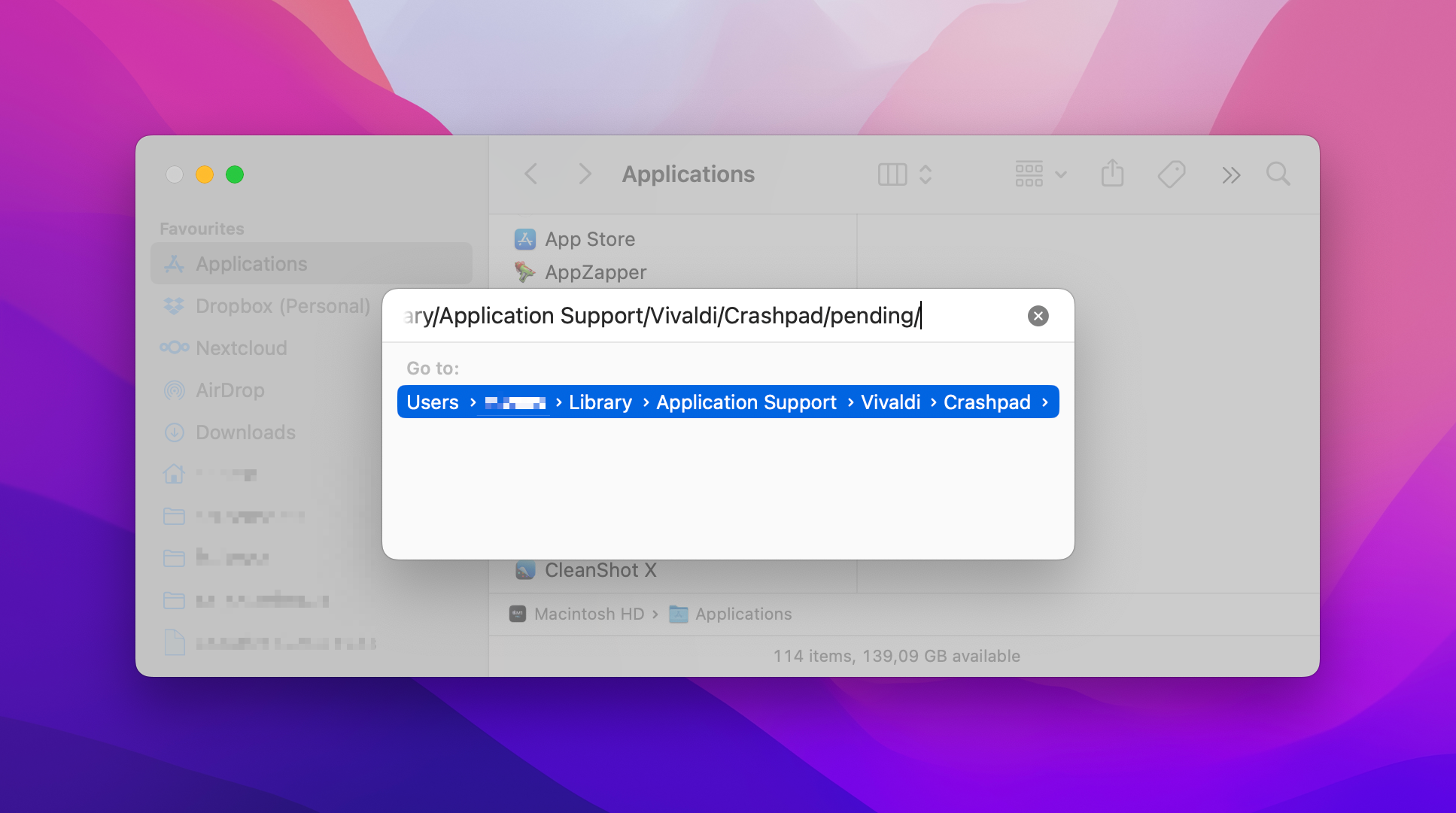
Here you will find all your crash log files (.dmp) under the pending or completed sub folders. Sort the folder contents by date and only send the very most recent one(s) because they can only be processed if we know exactly which version of Vivaldi they are from. To save space you might want to compress them and send them inside a zip archive.
find ~/Library/Application\ Support/Vivaldi/Crashpad -newer /Applications/Vivaldi.app -name \*.dmp | zip -j ~/Documents/Vivaldi\ Crash\ Logs\ $(date '+%Y%m%d-%H%M') -@open ~/Documents/Then, go to vivaldi.com/bugreport and fill out the form with details about the crash and attach the crash log file to the report.
Vivaldi browser’s Address Bar is home to a lot more than just the URL field and basic navigation buttons. Continue reading to get to know all the available options that help you navigate the web.


Click on the arrow pointing left to return to the previous page and on the arrow pointing right to revisit a page you have returned from.
“Long-click” or right-click on either of the history navigation buttons to bring up the sub-menu, then Shift or Ctrl + click or middle mouse button click on an entry to open it in a new tab.
Learn more about History on the Help Page about Vivaldi’s History feature.

Jump back or forward several pages at a time.
Learn more about the feature on the Help Page about Fast Forward and Rewind.


To reload the webpage you’re on:
 Reload current page button on the Address Bar;
To do a hard reload of the page (without loading content from cache):
To stop a page from finishing loading:
 Stop button on the Address Bar;
The homepage can be either the Start Page or a specific web page of your choice. You can change the homepage in Settings > General > Homepage.
 button in front of the Address Field to open the search results or link.
 warning icon will be shown. Make sure you trust the website before submitting any data on the page.
Read more about the main section of the Address Bar on the Help Page about the Address Field.

Clicking on the button will open a menu with information about the connection security, Cookies and Site Data, Site Settings, and Tracker and Ad Blocker status and will allow you to manage your data and settings.
Usually, the icon will give you a hint about the blocking status on the current website, but when you’re on an unsafe website it will change to an icon to show that the site is not secure  or even dangerous
  .
.
Start dragging from the button to your desktop or file folder, to the Bookmarks Panel/Bar or to the Panels sidebar to create a webpage shortcut.
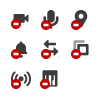
When a website wants access, for example, to your location or camera, the button with options to allow or block access can be accessed from the right side of the Address Field.
Learn more about the feature on the Help Page about Website permissions.

The icon will appear when the website offer feeds. Click on the button to preview and subscribe to the feed.
Learn more about the feature on the Help Page about Feed Reader.

To concentrate on the main content of the web page and hide all distractions, switch to reader mode.
Learn more about the feature on the Help Page about Reader View.

With Vivaldi Translate, you can translate full web pages with just a click of a button.
Learn more about the feature on the Help Page about Translate.

Add web pages to bookmarks to find them easily later.
Learn more about the feature on the Help Page about Bookmarks.


Click on the magnifying glass to switch the search engine. Click on the arrow on the right to view search history.
Learn more about the feature on the Help Page about Search.

Reading List allows you to add web pages to a list to keep for later. It prevents endless tabs from accumulating on your Tab Bar and Bookmarks being filled with entries you only need once.
Learn more about the feature on the Help Page about Reading List.

Files downloaded from the Internet are added and managed through the Downloads Panel or Downloads Popup.
Learn more about the feature on the Help Page about Downloads.

Place to access and manage your User Profiles and Guest Profile. When you’re logged in to Sync, your Vivaldi account‘s avatar will be displayed on the Address Bar instead of the user profile avatar.
Learn more about the feature on the Help Page about User Profiles.

Vivaldi has countless features which make the use of many extensions redundant. But there are still a ton of extensions which can take browsing to another level.
Learn more about the feature on the Help Page about Extensions.

The VPN feature in the Vivaldi browser is provided through a partnership between Vivaldi and Proton.
Learn more about the feature on the Help Page about Proton VPN for Vivaldi.

The Share button is not on the Address Bar by default, but you can add it there or to any other toolbar using the Toolbar Editor.
When you click the button, it opens your operating system’s Share menu, where you can copy the web page’s link, create a QR code for it, email it and more.
When a new version is available and it has been downloaded in the background, a Restart Required button will appear on the Address Bar. Click the button and on Restart in the menu to install the update.
Learn more about it on the Help Page about updating Vivaldi on desktop.
You can decide whether to display the Address Bar at the top or bottom of the browser window. Make the choice in Settings > Address Bar > Address Bar Position.
To toggle the visibility of the Address Bar, either:
When the Address Bar is hidden, use the Keyboard Shortcut Ctrl+L/⌘ L to focus on the Address Field and other shortcuts to execute commands usually completed by clicking on buttons on the Address Bar.

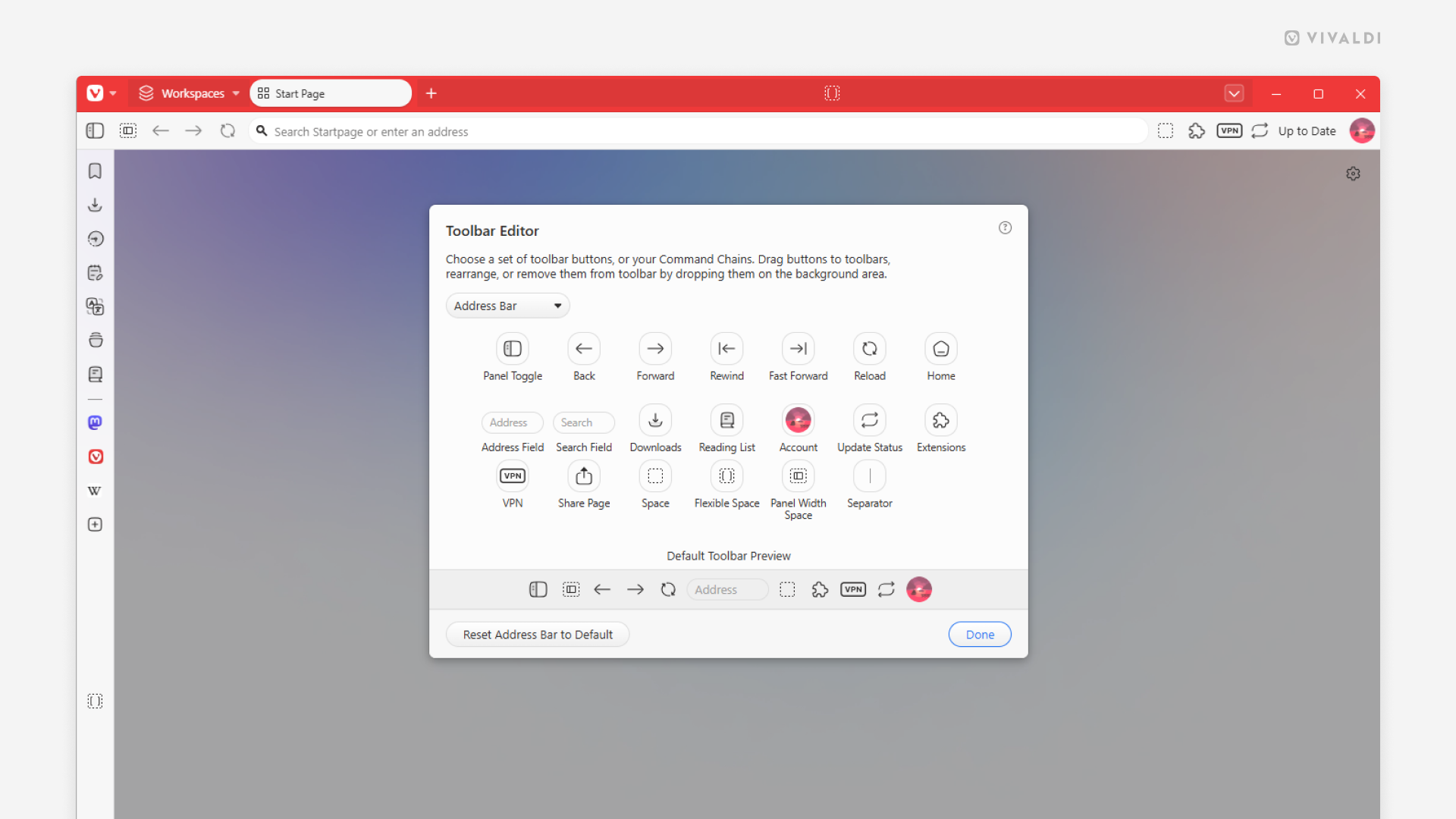
All components on the Address Bar can be removed by right-clicking on the button > Customise > Remove From Toolbar. To remove the Address or Search Field, open the Toolbar Editor and drag the field off the Address Bar.
To reset the changes right-click on a button > Customise > Reset Toolbar to Default. In case you’ve removed all of the buttons, go to Settings > Appearance > Window Appearance > Toolbar Customisation > Reset Address Bar.
To change the order of the buttons. Hold down the Ctrl / ⌘ key and drag and drop the button to it’s new location.
You can also bring buttons from the Status Bar to the Address Bar and vice versa, move buttons from the Address Bar to the Status Bar. To do that, hold down the Ctrl / ⌘key and drag and drop them from one bar to another.
Learn more about customizing the browser’s toolbars on the Help page about Editing Toolbars.
When reporting a media issue on macOS, in addition to describing what is happening and where, we need more information to be able to follow up with it.
Please visit the following pages:
On both pages, click on Copy to Clipboard and paste the content to the bug report.
Furthermore, please visit the following links and tell us which options are selected for the selected flags:
Please copy and paste all this information on vivaldi.com/bugreport