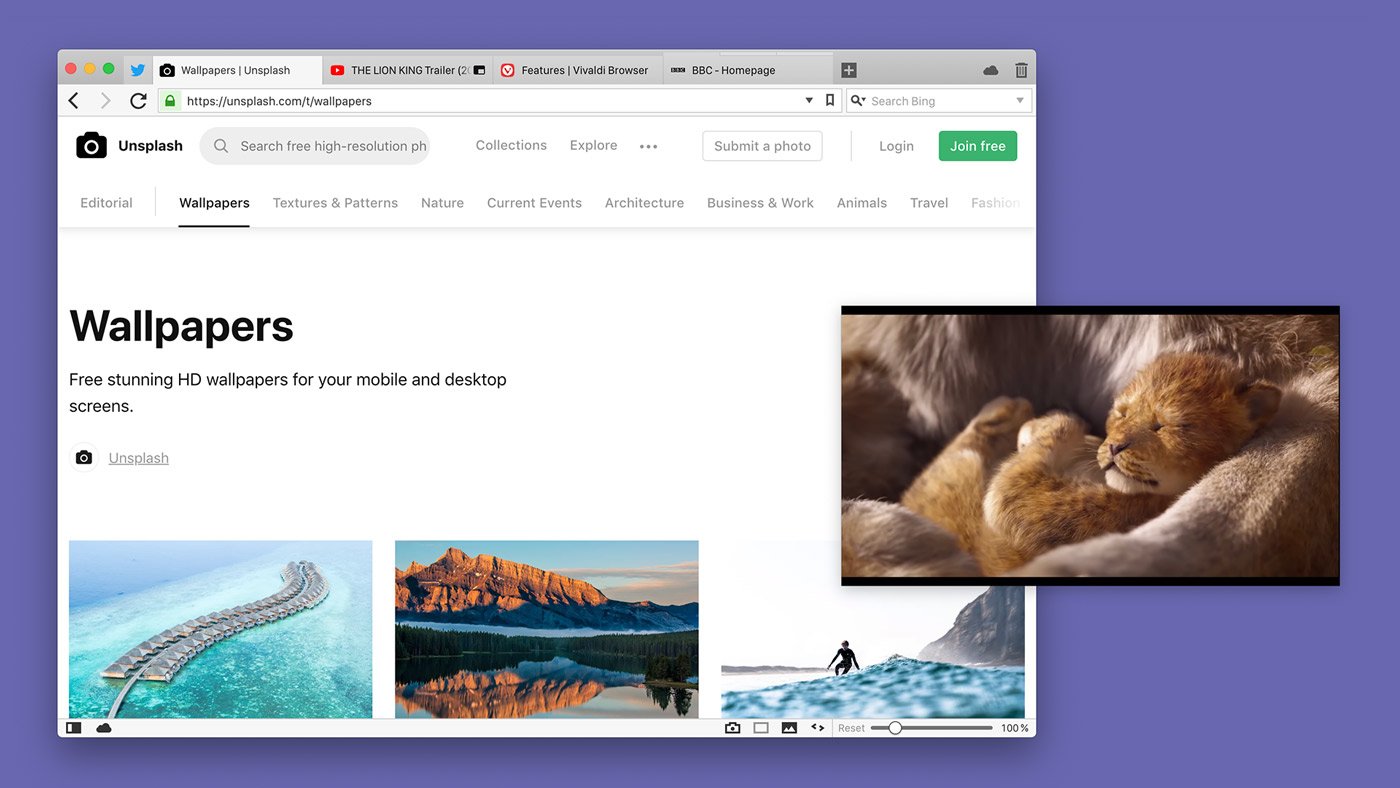
Browsing in Guest Profile means that searches, sites visited, cookies, and temporary files won’t be stored by Vivaldi.
The Guest Profile will have Vivaldi’s default look and settings and the Guest won’t be able to change any of your browser settings or access your data from the Guest Profile. If all you want is to browse privately – with access to your customizations – use Private Windows instead of the Guest Profile.
Open Guest Window
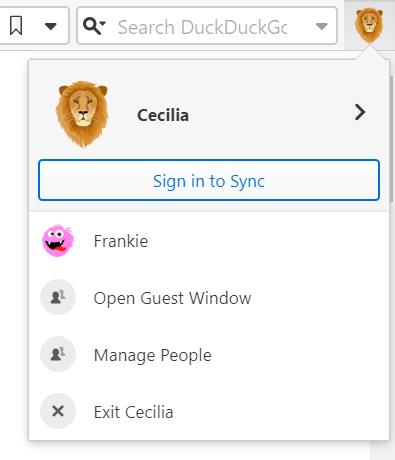
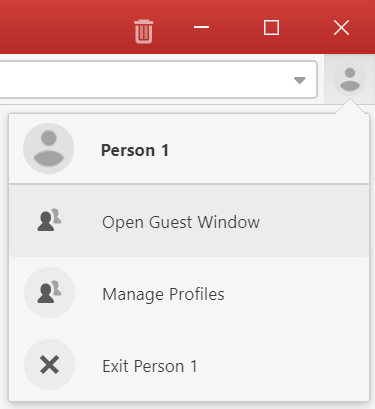
Click on the Profile button in the top right corner of the browser.
Select Open Guest Window from the menu.
Alternatively, for example if you’ve hidden the Profile button, go to Settings > General > Profile Management > Manage Profiles > Guest mode.
Close Guest Window
Close the Guest Window as a normal window.
Open the Profile menu in the main profile window and select Exit Guest Profile.
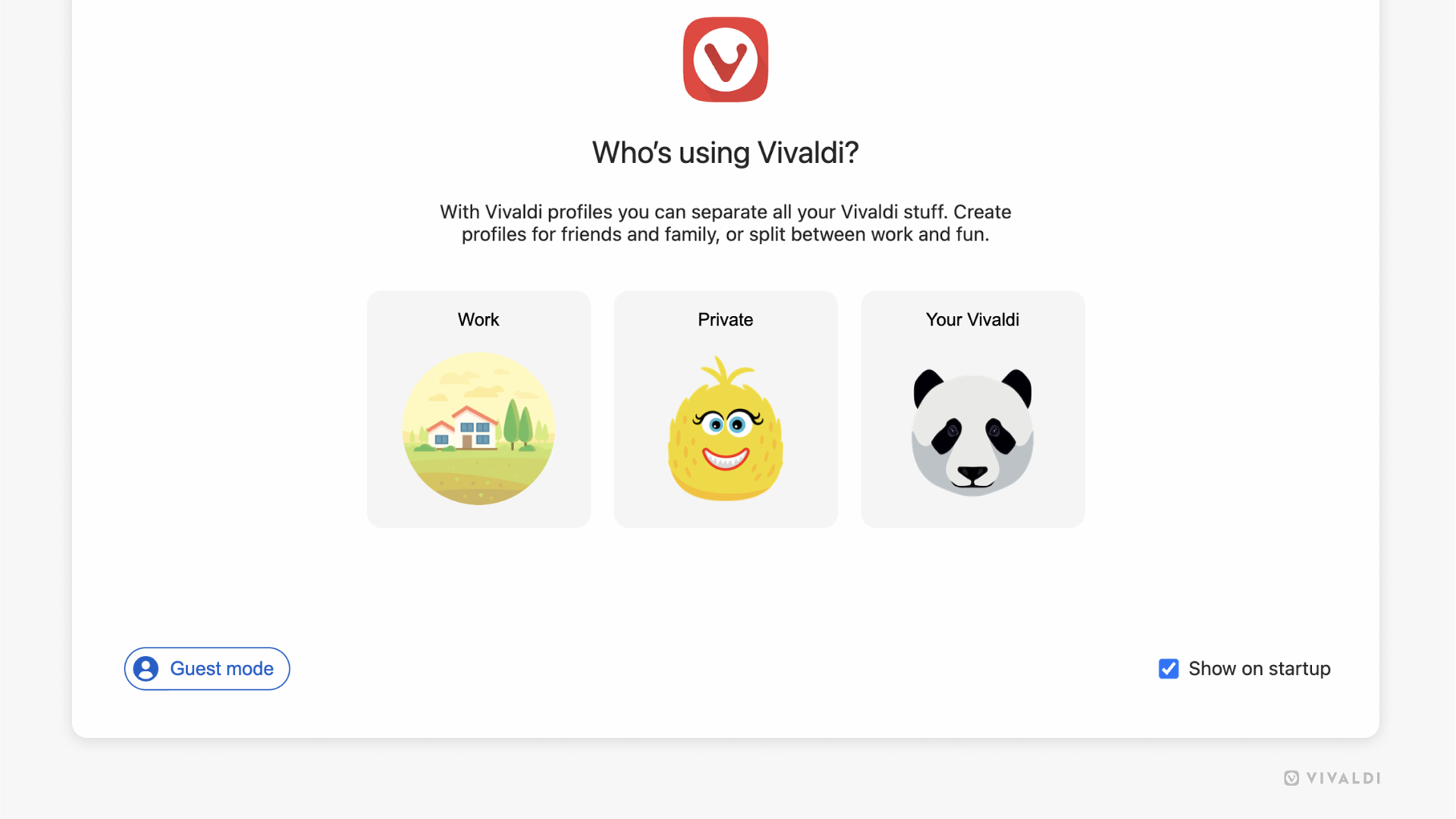
If the Guest Window was the very last window you closed, then on restart Vivaldi will display the profile manager.
Privacy
Guest Profile does not encrypt or otherwise modify your connection. Note that if you log in to any websites, the website may still record your activity on any websites they have access to, and associate it with your account on that website. Use of guest mode will not hide your browsing activity from the website – it does not offer any anonymizing service. You would need to use a VPN or anonymizing proxy service if that is required.
Your activity might be visible to:
Websites you visit (including the ads and resources used on those sites);
With Vivaldi, you can store your account login credentials in the browser.
Saving passwords
When password saving is enabled, every time you log into a new account you’ll be asked whether you wish to save the password.
If you discard the prompt for saving a particular password but want to do it later, click on Save your password on the right side of the Address Field.
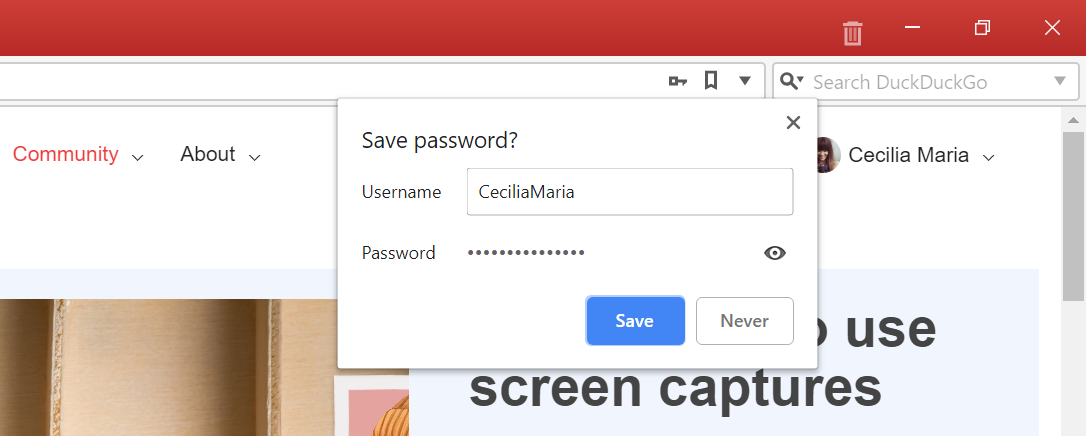
In case you clicked Never, you won’t be asked whether you wish to save the password on that website again. In case you’ve changed your mind, go to Settings > Privacy and Security > Passwords and delete the website from the Declined sites list.
If you don’t want to save passwords or use other tools to manage them, you can disable the feature in Settings > Privacy and Security > Passwords by unticking Save Webpage Passwords.
When you change an account’s password, you’ll get the same prompt asking whether you wish to update the credentials.
Viewing Passwords
To view saved passwords:
In Settings > Privacy and Secuirty > Passwords > Show Passwords;
Click on Show Password, or right-click on the entry and select Show Password
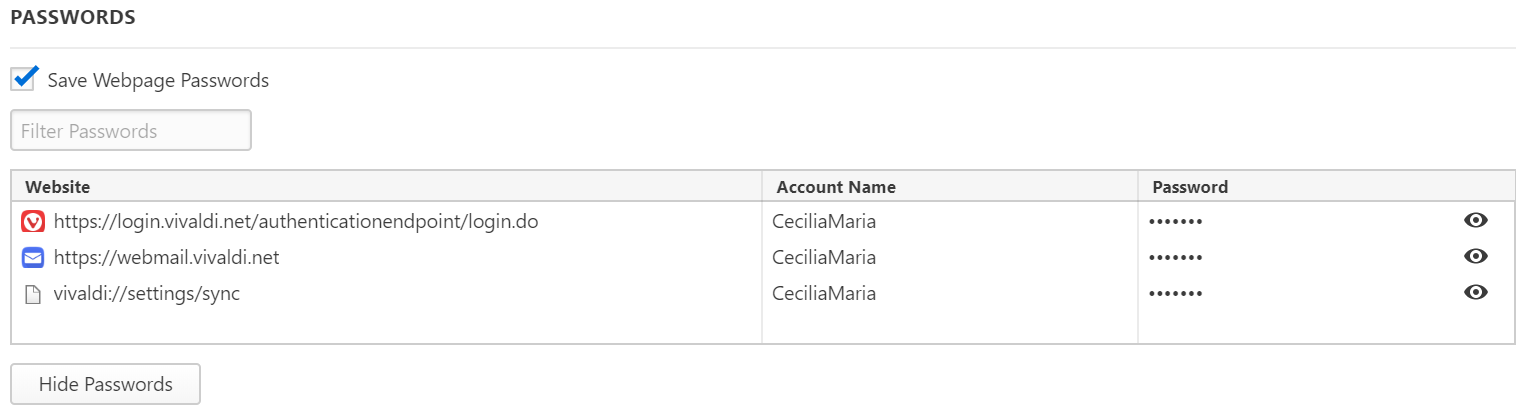

Enter your computer’s login password.
To filter passwords, search for the Website or Account Name in the search box above the list of saved login credentials.
To sort saved passwords alphabetically, click on the column title according to which you want to sort the saved entries. Click again to reverse the order.
In addition to the option to show the password, from the right-click menu you can also copy the password or username, visit the page, and delete the saved password.
Deleting passwords
To delete stored account credentials, right-click on the entry and select Delete Password.
To delete all passwords:
Go to Vivaldi menu > Tools > Delete Browsing Data;
Select Passwords (includes your Sync login password);
For Delete data for, select All Time;
Click Delete.
To delete a single password:
Go to Settings > Privacy > Passwords > Show Passwords;
Right-click on the entry you want to remove;
Select Delete Password.
Importing passwords
The easiest way to import passwords from another Vivaldi browser is to use Sync, which also allows you to synchronize other types of data, such as Bookmarks and Notes.
To import passwords from another browser:
Make sure the source browser is closed;
Then go to Vivaldi menu > File > Import from Applications or Files;
From the dropdown menu select the browser you wish to import the passwords from;
Decide on the data you want to import;
Click Start Import.
Please note that password import is not possible from all browsers.
To pin multiple tabs at once, select them using the Ctrl or Shift key and select Pin from the right-click context menu.
If the Tab Bar is located on the top or bottom of the window, the pinned tab will shrink to only fit the favicon (commonly the website’s logo) and position itself to the left side of the Tab Bar.
In case the Tab Bar is either on the left or right side of the window and in the Window Panel, the pinned tab will position itself at the top of the tabs list.
Pinned tabs will be listed in the order they were pinned, but you can change their order by dragging them. Pinned and regular tabs cannot be placed alternately.
Restrict a pinned tab to the current site
To keep the pinned tabs locked to the same domain:
Right-click on the pinned tab.
Select Restrict Pinned Tab to Current Site.
When enabled, all links from the same domain will open in the pinned tab and all links from other domains will open in new regular tabs.
Unpin a tab
Right-click on the pinned tab and select Unpin tab. The unpinned tab will position itself as the leftmost/topmost tab after pinned tabs (if there are any).
If you enable Lazy Loading Restored Tabs (which restores tabs in a hibernated state) in Settings > Startup, but you wish to always fully load pinned tabs, check the box for Always Load Pinned Tabs.
By default, pinned tabs are grouped under one folder in the Window Panel and the Tab Button pop-up, but you can disable it in Settings > Panel > Window Panel > Pinned Folder.
A “crash” occurs when Vivaldi encounters an unrecoverable error and shuts down unexpectedly or a tab’s contents disappear and are replaced with a “dead bird” image. Information pertaining to the crash is logged by Vivaldi.
Enable automatic crash reporting
When you enable automatic crash reporting, we will receive the crash logs automatically. You can enable crash reporting during the welcome flow after installing the browser, or any time in Settings.
Enable Allow Vivaldi to Send Automatic Crash Reports.
Provide additional information
By adding context to the crash, the team will have an easier time fixing the bug that’s causing the crash. You can do that by filing a bug report that gets linked to your crash log.
To file a bug report about the crash:
Go to vivaldi:crashes.
Look for a crash log that was created around the time you witnessed the crash.
Click on Provide additional details. You’ll be taken to our bug report page, where the crash’s ID is already prefilled in the Summary field.
Fill out the form with information you think is relevant to the crash, such as steps to trigger the crash.
Submit the bug report.
Manual crash reporting
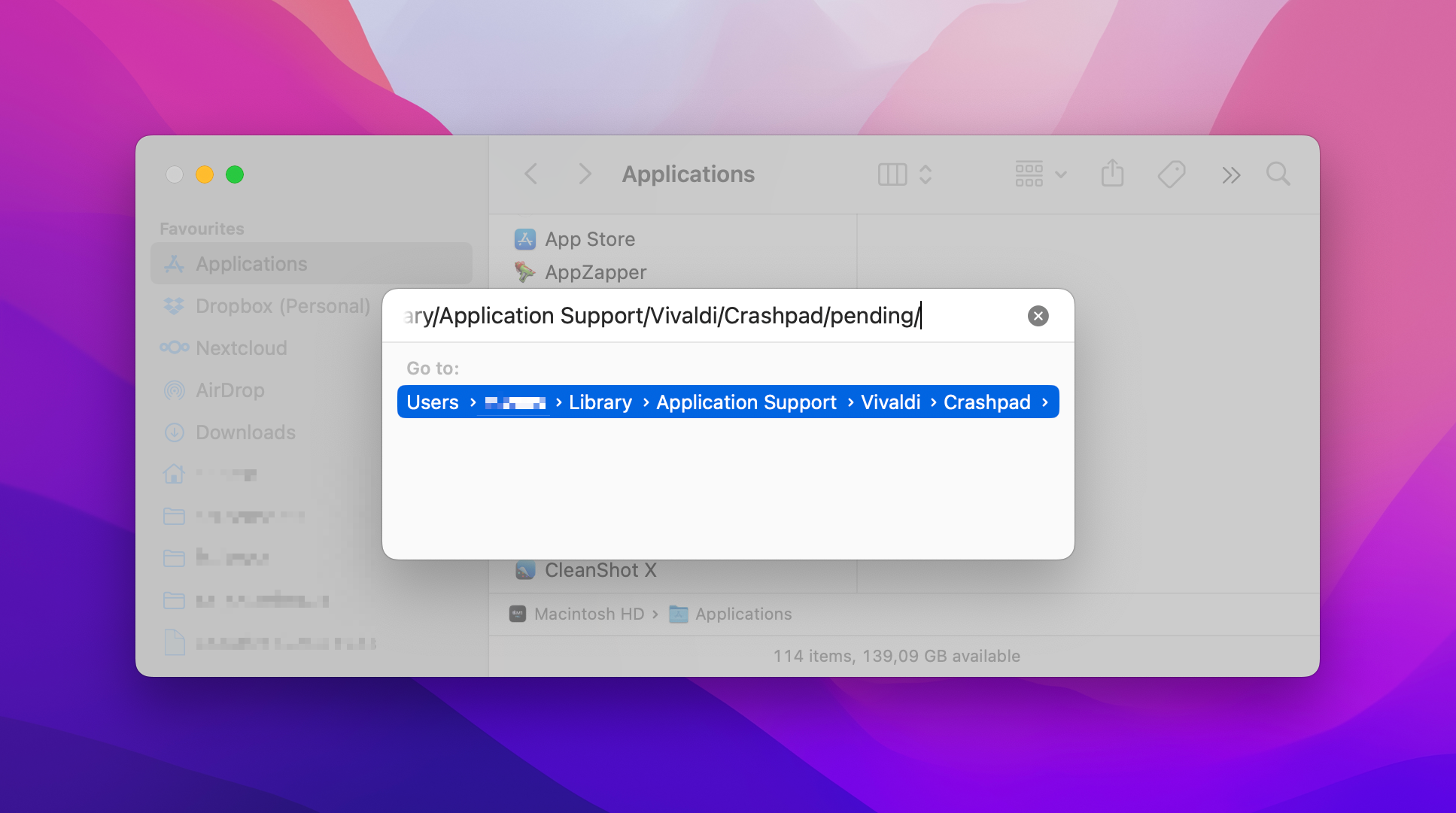
To locate your crash log files open Finder and use the menu “Go → Go to folder” or the keyboard shortcut “⇧⌘G” and then paste this line:
~/Library/Application Support/Vivaldi/Crashpad
Here you will find all your crash log files (.dmp) under the pending or completed sub folders. Sort the folder contents by date and only send the very most recent one(s) because they can only be processed if we know exactly which version of Vivaldi they are from. To save space you might want to compress them and send them inside a zip archive.
Alternatively, you can do the following:
Launch the “Terminal” application—open “Spotlight”, type: Terminal
Copy and Paste the following text into the Terminal window and press “Enter”—triple click to select find ~/Library/Application\ Support/Vivaldi/Crashpad -newer /Applications/Vivaldi.app -name \*.dmp | zip -j ~/Documents/Vivaldi\ Crash\ Logs\ $(date '+%Y%m%d-%H%M') -@
Now open your “Documents” directory or type the following into “Terminal” open ~/Documents/
You will find a dated “Vivaldi Crash Logs” zip file that you can attach to your bug report
Then, go to vivaldi.com/bugreport and fill out the form with details about the crash and attach the crash log file to the report.
Vivaldi browser’s Address Bar is home to a lot more than just the URL field and basic navigation buttons. Continue reading to get to know all the available options that help you navigate the web.
What’s on the Address Bar?
History back and forward
Click on the arrow pointing left to return to the previous page and on the arrow pointing right to revisit a page you have returned from.
“Long-click” or right-click on either of the history navigation buttons to bring up the sub-menu, then Shift or Ctrl + click or middle mouse button click on an entry to open it in a new tab.
After typing a search term or a URL press Enter or click on the button in front of the Address Field to open the search results or link. Press Alt+Enter to open the link or search results in a new tab.
The URL’s base domain (eTLD+1) is highlighted and the rest lowlighted to help recognise which company controls the domain and prevents scams and phishing attacks.
Enable/disable searching in the address field in Settings > Search.
To enable/disable auto-complete go to Settings > Address Bar > Address Auto-Complete and tick the box. You can give auto-complete priority to Bookmarks, by ticking the box Always Prefer Bookmarks.
When there’s not enough space to show the full domain name, a warning icon will be shown. Make sure you trust the website before submitting any data on the page.

Start dragging from the Site Info button to your desktop or file folder, to create a webpage shortcut.
Permissions
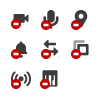
When a website wants access, for example, to your location or camera, the button with options to allow or block access can be accessed from the right side of the Address Field.
View recently used search terms and typed links. During a search, the drop-down will show related results from Frequently Visited Pages, Typed History, Bookmarks, and History. Availability and displayed categories can be changed in Settings > Address Bar > Address Field Drop-Down Menu.
Search field
Click on the magnifying glass to switch the search engine. Click on the arrow on the right to view search history.
Reading List allows you to add web pages to a list to keep for later. It prevents endless tabs from accumulating on your Tab Bar and Bookmarks being filled with entries you only need once.
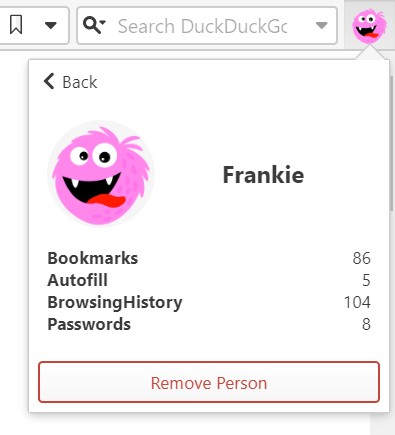
Place to access and manage your User Profiles and Guest Profile. When you’re logged in to Sync, your Vivaldi account‘s avatar will be displayed on the Address Bar instead of the user profile avatar.
Vivaldi has countless features which make the use of many extensions redundant. But there are still a ton of extensions which can take browsing to another level.
You can decide whether to display the Address Bar at the top or bottom of the browser window. Make the choice in Settings > Address Bar > Address Bar Position.
Show / Hide Address Bar
To toggle the visibility of the Address Bar, either:
Go to Settings > Address Bar and (un)tick the box Show Address Bar;
When the Address Bar is hidden, use the Keyboard ShortcutCtrl+L/⌘ L to focus on the Address Field and other shortcuts to execute commands usually completed by clicking on buttons on the Address Bar.
Customise the Address Bar
All components on the Address Bar can be removed by right-clicking on the button > Customise > Remove From Toolbar. To remove the Address or Search Field, open the Toolbar Editor and drag the field off the Address Bar.
To reset the changes right-click on a button > Customise > Reset Toolbar to Default. In case you’ve removed all of the buttons, go to Settings > Appearance > Window Appearance > Toolbar Customisation > Reset Address Bar.
To change the order of the buttons. Hold down the Ctrl / ⌘ key and drag and drop the button to it’s new location.
You can also bring buttons from the Status Bar to the Address Bar and vice versa, move buttons from the Address Bar to the Status Bar. To do that, hold down the Ctrl / ⌘key and drag and drop them from one bar to another.
Learn more about customizing the browser’s toolbars on the Help page about Editing Toolbars.
When reporting a media issue on macOS, in addition to describing what is happening and where, we need more information to be able to follow up with it.
Please visit the following pages:
GPU: vivaldi://gpu
Media: vivaldi://media-internals
On both pages, click on Copy to Clipboard and paste the content to the bug report.
Furthermore, please visit the following links and tell us which options are selected for the selected flags:
The Pop-out Video feature, also known as Picture-in-picture (PiP), allows you to display HTML5 videos in a floating window so that you can continue watching the video while scrolling down a page or changing tabs.
To use this feature:
Hover the mouse cursor over the video;
Click on the pop-out video button that appears at the top edge of the video.
Alternatively, right-click on the video and select Picture-in-picture from the context menu. For certain sites, like Youtube, this is not yet possible via their custom context menu. In that case, double right-click to reveal the context menu with the Picture-in-picture option.
The popped-out video includes controls for:
pausing the video;
returning to the main window;
changing the video’s volume;
moving to the next/previous video (when playing a video from a playlist);
skipping ahead or going back in the video timeline by either:
clicking on the progress bar, or
using the left and right arrow keys while the pop-out video is in focus;
for closing the pop-out.
Disable Pop-out Video button
Pop-out Video button is enabled by default. If you won’t be using the feature:
Access Keys are a way to access key functionality of a web page through keyboard shortcuts. Each website can define these shortcuts, so that the website is easily accessible from a browser.
To view the available shortcuts, either:
Open Quick Commands and start typing “Show Webpage Access Key Shortcuts”;
You do not need to do this. After downloading a Linux package and installing it our Linux update repositories will be configured automatically for you to receive updates.
Installing Vivaldi via the terminal
After downloading a suitable package for your distro, you can use the following commands (from the directory where you saved Vivaldi) to install one of our Linux packages directly from the terminal [where ‘vivaldi*‘ equals the name of the Vivaldi install package].
The preventing of gpg checks is only needed for the initial install, after which Vivaldi will add its public gpg keys and configure an appropriate repository for updates automatically.